Look, Borderlands 4 is an absolute blast. The gunplay feels incredible, the loot grind is as addictive as ever, and Kairos is genuinely one of the most visually stunning locations in the franchise. But let’s not sugarcoat it—the game launched with some serious technical hiccups that are putting a damper on what should be a smooth looter-shooter experience.
I’ve been deep in the trenches, both on PC and console, and I’ve encountered pretty much every frustrating performance issue you can imagine. Frame drops during crucial boss fights, shader compilation stutters, and memory leaks that turn your smooth 60fps into a slideshow after a few hours of play. Sound familiar?
The good news? Gearbox Software is aware of these problems and actively working on solutions. CEO Randy Pitchford has been pretty responsive on social media about addressing player concerns. But while we wait for those official patches, there are some workarounds that can help—and some issues that desperately need priority attention.
Let’s break down the five most critical performance problems plaguing Borderlands 4 right now, and what you can do about them while we wait for permanent fixes.
1. Console Memory Leaks Are Killing Long Gaming Sessions
The Problem:
PlayStation 5 and Xbox Series X|S players are experiencing a frustrating phenomenon—the game starts beautifully smooth, but after a few hours of play, performance gradually tanks. Frame drops become noticeable, lag creeps in, and what was once buttery smooth gameplay turns into a stuttering mess.
This is a classic memory leak issue. Essentially, Borderlands 4 isn’t properly managing memory during extended play sessions, causing the game to consume more and more system resources until performance becomes unbearable.
Temporary Workarounds:
- Restart your console completely before each play session—not just the game, but a full system reboot
- Try playing in Local Mode instead of online—some players report this helps stabilize performance
- Close the game every 2-3 hours and restart it to clear the memory
My experience: I noticed this hard during a weekend marathon session. Everything was perfect for the first two hours, then I started getting noticeable frame drops during combat. After closing the game and restarting my PS5, it was back to smooth sailing. Annoying? Absolutely. But at least there’s a workaround.
Randy Pitchford himself acknowledged this issue on X (formerly Twitter), suggesting console restarts as a temporary fix. That’s reassuring that it’s on their radar, but we really need an official patch to handle memory management properly. Nobody should have to interrupt their endgame farming sessions just because the game can’t manage its resources.
What Gearbox needs to do: Implement proper memory cleanup during gameplay, not just on game restart. Other live-service games have solved this—Borderlands 4 can too.
2. Volumetric Settings Can’t Be Disabled (Only Lowered)
The Problem:
Kairos looks gorgeous. The volumetric fog rolling through Fadefields, the atmospheric lighting in the Auger Mines—it’s all visually stunning. But for players on minimum spec PCs or older hardware, these graphical flourishes are performance killers.
The frustrating part? You can’t actually turn off volumetric settings like Volumetric Fog and Volumetric Clouds. The lowest option is “Low,” which still demands significant GPU resources. For comparison, most modern PC games let you disable these effects entirely for maximum performance.
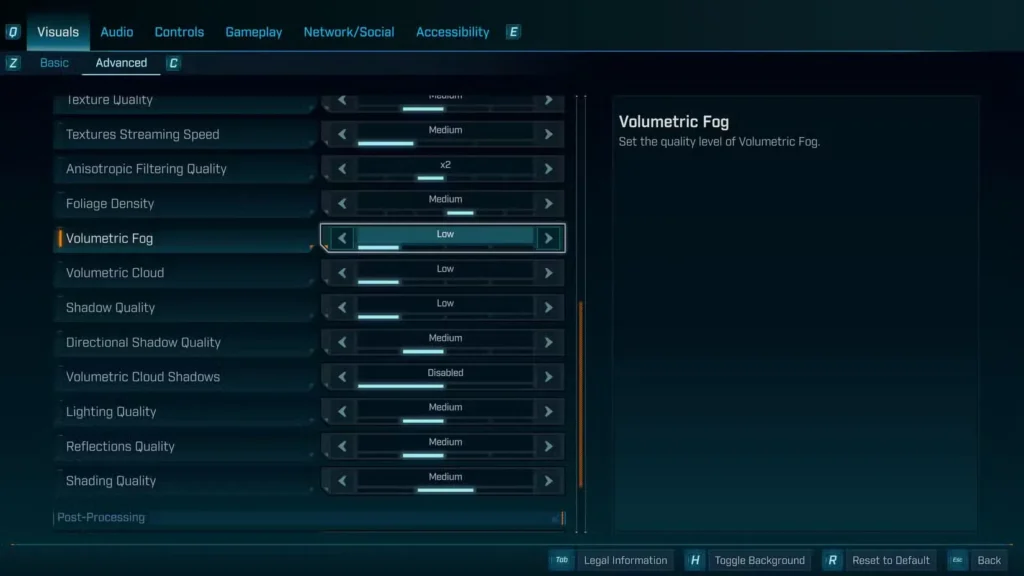
Settings that need “Off” options:
- Volumetric Fog – Major GPU hog in outdoor areas
- Volumetric Clouds – Impacts performance in open zones
- Shadow Quality – Can be lowered but eats resources
- Foliage Density – Particularly rough in heavily vegetated areas
Temporary Workarounds:
- Disable Volumetric Cloud Shadows in settings—you CAN turn this specific one off
- Set all volumetric options to Low (obviously)
- Lower Shadow Quality to Medium or Low
- Check our PC optimization guide for complete settings recommendations
Real talk: I get that Gearbox wants players to experience their beautiful world, but accessibility matters more than visual fidelity. Players who meet minimum requirements should be able to achieve stable framerates, even if it means sacrificing some eye candy.
What Gearbox needs to do: Add “Off” options for all volumetric effects. Let players decide between beauty and performance. It’s that simple.
3. Frame Generation Feels Like a Required Crutch (And Not Everyone Can Use It)
The Problem:
NVIDIA’s Frame Generation technology is genuinely impressive—it can essentially double your framerate by generating intermediate frames between existing ones. Sounds great, right? The problem is that Borderlands 4 feels almost dependent on it for smooth performance, and not everyone can access it.
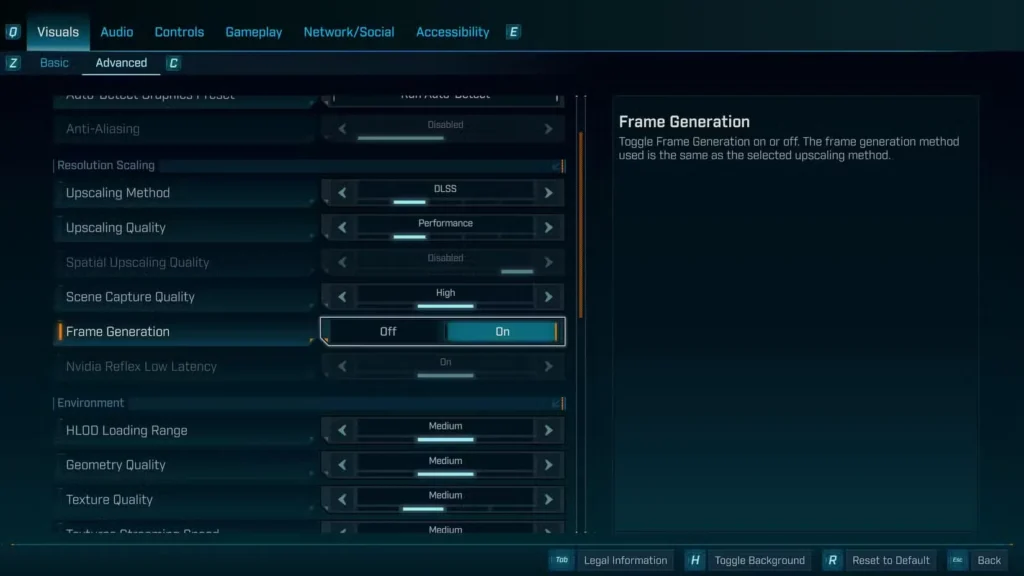
Frame Gen requires specific hardware (RTX 40 series cards) or specific Windows settings enabled (Hardware-accelerated GPU Scheduling). Players with older cards or those who haven’t enabled certain Windows features find the Frame Gen option greyed out in their settings.
The bigger issue? The base game optimization shouldn’t rely so heavily on cutting-edge NVIDIA tech. Frame Gen should be a bonus for high-end systems, not a requirement for acceptable performance.
Temporary Workarounds:
- Enable Hardware-accelerated GPU Scheduling in Windows 10/11 Graphics Settings
- Update to the latest NVIDIA drivers
- Check our Frame Generation enable guide for complete instructions
- Use DLSS Quality mode if Frame Gen isn’t available—it helps but isn’t as effective
My hot take: I have an RTX 4070, so Frame Gen works beautifully for me. But I’ve talked to friends running RTX 3080s who are struggling, and that’s a problem. A 3080 is still a beast of a card—Borderlands 4 should run smoothly on it without requiring experimental frame-doubling tech.
What Gearbox needs to do: Optimize the base game so Frame Gen is optional, not essential. Players with upper-mid-range hardware shouldn’t be struggling.
4. Shader Cache Size Resets Every Launch
The Problem:
Here’s a technical one that drives PC players absolutely insane: the “Compiling Shaders” screen. You see it when you boot up the game, and you see it again every time you fast travel. Why? Because Borderlands 4 doesn’t properly allocate shader cache size, and it seems to reset this allocation every time you launch the game.
Shaders are pre-compiled visual instructions that help render the game quickly. When the game doesn’t allocate enough space for them, it has to recompile constantly, causing those annoying loading stutters and hitches.
Symptoms you’re experiencing this:
- Stuttering during fast travel
- Frame drops when entering new areas
- “Compiling Shaders” appearing frequently
- Inconsistent performance despite good hardware
Temporary Workarounds:
- Open NVIDIA Control Panel → Manage 3D Settings → Shader Cache Size
- Change shader cache to 100 GB (yes, really)
- Restart the game after making this change
- Set the change to apply globally, not just for Borderlands 4
Trust me on this: This single change made a world of difference for my gameplay experience. The shader compilation stutters went from constant annoyances to rare occurrences. I went from dreading fast travel to barely noticing load times.
The catch? You shouldn’t have to manually configure this in NVIDIA Control Panel. The game should handle shader cache allocation automatically and remember it between sessions.
What Gearbox needs to do: Implement automatic shader cache management that persists between game launches. Let the game intelligently allocate what it needs.
5. Console FOV Sliders Are MIA
The Problem:
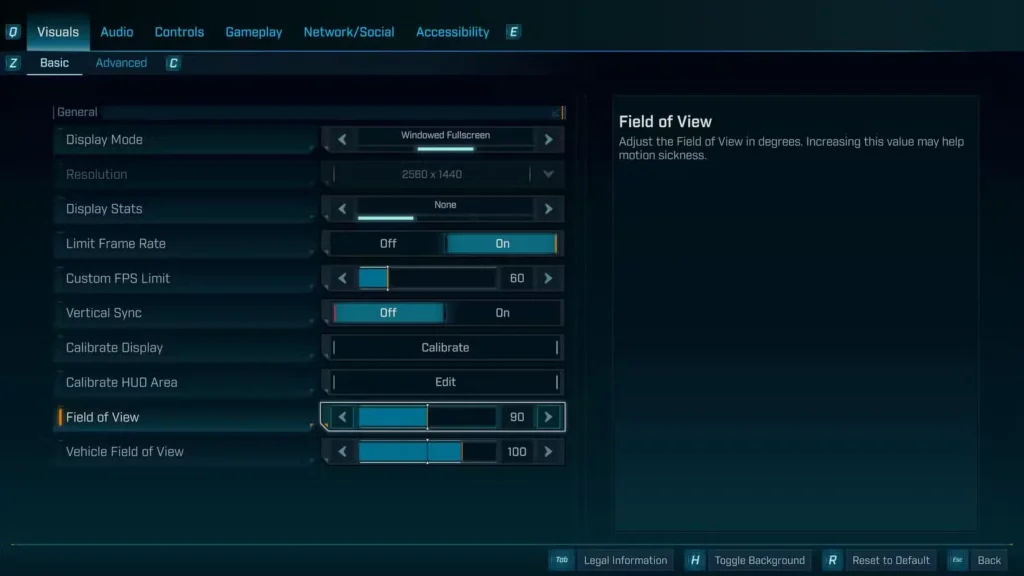
Field of View (FOV) sliders should be standard in every first-person shooter in 2025. Period. They help prevent motion sickness, improve situational awareness, and let players customize their viewing experience. PC players have had FOV sliders since launch, but console players? Left out in the cold.
This is especially frustrating because Borderlands is a fast-paced, movement-heavy game. The default console FOV can feel claustrophobic and actually trigger motion sickness in some players. For a franchise built on accessibility and fun, this is a glaring oversight.
Why this matters:
- Motion sickness prevention – Lower FOV can trigger nausea in some players
- Better situational awareness – Higher FOV lets you see flanking enemies
- Personal preference – Everyone’s comfort zone is different
- Competitive parity – PC players have an advantage with customizable FOV
Temporary Workarounds:
Unfortunately, there aren’t any. Console players are stuck with the default FOV until Gearbox patches it in.
The good news: Randy Pitchford confirmed on social media that Gearbox is actively working on bringing FOV sliders to consoles. No timeline yet, but it’s officially in development.
What Gearbox needs to do: Release the console FOV slider update ASAP. This should have been a day-one feature, but better late than never.
For more on essential beginner settings, check our complete new player guide.
Performance Optimization Quick Tips While We Wait
While Gearbox works on official fixes, here are some universal tips to improve performance across all platforms:
For Console Players:
- Restart your console before long gaming sessions
- Close the game completely every 2-3 hours
- Try playing in Local Mode if online performance is poor
- Enable Performance Mode if your TV/monitor supports it
- Check our console optimization guide for more tips
For PC Players:
- Set shader cache size to 100 GB in NVIDIA Control Panel
- Disable Volumetric Cloud Shadows
- Enable Hardware-accelerated GPU Scheduling in Windows
- Update GPU drivers to the latest version
- Consider DLSS Quality mode for balanced performance
- Lower foliage density and shadow quality if struggling
For Everyone:
- Don’t play on difficulties beyond your performance capability
- Avoid vehicle usage during performance issues—they tax the engine heavily
- Fast travel sparingly if shader compilation is causing stutters
- Monitor your system temperatures—thermal throttling exacerbates issues
What About Crossplay Performance?
Interestingly, some players report better performance in solo play versus crossplay sessions. If you’re experiencing particularly bad performance during co-op, try a solo session to see if the issue improves. Network connectivity can compound performance problems, creating a perfect storm of lag and frame drops.
The Bottom Line
Borderlands 4 is an fantastic game hampered by fixable technical issues. Gearbox has a solid track record of post-launch support, and they’re clearly listening to community feedback. Randy Pitchford’s direct engagement on social media is encouraging—these problems are acknowledged and being addressed.
Most urgent fixes needed (in priority order):
- Console memory leaks – Breaks long play sessions
- Console FOV sliders – Already in development, just needs release
- Shader cache management – Easy fix with big impact
- Volumetric setting toggles – Simple UI addition
- Base optimization improvements – Reduce Frame Gen dependency
The temporary workarounds I’ve shared will help, but they’re band-aids. We need proper patches. The good news? Most of these are software issues that can be resolved with updates. It’s not like we’re asking for hardware miracles—these are realistic, achievable fixes.
Until then, keep grinding those Legendary drops, farm your Golden Keys, and work those temporary fixes. Kairos is worth exploring, even with the technical hiccups.
Stay tuned to the official Borderlands 4 site for patch notes and updates. And if you’re still having trouble, our complete troubleshooting guide covers even more optimization strategies.
Have you encountered these issues? What workarounds have worked for you? Drop a comment below and let’s help each other out while we wait for official fixes!
Official Borderlands 4 Resources
- Official Game Page: borderlands.2k.com/borderlands-4
- Steam Store: Borderlands 4 on Steam
- PlayStation Store: Borderlands 4 on PlayStation