Why Players Are Switching to Legacy HUD
Let’s be honest – modern COD HUDs can feel busy. Between damage numbers, health bars, minimaps, scorestreak widgets, mission trackers, and medal notifications, your screen sometimes looks more like a fighter jet cockpit than a zombie survival game.
If you grew up playing classic Call of Duty Zombies, you probably remember when the HUD was simple: your points, your ammo, your perks, and the round number. That’s it. No clutter, no distractions – just you versus the undead horde.
Good news: Black Ops 7 heard the community loud and clear. The game includes extensive HUD customization options that let you strip away the modern elements and recreate that nostalgic, minimalist aesthetic from the golden era of Zombies.
Here’s your complete guide to building the perfect legacy HUD setup.
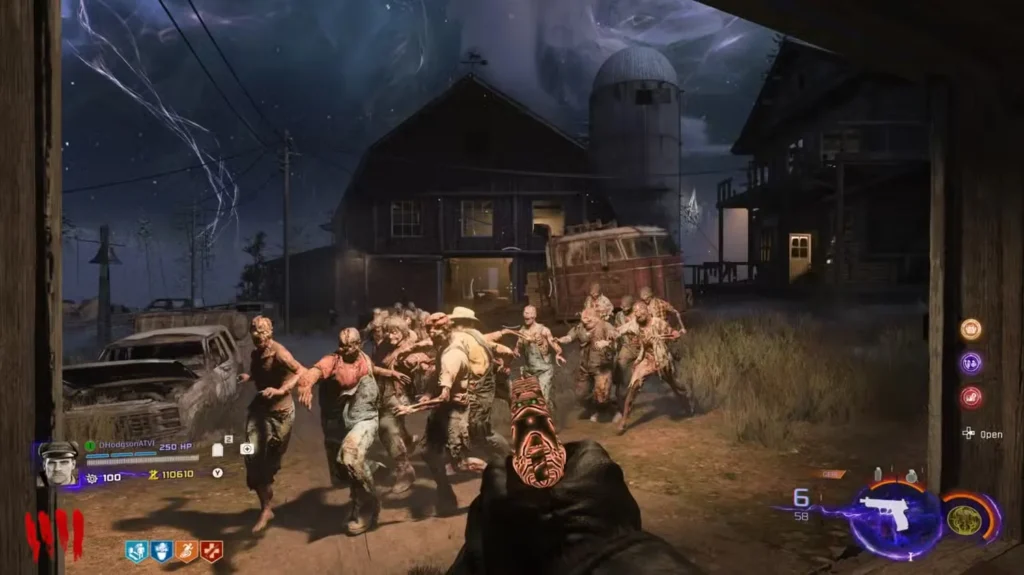
The Foundation: Aetherium Theme + Classic Layout
Before diving into the granular settings, you need to establish your visual foundation with the right theme and layout preset. Think of this as setting your canvas before painting.
Step 1: Apply the Aetherium Theme
The Aetherium theme gives your HUD that classic purple-tinted, otherworldly aesthetic that veteran Zombies players will instantly recognize.
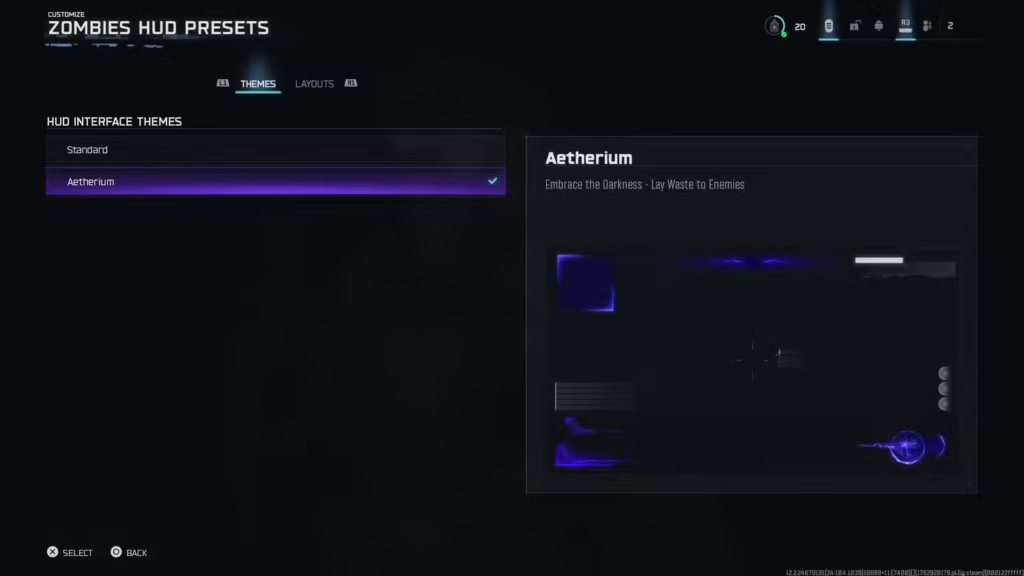
Navigation path:
- Open Career
- Select Customize
- Go to Zombies HUD Presets
- Choose “Aetherium”
This theme immediately transforms your interface colors to match the Dark Aether vibe that defined classic Zombies modes. It’s subtle but makes a huge difference in capturing that nostalgic feel.
Step 2: Switch to Classic Layout
Next, you’ll change the actual positioning and structure of HUD elements to mirror older games.
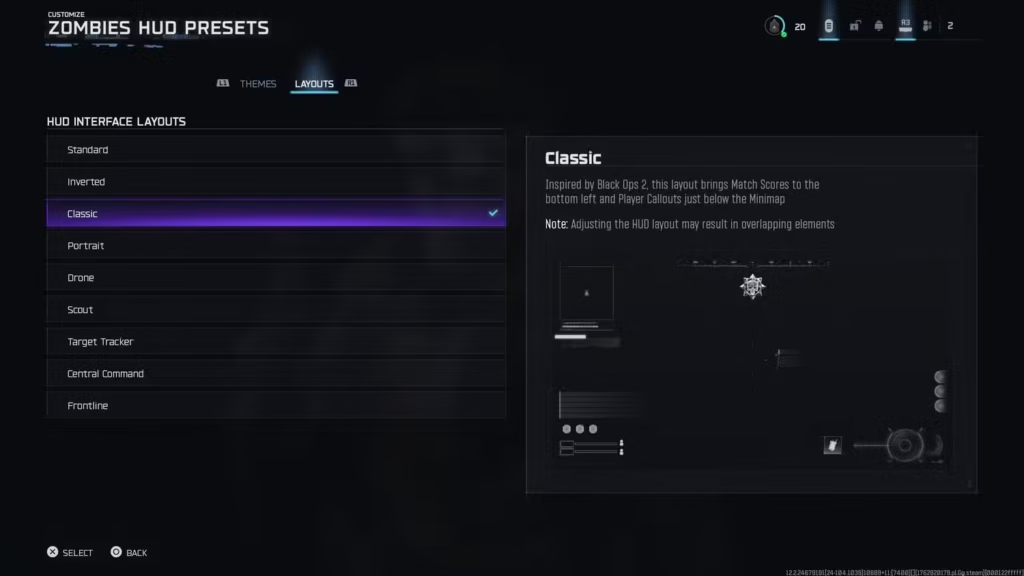
Navigation path:
- Open Career
- Select Customize
- Go to Zombies HUD Presets
- Choose “Classic Layout”
This preset repositions key elements like the round counter and perk icons to their traditional locations. If you’ve played previous Black Ops Zombies, this layout will feel like coming home.
Quick note: These two steps alone will give you a noticeably cleaner interface. But if you want the true legacy experience, you need to dig into the detailed settings.
The Deep Dive: Customizing Individual HUD Elements
Now comes the fun part – systematically turning off all the modern clutter that didn’t exist in classic Zombies. This is where you transform a “cleaner” HUD into a truly authentic legacy experience.
Accessing the HUD Settings Menu
Navigation path:
- Open Settings
- Select Interface
- Enter Gameplay HUD Menu
You’ll see two main categories we need to configure: HUD Widget Visibility and HUD Info Visibility. Let’s break down each one.
HUD Widget Visibility Settings (The Core Elements)
Toggle HUD Widget Visibility to ON, then enter the submenu. Here’s what to enable and disable:
✅ Keep These ON:
Loadout Information: ON
- You need to see your equipped weapons and equipment
- Classic Zombies always displayed your current loadout
GobbleGums: ON
- Essential for tracking your active GobbleGum effects
- Part of the modern Zombies identity worth keeping
Squad Widget: ON
- Shows teammate status and locations
- Helpful for coordination without cluttering the screen excessively
Round Numbers: ON
- This is arguably THE most iconic Zombies HUD element
- Seeing “Round 30” pop up gives you that classic sense of progression
Perks: ON
- Your perk icons are fundamental to Zombies
- Classic games always displayed your acquired perks prominently
- Need to know which perk augments you’re running
❌ Turn These OFF:
Minimap Visibility: OFF
- Old-school Zombies never had minimaps
- Forces you to learn map layouts organically
- Increases immersion and tension
Compass: OFF
- Another modern addition that didn’t exist in classic Zombies
- You navigated by landmarks and memory, not cardinal directions
Scorestreak Widget: OFF
- While scorestreaks exist in BO7 Zombies, the constant widget reminder is modern clutter
- You’ll still know when you have one available
Mission Tracker: OFF
- Objective markers and trackers weren’t a thing in original Zombies
- Discovery and exploration were organic, not checklist-driven
Why these changes matter: By removing these elements, you’re eliminating the “hand-holding” aspects of modern game design. Classic Zombies trusted you to figure things out. That sense of discovery and spatial awareness was part of the appeal.
HUD Info Visibility Settings (Information Overload Control)
Toggle HUD Info Visibility to ON, then enter the submenu. Time to strip away the notification spam:
Configure These Settings:
Player Names: Full Name
- Shows complete player names instead of abbreviated versions
- Helpful for squad coordination
Player & Streak Toasts: OFF
- Those pop-up notifications when someone earns a scorestreak? Gone.
- Reduces visual noise significantly
Medals and Notifications: OFF
- This is a big one for immersion
- Classic Zombies didn’t celebrate every double kill with a medal
- You were playing for survival, not achievement hunting
Score Feed: OFF
- Removes the running tally of points gained from kills
- You’ll still see your total points (the important number)
- Less distraction during intense moments
Elimination Feed: OFF
- Who killed what, when, and how? Classic Zombies didn’t tell you
- Keeps your focus on your own survival
Elimination ID: OFF
- Similar to above – less kill confirmation clutter
In-Game Text Chat: ON
- Keep this enabled for communication with your squad
- Essential for coordinating strategies or calling for help
Additional Critical Settings:
Zombie Healthbar: OFF
- Possibly the most “modern game design” element of current Zombies
- Classic games never showed enemy health
- You learned through experience how many shots each zombie type required
Zombie Damage Numbers: OFF
- Those floating damage indicators? Modern convenience.
- Classic players learned weapon effectiveness through feel and practice
- Removes significant visual clutter during hordes
Why this matters: These information layers might seem helpful, but they fundamentally change how you engage with the game. Without constant feedback, you develop better game sense and situational awareness.
The Legacy HUD Experience: What Changes?
Once you’ve applied all these settings, your Black Ops 7 Zombies experience transforms dramatically:
Visual Changes You’ll Notice Immediately:
Cleaner screen space – Your peripheral vision isn’t constantly processing information widgets. The actual game world becomes more prominent.
Strategic positioning – Round numbers and perks occupy their classic screen positions, matching muscle memory from years of previous games.
Simplified feedback loops – You know you got the kill because the zombie dropped. No floating numbers or elaborate kill confirmations needed.
Immersive atmosphere – Without constant UI interruptions, the tension and horror elements land more effectively. Those zombie groans and ambient sounds become more noticeable.
Gameplay Adjustments You’ll Need to Make:
Map awareness becomes crucial – Without a minimap, you need to actually learn map layouts and Pack-a-Punch locations through exploration.
Weapon feel over numbers – You’ll develop intuition for when zombies are “weak enough” for melee rather than relying on health bars.
Communication matters more – Without all the automated information, actually talking to your squad about threats and positions becomes essential.
Perk management – Pay attention to which perks you’ve picked up since you won’t have constant reminders beyond your perk icons.
Tips for Adapting to Legacy HUD
Making this switch can be jarring if you’re used to modern UI conveniences. Here’s how to make the transition smoother:
Give It Time
Don’t judge the setup after one match. Play 3-5 rounds to let your brain adjust. The first game will feel weird; the fifth game will feel natural.
Start on Familiar Maps
If you’re relearning spatial awareness without a minimap, do it on maps you already know. Ashes of the Damned is perfect since you’ve probably already run it dozens of times.
Adjust Individual Elements If Needed
Legacy doesn’t mean “one size fits all.” If you genuinely miss zombie health bars or damage numbers, turn them back on. This is about YOUR preference, not arbitrary purity.
Pair With Performance Optimization
A clean HUD looks even better when the game runs smoothly. Check out the best settings guide to optimize performance, and fix any packet burst or stuttering issues that might interfere with your experience.
Remember Your Build
Without constant widgets reminding you, keep mental notes of:
- Which field upgrade augments you’re running
- Your current ammo mod augments
- Whether you’ve unlocked augments through research
When Legacy HUD Makes the Most Sense
This setup isn’t for everyone, and that’s okay. Here’s when it really shines:
Best Use Cases:
Nostalgia runs – Playing with friends who remember the “glory days” and want to recreate that experience
High-round attempts – Less visual clutter means better focus during marathon sessions pushing for Round 50+
Content creation – Streamers often prefer cleaner HUDs for viewer experience
Immersive playthroughs – When you want to focus on atmosphere and tension rather than optimization
Personal challenge runs – Removing safety nets like health bars adds difficulty
When to Stick With Modern HUD:
Learning the game – New players benefit from all the information and guidance
Speedrunning – Precise information helps optimize time
Competitive grinding – Prestige progression and level unlocks benefit from tracking everything
Playing with randoms – Public matches work better with more information for coordination
The “Semi-Legacy” Compromise
Not ready to go full old-school but still want a cleaner experience? Try this middle-ground approach:
Keep ON:
- Zombie damage numbers (helpful for weapon evaluation)
- Minimap visibility (reduced size if possible)
- Mission tracker (for Easter egg hunts)
Turn OFF:
- Medals and notifications (biggest clutter culprit)
- Score feed (redundant information)
- Player toasts (unnecessary announcements)
This gives you a significantly cleaner interface while maintaining quality-of-life features that genuinely improve gameplay.
Quick Settings Checklist
For easy reference, here’s your complete legacy HUD configuration checklist:
Theme & Layout:
- ✅ Aetherium Theme selected
- ✅ Classic Layout selected
HUD Widget Visibility (ON):
- ✅ Loadout Information: ON
- ✅ GobbleGums: ON
- ✅ Squad Widget: ON
- ✅ Round Numbers: ON
- ✅ Perks: ON
- ❌ Minimap Visibility: OFF
- ❌ Compass: OFF
- ❌ Scorestreak Widget: OFF
- ❌ Mission Tracker: OFF
HUD Info Visibility:
- ✅ Player Names: Full Name
- ✅ In-Game Text Chat: ON
- ❌ Player & Streak Toasts: OFF
- ❌ Medals and Notifications: OFF
- ❌ Score Feed: OFF
- ❌ Elimination Feed: OFF
- ❌ Elimination ID: OFF
Additional Settings:
- ❌ Zombie Healthbar: OFF
- ❌ Zombie Damage Numbers: OFF
Copy this list to your notes app if you ever need to reconfigure after a settings reset.
Rediscovering the Magic
There’s something genuinely special about stripping away the modern game design layers and experiencing Zombies the way it was originally conceived. The simplicity forces you to engage with the game differently – more intuitively, more spatially aware, more immersed in the moment.
Will it make you a better player? Not necessarily. But it might make you appreciate the game differently.
The beauty of Black Ops 7’s customization is that you’re not locked into any configuration. Experiment with different combinations. Maybe you keep damage numbers but lose the minimap. Maybe you prefer modern widgets but want the classic theme and layout.
The perfect HUD is the one that makes YOU perform best and enjoy the game most. Legacy configuration is just one option in a spectrum of possibilities.
If you’re spending a Permanent Unlock Token on Zombies gear or pushing for those high-round extractions, having a HUD you’re comfortable with makes all the difference.
Give the legacy setup a shot for a few matches. You might discover that sometimes, less really is more.
Have you tried the legacy HUD configuration? Does it bring back memories, or do you prefer the modern information overload? The Zombies community is split on this, and honestly, both approaches have their merits. What matters is finding what works for your playstyle.