Let’s be real — if you’re rocking a budget Android phone with 2–4GB RAM, a Helio G85, or a Snapdragon 600-series chip, the advice most sensitivity guides give you is basically useless. Most of those guides are written for players on a Galaxy S24 or a ROG Phone running 90–120 FPS with buttery-smooth touch response. Those settings, blindly copied onto your phone, will either feel like your crosshair is glued to the screen or jerking all over the place like you sneezed mid-spray.
Here’s the truth: sensitivity settings on a low-end device need to account for lower FPS, slower touch sampling rates, potential input lag, and the fact that your phone’s gyroscope sensor might not be as precise as a flagship. This guide is written specifically for that reality.
The PUBG Mobile Version 4.2 Primewood Genesis update, which launched January 7, 2026, also made small weapon balance changes — the AKM and Mk47 Mutant received damage buffs, and recoil patterns shifted slightly, meaning settings that felt good before may need a small recalibration. We’ve factored all of that in here.
Also Check: PUBG Mobile Lag Fix Android 2026: Stop the Stutter and Get Smooth Frames

Why Sensitivity Feels Different on Low-End Phones
Before getting into numbers, it helps to understand exactly why your phone behaves differently from a flagship when it comes to sensitivity and aiming.
Lower FPS changes how sensitivity “feels.” At 30 FPS, each frame renders every 33 milliseconds. At 60 FPS, it’s 16.7ms — twice as fast. When your phone is running at 25–40 FPS instead of 60, every swipe registers less frequently. If you use the same sensitivity as a 60 FPS player, your crosshair will feel like it’s lurching between frames rather than gliding smoothly. This is why low-end players should generally run sensitivity values 10–15% lower across the board compared to recommended “universal” settings.
Touch sampling rate is slower. Budget phones typically have 60–120Hz touch polling, while flagship phones run 240–300Hz. This means your swipes and drags are registered less frequently per second, making higher sensitivity feel imprecise and jittery.
Gyroscope sensor quality varies. Budget devices often use cheaper gyroscope chips with less accurate readings. Running the same 300–400% gyro values as a pro player on a low-end phone will result in your aim drifting, overshooting, and generally feeling out of control. Stick to 150–250% gyro for budget hardware, as explained below.
Understanding these factors means you won’t just copy settings — you’ll understand why certain values work for your device specifically.
The Three Sensitivity Systems Explained
PUBG Mobile’s sensitivity is split into three categories, and each one does something different. You need all three dialed in, not just one.
Camera Sensitivity controls how fast your view rotates when you’re just looking around — not aiming or shooting. Think of it as your overall scanning speed. Higher values let you spin around faster to check flanks, but too high makes it hard to aim precisely when you first scope in.
ADS Sensitivity (Aim Down Sights) is what controls your aim while you’re actively firing through a scope. This is your recoil control. The inverse zoom rule is crucial here: the higher the magnification, the lower this needs to be. A tiny movement on a 6x scope at 200m moves your crosshair enormously — so you need much lower ADS sensitivity at high magnifications than at close range.
Gyroscope Sensitivity activates when you tilt your phone physically, letting you make micro-adjustments to your aim by tilting your wrist. On a low-end phone, this is genuinely useful but needs to be calibrated conservatively.
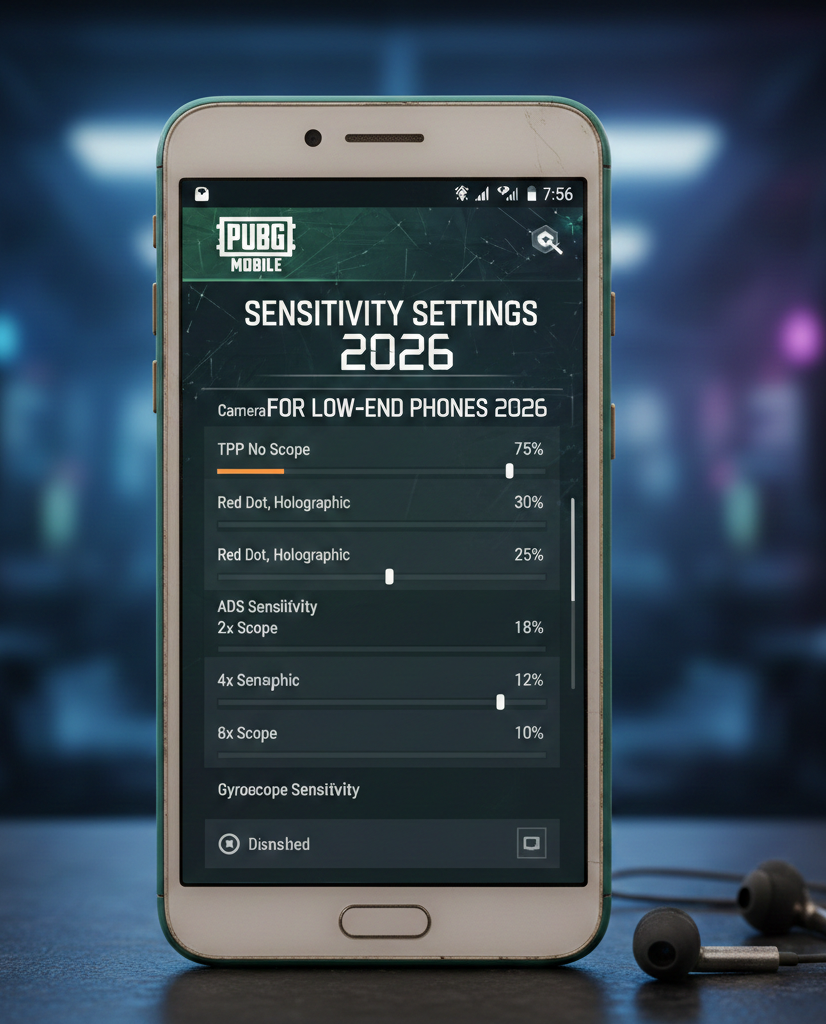
Best PUBG Mobile Sensitivity Settings for Low-End Devices (2026)
These settings are specifically tuned for devices running 30–60 FPS — phones with 2–4GB RAM, Snapdragon 400–600 series, Helio A-series, Helio G85, or similar budget/mid-range SoCs.
Camera Sensitivity (TPP & FPP)
| Mode | Recommended Range | Sweet Spot |
|---|---|---|
| TPP No Scope | 85–110% | 95% |
| FPP No Scope | 75–95% | 85% |
| Free Look | 100–130% | 115% |
For context, flagship players run TPP at 120–150%. For low-end devices, dropping this to 95% keeps your scanning fluid without causing jitter between frames at 30–40 FPS. Free Look can sit a bit higher since you’re not aiming precisely during it.
ADS Sensitivity (All Scopes)
This cascade structure is the most important thing to get right. Every step up in magnification should mean a step down in ADS sensitivity:
| Scope | Recommended Range | Sweet Spot |
|---|---|---|
| No Scope | 90–110% | 100% |
| Red Dot / Holographic | 45–60% | 50% |
| 2x Scope | 30–40% | 35% |
| 3x Scope | 22–30% | 25% |
| 4x Scope | 17–25% | 20% |
| 6x Scope | 12–18% | 15% |
| 8x Scope | 8–14% | 10% |
The pattern is deliberate. At Red Dot range (close-quarter to 50m), 50% gives you enough speed to track moving targets without losing the spray. At 6x or 8x, you’re making precise taps or micro-corrections — any higher and one tiny flinch sends your crosshair meters off target.
For the AKM, Beryl M762, and other aggressive-recoil 7.62mm rifles, nudge your Red Dot ADS up to 55–60% since you need more pull-down compensation during sprays. For the M416 and SCAR-L, 48–55% is the sweet spot.
Gyroscope Sensitivity (Low-End Specific)
Here’s where low-end settings diverge most sharply from flagship advice. Pro guides will tell you to run 300–400% gyro. On a budget phone with a slower gyro sensor and 30 FPS, that will cause constant overshooting, drift, and jerky aim. Use these values instead:
| Scope | Low-End Range | Sweet Spot |
|---|---|---|
| No Scope | 200–280% | 240% |
| Red Dot / Holographic | 180–260% | 220% |
| 2x Scope | 160–220% | 190% |
| 3x Scope | 120–180% | 150% |
| 4x Scope | 100–150% | 120% |
| 6x Scope | 60–90% | 75% |
| 8x Scope | 40–70% | 55% |
If your phone is hitting 50–60 FPS with the settings from our PUBG Mobile lag fix guide, you can push these up 10–15%. If you’re running 25–35 FPS, stay on the lower end of these ranges.
Gyroscope Mode: For low-end phones, use Scope On rather than Always On. Always On means the gyro fires constantly including while you’re running and looting, which on a laggy device creates unwanted camera drift. Scope On activates it only when you’re aiming, giving you the benefit when it matters without the performance overhead.
Calibrate before every session. Go to Settings → Basic → Gyroscope → Calibrate, and place your phone flat on a stable surface. This resets any sensor drift and takes five seconds. Skipping this, especially on budget hardware, is a silent accuracy killer.
Sensitivity Codes for Low-End Android Devices
PUBG Mobile allows you to import sensitivity configs using codes. These save you from tweaking every single slider manually. Here are the most practical ones for 2026:
Import method: Settings → Sensitivity → Search (magnifying glass icon) → Enter Code → Preview → Use Layout → Confirm.
Always screenshot your current settings before importing anything. If a code doesn’t feel right, you want to be able to revert instantly.
Best Code for 2-Finger Thumb Players (Low-End Friendly): 1-7412-8257-5673-1968-774 This is a conservative setup built for thumb players. It reduces gyro influence and keeps ADS values stable, making it ideal for devices where high sensitivity creates inconsistent touch registration. After importing, check that your Red Dot ADS is around 48–55% and adjust if not.
Balanced Universal Starting Point: 1-7435-8846-3421-0303-0728 This is the most widely used baseline code across the community. It’s not specifically tuned for low-end devices, but after importing, reduce all ADS values by about 10% and drop your gyro values by 20–30% to adapt it for budget hardware. Think of it as a template, not a final answer.
3-Finger Layout Code: 6960-5068-1059-6336-109 If you’ve graduated from two thumbs to a basic three-finger setup, this code works well across mid-range and low-end devices and doesn’t require major adjustments.
Important note: Sensitivity codes have usage limits and can expire or hit capacity. If a code returns an error, use the manual values from the tables above — they’ll get you to the same place.
How FPS Directly Affects Your Sensitivity
This is a genuinely important insight that most guides completely skip over, and it matters a lot for low-end players.
When your phone runs at 60 FPS, the game renders 60 frames per second and registers your touch inputs 60 times per second in sync with those frames. At 30 FPS, it’s only registering 30 times per second. The result is that the same sensitivity value feels faster at lower FPS because each registered input jumps a bigger visual distance between frames.
This is why, if your phone drops from 60 to 35 FPS mid-match during a final circle fight, your aim suddenly feels floaty and imprecise — the sensitivity behavior genuinely changes because of the lower frame registration.
The practical rule: if you’re primarily gaming at 30 FPS, reduce your camera and ADS sensitivity by 10–15% compared to the values you’d use at 60 FPS. If your device achieves a stable 60 FPS after the graphics optimizations in our companion guide, you can gradually push sensitivity back up toward the standard ranges.
For a stable 60 FPS on budget hardware, set graphics to Smooth, disable Shadows and Anti-Aliasing, cap background processes at 3–4 in Developer Options, and keep your phone temperature below 48°C. Getting stable frames is arguably more important than perfect sensitivity numbers, because inconsistent FPS makes any sensitivity feel wrong.
Grip Style Matters: Thumb vs 3-Finger vs Claw on Budget Phones
Your control style should influence your sensitivity choices, and low-end phones have a natural limit on which control styles are practical.
2-Finger Thumb (most common on budget phones) This is the default style — both thumbs control everything. Your thumbs cover a lot of screen territory, which means camera panning and precise aim compete for the same fingers. Run moderate camera sensitivity (90–100%) and lean slightly higher on ADS (50–55% Red Dot) to compensate for the fact that you’ll drag-aim with your thumb rather than using gyro for all corrections. No shame in this — many good players compete well with two thumbs.
3-Finger (good transition for low-end players) Adding a third finger — usually for the fire button — frees up your other thumb to focus more purely on aiming. This allows you to lower ADS slightly (48–52% Red Dot) for better recoil control, since your thumb isn’t splitting duties. Most budget Android phones handle a 3-finger layout without touch input conflicts.
4-Finger Claw (works on capable low-end devices) If your phone can hold 50+ FPS on Smooth settings, a 4-finger layout becomes viable. The higher sensitivity values that come with claw (60–70% Red Dot ADS for some players) are more manageable because your index fingers are doing finer movements than thumbs. But on a genuinely low-end phone at 30 FPS, claw can cause touch ghosting — where the device misregisters multiple simultaneous inputs. Test it first in Training Mode before committing.
Weapon-Specific Tuning Tips
Getting your base sensitivity right is one thing, but knowing which weapons demand adjustments keeps you ahead.
M416 / SCAR-L (5.56mm ARs): The most forgiving rifles for low-end players. The vertical recoil is very predictable — a clean downward pull. With your Red Dot ADS at 48–52%, you can manage full-magazine sprays at 50m after a few training sessions. These weapons benefit most from gyro assist at the 2x/3x scope level.
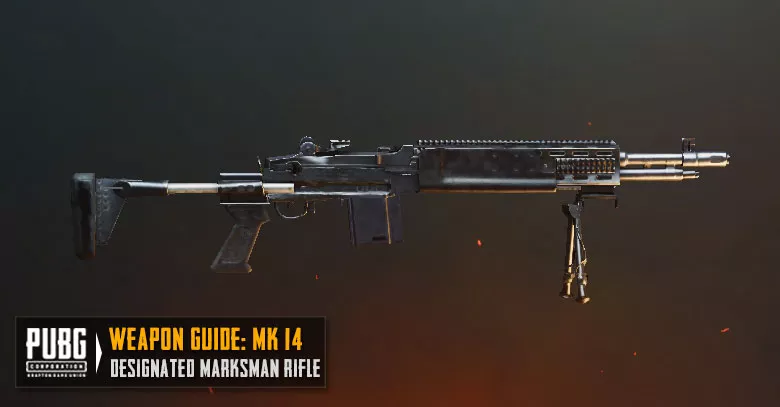
AKM / Mk47 Mutant (7.62mm ARs): These have both vertical and horizontal drift — the AKM in particular kicks right after the first several bullets. If you find your shots spraying right, raise your Red Dot ADS to 55–58% and practice adding a slight left-tilt correction on gyro during sustained fire. The 4.2 update gave both weapons a small damage buff but didn’t change their recoil fundamentally.
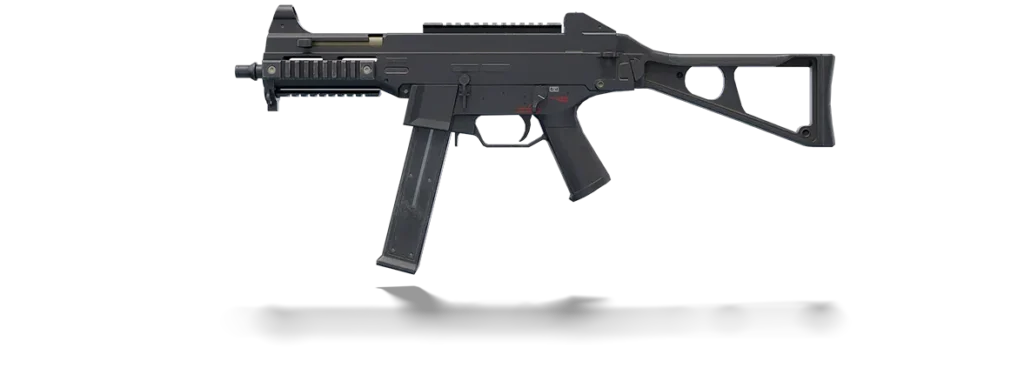
UMP45 / Vector (SMGs): Fast and forgiving at close range, but the high fire rate means even small sensitivity errors become noticeable. Keep ADS at 50–55% for Red Dot and lean into hip-fire drills.
Mini14 / SKS / SLR (DMRs): Use 4x scope heavily. With your 4x ADS at 17–22% and gyro at 100–130% for the 4x, you can land reliable burst shots at 150m+ even on a budget phone. After the v4.1 update in late 2025 buffed DMR stability by 60%, these weapons became much more accessible for low-end players who couldn’t previously handle the recoil.
DP-28: Classic for budget players — low recoil, forgiving spray pattern, and excellent stability. Treat it like a slightly heavier M416 for sensitivity purposes.
Training Routine: How to Actually Lock In These Settings
Sensitivity only becomes yours once muscle memory takes over. Here’s a practical routine you can run in Training Mode — no match time needed.
Step 1 — Wall Spray Test. Stand 25 meters from a wall and fire a full M416 magazine using your new Red Dot ADS settings. Look at where the bullets land. If they climb and drift significantly right, lower ADS sensitivity slightly and add more down-tilt on gyro. If you can barely pull the spray down before it escapes the wall, raise ADS very slightly. Aim for a tight vertical line with minimal horizontal spread.
Step 2 — Scope Transition Check. Quickly switch between Red Dot, 2x, and 4x on a stationary target. The aim should feel natural and not require massive recalibration between scopes. If the 4x feels wildly different from the 2x, your ADS cascade might be too large a jump — narrow the gap slightly.
Step 3 — Moving Target Track. Use the target dummies that walk along the range. Set your Red Dot ADS and practice keeping your crosshair on a moving target for 5 seconds at a time without firing. This builds the camera-to-ADS transition muscle memory.
Step 4 — Benchmark your current settings. Use TDM (Team Deathmatch) for 3–5 matches before moving to ranked. TDM gives you constant respawns and real opponents, letting you see how your sensitivity performs under actual combat stress without ranking points on the line.
The golden rule for adjustments: Make changes in 5% increments only. Never change more than one setting at a time. Give each change a minimum of 10 matches before evaluating. Sensitivity settings take 3–5 days to feel natural, and making constant small changes resets that muscle memory clock every time.
Quick-Reference Cheat Sheet
Screenshot this or write it down before your next session.
Camera Sensitivity (Low-End)
- TPP No Scope: 95%
- FPP No Scope: 85%
- Free Look: 115%
ADS Sensitivity (Low-End)
- No Scope: 100%
- Red Dot / Holographic: 50%
- 2x: 35%
- 3x: 25%
- 4x: 20%
- 6x: 15%
- 8x: 10%
Gyroscope (Low-End, Scope On)
- Red Dot: 220%
- 2x: 190%
- 3x: 150%
- 4x: 120%
- 6x: 75%
- 8x: 55%
Sensitivity Codes (import via Settings → Sensitivity → Search)
- 2-Finger Thumb:
1-7412-8257-5673-1968-774 - Universal Baseline:
1-7435-8846-3421-0303-0728(reduce all values 10% after import) - 3-Finger:
6960-5068-1059-6336-109
Graphics to pair with these settings:
- Graphics: Smooth
- Frame Rate: Highest stable (Extreme/60 FPS for most budget phones)
- Shadows: Off
- Anti-Aliasing: Off
- Auto-Adjust: Off
FAQs: PUBG Mobile Sensitivity for Low-End Devices
Q: Should I use gyroscope on a low-end phone, or is it better to skip it?
Gyroscope is worth using even on budget hardware — you just can’t use the same values as high-end players. Start with “Scope On” mode (not Always On) and use gyro values in the 150–250% range for close-range scopes. Calibrate it on a flat surface before each session. Low-end gyroscope sensors are less precise, so the lower values prevent overshooting and drift without completely removing the benefit of tilt-based micro-corrections. Once your phone hits a stable 50–60 FPS, you can push these values up gradually.
Q: Why does my aim feel totally different after a game update even though I didn’t change any settings?
Updates sometimes alter how weapon recoil patterns are calculated internally, which means the same sensitivity values produce different spray results. The Version 4.2 update (January 2026) adjusted AKM and Mk47 damage and slightly changed their vertical recoil intensity. After any major PUBG Mobile update, always spend 10–15 minutes in Training Mode re-testing your M416 and AKM spray patterns before jumping into ranked. Small 2–5% ADS adjustments after an update are completely normal.
Q: What’s the biggest sensitivity mistake low-end players make?
Copying pro player settings without adjusting for their device. Jonathan Gaming’s 60–70% Red Dot ADS and 300% gyro looks incredible on a ROG Phone at 120 FPS with a 300Hz touch sampling rate. On a Helio G85 at 35 FPS, those same values will make your aim jerk around and feel completely uncontrollable. Your starting point should always be the low-end ranges in this guide, not a settings video from a professional player who’s gaming on hardware that costs five times what your phone did.
Q: How do I know when my sensitivity is actually “good enough” to stop adjusting?
When you’re consistently hitting 70%+ burst accuracy on wall sprays at 50m with the M416, tracking moving targets at Red Dot range for 3–5 seconds without losing them, and scope transitions between Red Dot and 3x feel natural rather than requiring a conscious recalibration — that’s when your settings are in a good place. Stop adjusting and start playing. Muscle memory built on stable, consistent settings over 2–3 weeks will improve your game far more than chasing perfect numbers.
For the latest PUBG Mobile patch notes, server updates, and official performance announcements, visit the official PUBG Mobile news page.