If you’ve been playing Black Ops 7 and suddenly see that dreaded “Packet Burst” icon pop up on your screen while everything freezes, stutters, and turns into a rubberbanding mess—you’re not alone. This has become one of the most frustrating technical issues plaguing players since launch, affecting both Multiplayer and Zombies modes.
The worst part? It’s not always your internet connection’s fault. Many players with high-speed, stable connections are still experiencing packet burst due to how Black Ops 7 handles certain graphics settings and network features. I’ve spent hours testing different solutions, and I’m breaking down exactly what packet burst is, why it happens, and—most importantly—how to fix it.
Let’s get your game running smoothly again.
What is Packet Burst in Black Ops 7?
Before we dive into fixes, let’s understand what’s actually happening when packet burst occurs.
The Technical Explanation:
Packet burst happens when data packets are delivered in clusters rather than being smoothly distributed over time. Think of it like receiving your mail: normally, letters arrive steadily throughout the week. Packet burst is like having no mail for days, then suddenly receiving an entire week’s worth all at once.
In Black Ops 7, these data packets contain information about:
- Player positions and movements
- Weapon fire and damage calculations
- Game state updates
- Environmental changes
How It Affects Gameplay:
When packet burst occurs, you’ll experience:
- Stuttering – Game freezes momentarily, then jumps forward
- Lag – Delayed response to your inputs
- Rubberbanding – Your character teleports backward after moving forward
- Hit registration issues – Bullets not connecting despite accurate aim
- Death behind cover – Getting killed after you’ve already taken cover
The Visual Warning:
Black Ops 7 displays a packet burst icon on your screen when it detects this issue—three orange squares stacked together, usually appearing in the top-left corner. If you see this frequently, your game is experiencing significant packet delivery problems.
Why Packet Burst Happens in Black Ops 7
Unlike previous Call of Duty titles, Black Ops 7 has several new features and settings that can trigger packet burst even with excellent internet connections:
Common Causes:
- On-Demand Texture Streaming – Downloads textures while playing, competing for bandwidth
- High VRAM usage – Leaves no memory buffer for network processes
- Dismemberment effects – Creates sudden data spikes when processing gore
- Shader cache issues – Corrupted cache causes processing delays
- Network congestion – Too many devices on your connection
- Server-side issues – Activision’s servers experiencing problems
The Good News:
Most packet burst issues can be fixed through in-game settings adjustments. You don’t need to upgrade your internet or buy new hardware—these are optimization problems, not hardware limitations.
Fix #1: Set On-Demand Texture Streaming to Minimal
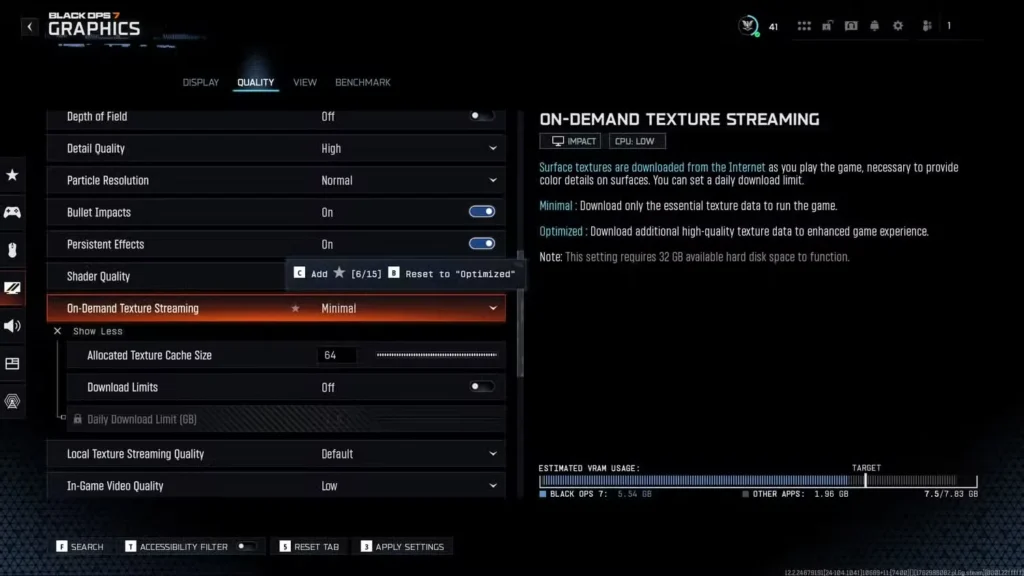
This is the most effective fix for the majority of players experiencing packet burst. On-Demand Texture Streaming is a feature that downloads high-quality textures from the internet while you’re actively playing, and it’s causing massive problems.
Why This Causes Packet Burst:
By default, Black Ops 7 sets this to “Optimized,” which means the game continuously downloads texture data in the background. This competes with your actual gameplay data for bandwidth, creating those awful packet burst clusters when both try to transmit simultaneously.
How to Fix It:
Step 1: Launch Black Ops 7 and open Settings
Step 2: Navigate to Graphics settings
Step 3: Find On-Demand Texture Streaming and change it to Minimal
Step 4: Click Show More underneath On-Demand Texture Streaming
Step 5: Set Allocated Texture Cache Size to 64 GB (or the highest value available based on your hard drive space)
What This Does:
- Minimal reduces background texture downloads to only essential data
- Allocated Texture Cache Size at 64GB stores more textures locally, reducing the need for constant downloads
- You’ll use more hard drive space but significantly reduce network congestion
Important Note: Make sure you have at least 64GB of free space on the drive where Black Ops 7 is installed. The game will store textures there instead of constantly downloading them.
Expected Result: Most players see immediate improvement after this change. Packet burst frequency should drop by 70-80% in most cases.
Fix #2: Lower VRAM Scale Target & Enable Variable Rate Shading
High VRAM usage doesn’t just affect graphics performance—it can actually cause packet burst by leaving no memory buffer for network processing and other system tasks.
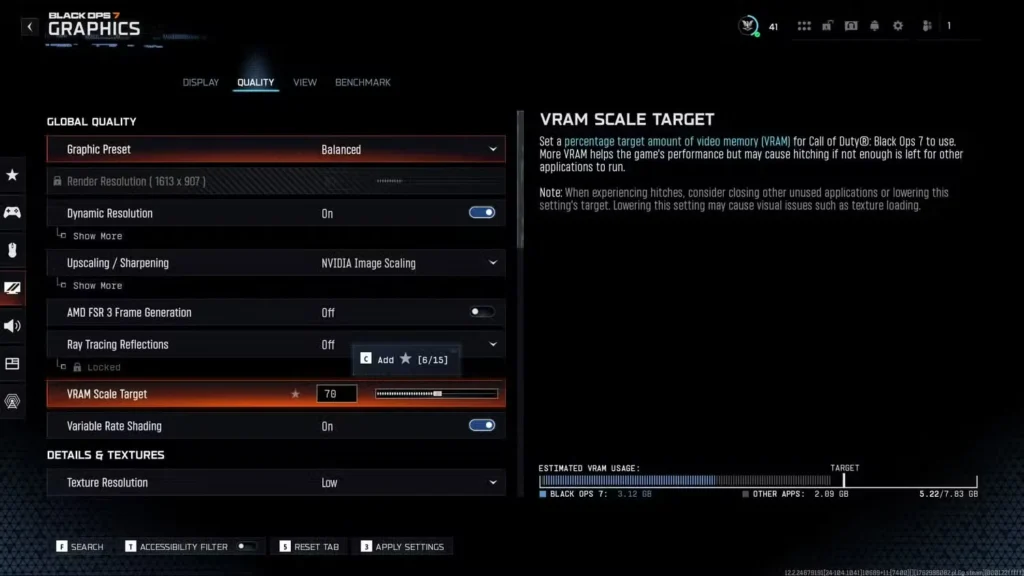
Why This Causes Packet Burst:
When your GPU’s video memory (VRAM) is maxed out, the system has to constantly shuffle data in and out, causing hitching and delays. This can interfere with network packet processing, leading to burst delivery patterns.
How to Fix It:
Step 1: Open Black Ops 7 Settings
Step 2: Go to Graphics > Quality tab
Step 3: Set VRAM Scale Target to 60-70% (no higher than 70%, even on high-end PCs)
Step 4: Enable Variable Rate Shading: On
What This Does:
- VRAM Scale Target at 60-70% leaves headroom for system processes and network handling
- Variable Rate Shading (VRS) maintains visual quality while reducing rendering load, freeing up resources for network processing
- Your GPU won’t be constantly maxed out, allowing smoother operation
Why Not Higher VRAM?
You might think “more VRAM = better performance,” but that’s not how it works with Black Ops 7. Running at 90-100% VRAM causes hitching because the system has no buffer space for dynamic processes. Capping at 70% provides optimal balance.
Expected Result: Reduced stuttering and more consistent frame times, which correlates with better network packet handling.
Fix #3: Disable Dismemberment & Gore Effects
This one might surprise you, but the gore effects in Black Ops 7 can actually trigger packet burst, especially in Multiplayer matches with lots of action.
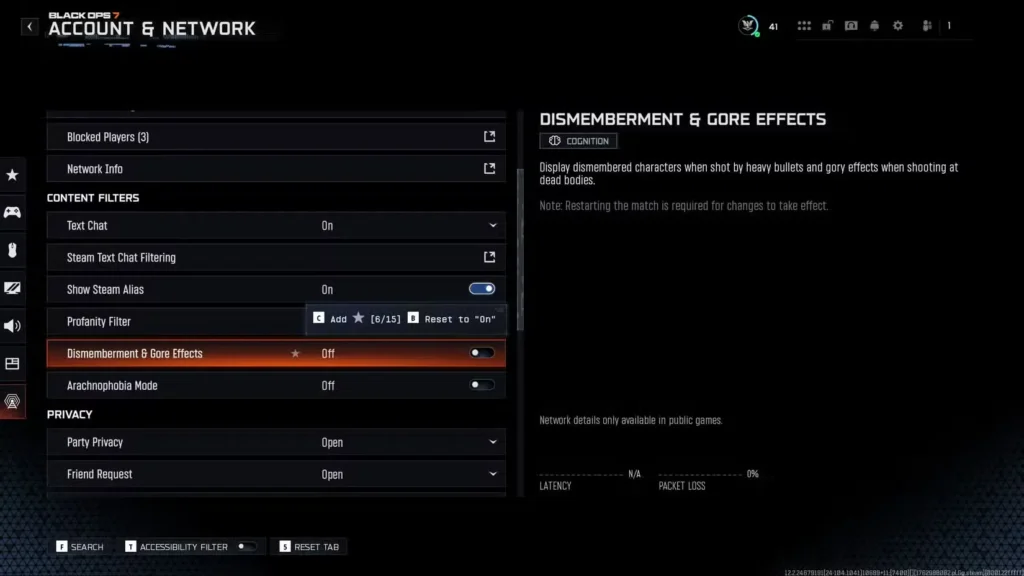
Why This Causes Packet Burst:
When you shoot enemies, the game processes dismemberment and gore effects in real-time. Each piece of gore, blood splatter, and dismembered limb requires:
- Physics calculations
- Rendering updates
- Network synchronization (in Multiplayer)
When multiple players are shooting in the same area, the game suddenly has to process massive amounts of gore data, creating sudden spikes that can trigger packet burst.
How to Fix It:
Step 1: Open Black Ops 7 Settings
Step 2: Navigate to Account & Network
Step 3: Go to the Content Filters tab
Step 4: Set Dismemberment & Gore Effects: Off
What This Does:
- Eliminates real-time gore processing
- Reduces sudden data spikes during intense firefights
- Lowers overall processing load during combat
Visual Trade-off: You’ll lose some visual fidelity in terms of gore effects, but honestly, most players don’t notice during actual gameplay. The performance improvement is worth the cosmetic sacrifice.
Expected Result: Fewer packet burst occurrences during intense combat scenarios, especially in modes like Hardpoint or Zombies high rounds.
Fix #4: Restart Shader Pre-Loading (Clear Shader Cache)
Corrupted shader cache can cause all sorts of performance issues, including packet burst. Clearing and rebuilding your shader cache often resolves hidden problems.
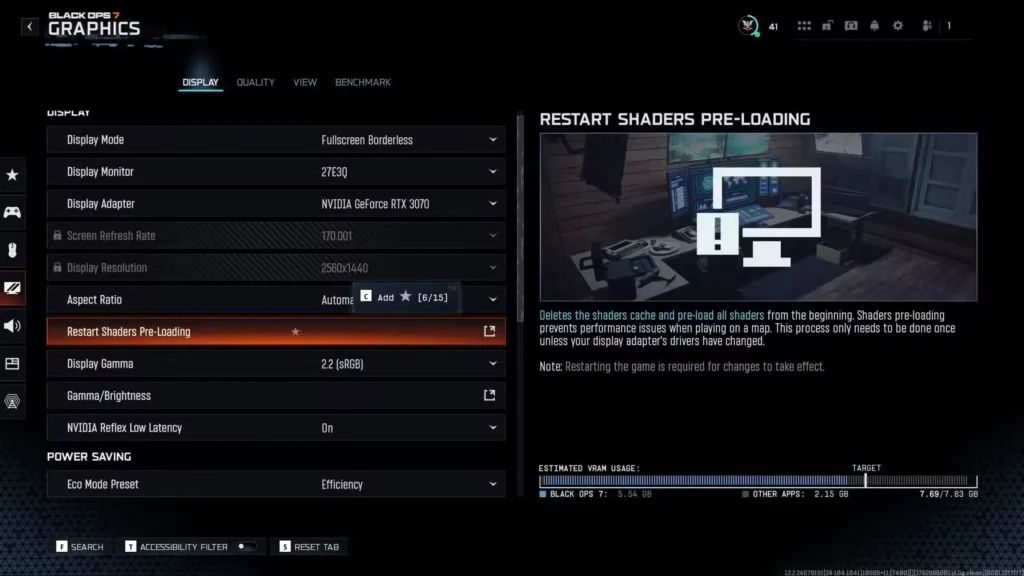
Why This Causes Packet Burst:
Shaders (graphics processing instructions) are cached locally to improve loading times. Over time, this cache can become corrupted or outdated, causing:
- Stuttering as the game tries to load broken shaders
- Processing delays that interfere with network operations
- Memory leaks that accumulate over play sessions
How to Fix It:
Step 1: Open Black Ops 7 Settings
Step 2: Go to Graphics
Step 3: Click Restart Shaders Pre-Loading
Step 4: Restart your entire game application
Step 5: When you relaunch, wait for shaders to fully pre-load before playing (you’ll see a loading bar)
What This Does:
- Deletes the existing shader cache
- Forces the game to rebuild all shaders from scratch
- Clears any corrupted data that was causing processing delays
Time Investment: Shader pre-loading usually takes 5-10 minutes depending on your system. Don’t skip this—play after it completes for best results.
Expected Result: Smoother overall performance and reduced stuttering, which indirectly reduces packet burst frequency.
Additional Fixes: Network & Connection Optimization
If you’ve tried all the in-game fixes and still experience packet burst, the issue might be your network connection itself. Here are additional troubleshooting steps:
Restart Your Router
Why It Helps: Routers can develop temporary issues or memory leaks that affect packet delivery. A fresh restart clears these problems.
How to Do It:
- Unplug your router from power
- Wait 30 seconds
- Plug it back in and wait for full boot-up (2-3 minutes)
- Reconnect and test Black Ops 7
Switch to Wired Ethernet Connection
Why It Helps: Wi-Fi introduces packet loss, interference, and latency variability. Wired connections provide stable, direct communication.
Performance Difference:
- Wi-Fi: 20-50ms latency with variable packet delivery
- Ethernet: 5-15ms latency with consistent packet delivery
Recommendation: If you’re serious about competitive Multiplayer or high-round Zombies, wired Ethernet is non-negotiable.
Close Bandwidth-Heavy Applications
Common Culprits:
- Streaming services (Netflix, YouTube, Twitch)
- Downloads (Steam, Epic Games Launcher, Windows Updates)
- Cloud backups (Google Drive, Dropbox, OneDrive)
- Other devices on your network
What to Do:
- Close all unnecessary applications before launching Black Ops 7
- Pause any active downloads or uploads
- Ask others on your network to avoid streaming during your play session
Enable QoS (Quality of Service) on Your Router
What It Does: QoS prioritizes gaming traffic over other network activities, ensuring Black Ops 7 gets bandwidth priority.
How to Enable:
- Access your router’s admin panel (usually 192.168.1.1 or 192.168.0.1)
- Find QoS or Traffic Prioritization settings
- Set gaming or your PC/console as highest priority
- Save and apply settings
Check for Server-Side Issues
Sometimes packet burst isn’t your fault—it’s Activision’s servers experiencing problems.
How to Check:
- Visit Activision’s official server status page
- Check social media (Twitter/X) for widespread complaints
- Visit community forums like Reddit’s r/blackops7 (hypothetical)
If It’s Server-Side: Unfortunately, you can’t fix this yourself. Wait for Activision to resolve the issue on their end.
Comprehensive Packet Burst Fix Checklist
Here’s the complete fix process in order of effectiveness:
Critical Fixes (Do These First):
- ✅ Set On-Demand Texture Streaming to Minimal
- ✅ Increase Allocated Texture Cache Size to 64GB
- ✅ Lower VRAM Scale Target to 60-70%
- ✅ Enable Variable Rate Shading
Important Fixes (High Impact):
- ✅ Disable Dismemberment & Gore Effects
- ✅ Restart Shader Pre-Loading and rebuild cache
- ✅ Switch to Wired Ethernet connection
Additional Optimization:
- ✅ Restart your router
- ✅ Close bandwidth-heavy applications
- ✅ Enable QoS on your router
- ✅ Check for server-side issues
Test After Each Major Change:
Don’t apply all fixes simultaneously—you won’t know which one actually worked. Apply the critical fixes first, test for 2-3 matches, then move to additional fixes if needed.
Settings Summary for Quick Reference
For easy copying, here are all the recommended settings:
Graphics Settings:
├── On-Demand Texture Streaming: Minimal
├── Allocated Texture Cache Size: 64 GB
├── VRAM Scale Target: 60-70%
└── Variable Rate Shading: On

Graphics > Restart Shaders Pre-Loading:
└── Click and restart game

Account & Network > Content Filters:
└── Dismemberment & Gore Effects: Off
When Packet Burst Persists: Advanced Troubleshooting
If you’ve tried everything and still experience packet burst, consider these advanced solutions:
Update Network Drivers
Outdated network adapter drivers can cause packet delivery issues.
For Windows:
- Open Device Manager
- Expand Network Adapters
- Right-click your adapter > Update Driver
- Search automatically for updated driver software
Adjust Windows Network Settings
Disable Network Throttling:
- Open Command Prompt as Administrator
- Type:
netsh interface tcp set global autotuninglevel=disabled - Restart your PC
Note: This disables Windows’ network throttling feature that can interfere with gaming traffic.
Contact Your ISP
If nothing works, your ISP might be:
- Throttling gaming traffic
- Experiencing routing issues to Activision’s servers
- Having infrastructure problems in your area
Call them and explain you’re experiencing packet loss in online gaming. They can run diagnostics and potentially adjust your connection.
Ending Note: Get Back to Smooth Gameplay
Packet burst is frustrating, but it’s almost always fixable through proper optimization. The combination of setting On-Demand Texture Streaming to Minimal, lowering VRAM usage, and disabling gore effects solves the problem for most players.
The key takeaway? This isn’t your internet’s fault in most cases—it’s how Black Ops 7 handles certain features. Activision will likely patch some of these issues over time, but until then, these manual optimizations are your best solution.
After applying these fixes, you should see:
- Significantly fewer packet burst icons
- Smoother gameplay with consistent frame times
- Better hit registration
- Reduced rubberbanding and stuttering
Now get back in there and dominate—whether you’re climbing Prestige ranks in Multiplayer or pushing for high rounds in Zombies. Your connection won’t hold you back anymore.
Related Guides: