Emotes and sprays add personality to Call of Duty: Black Ops 7 in ways that bullets and killstreaks simply can’t. Whether you’re celebrating a clutch play, communicating with teammates who don’t have mics, taunting opponents after a hard-fought victory, or just expressing yourself in the chaos of multiplayer, these cosmetic features provide non-verbal communication tools that have become staples of modern Call of Duty.
If you’re new to the series or haven’t used emotes and sprays in previous titles, the control scheme might not be immediately obvious. This comprehensive guide will walk you through exactly how to use both features across all platforms, how to customize your selections, where to acquire new options, and creative ways to incorporate them into your gameplay.
What Are Emotes and Sprays?
Before diving into controls, let’s clarify what these features actually are:
Emotes Explained
Emotes are character animations that your operator performs on command. These range from:
- Celebratory gestures (victory poses, dances, fist pumps)
- Taunting animations (provocative gestures toward opponents)
- Communicative actions (thumbs up, pointing, waving)
- Comedic performances (silly dances, exaggerated reactions)
- Tactical signals (hand signals, directional pointing)
Key Characteristics:
- Temporarily locks your character in place during the animation
- Visible to all nearby players (teammates and enemies)
- Can be interrupted by taking damage or player input
- Purely cosmetic (no gameplay advantage)
- Some emotes include sound effects or voice lines
When to Use:
- After securing a victory in Search and Destroy
- When waiting for match start or between rounds
- Celebrating multikills or impressive plays
- Communicating non-verbally with teammates
- Trolling opponents (use responsibly)
Sprays Explained
Sprays are graffiti-like graphics you can apply to surfaces in the game environment. Think of them as:
- Custom tags marking your territory
- Visual signatures left at kill locations
- Decorations for objective points
- Messages to teammates or enemies
- Artistic expression in the game world
Key Characteristics:
- Applied to walls, floors, and environmental surfaces
- Remain visible for the duration of the match (usually)
- Can be placed almost anywhere accessible
- Visible to all players who look at the surface
- No limit on how many you can place per match
When to Use:
- Marking your favorite camping spots
- Tagging enemy spawn locations
- Decorating objectives (flags, hardpoints)
- Claiming kills (spray on their death location)
- Creating art in pre-game lobbies
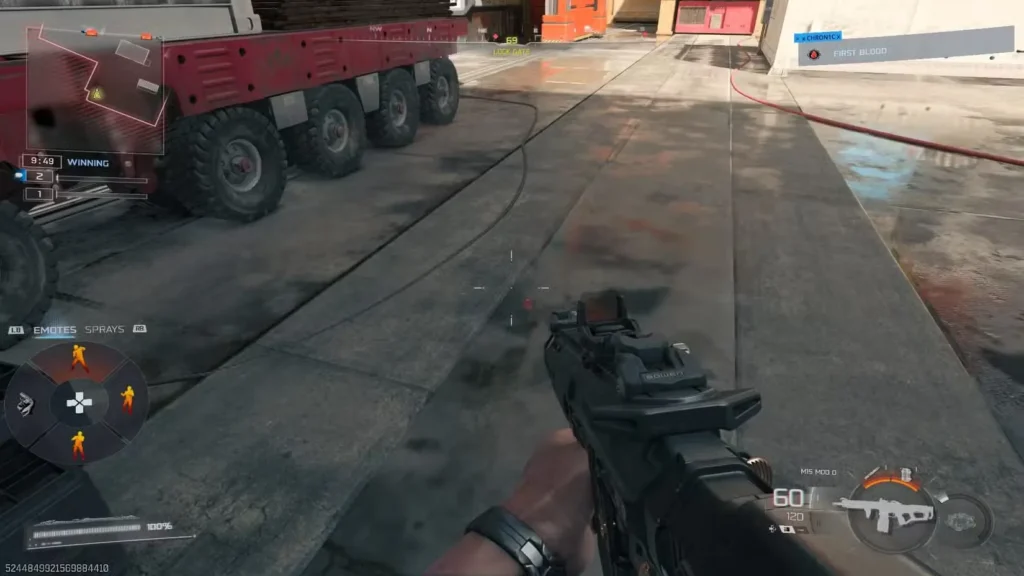
How to Use Emotes: Platform-Specific Controls
Let’s break down the exact button inputs for each platform:
Console Controls (PlayStation & Xbox)
Step 1: Open the Communication Menu
PlayStation:
- Press and hold Left on the D-Pad
Xbox:
- Press and hold Left on the D-Pad
This opens your communication wheel/menu containing both emotes and sprays.
Step 2: Access Emotes
PlayStation:
- While holding Left on D-Pad, press L1
Xbox:
- While holding Left on D-Pad, press LB
This switches the menu to display your equipped emotes.
Step 3: Select Your Emote
Navigation:
- Use the Right Analog Stick to scroll through your equipped emotes
- Highlight the emote you want to perform
Confirmation:
- PlayStation: Press X to execute the selected emote
- Xbox: Press A to execute the selected emote
Your Character: Your operator will immediately begin performing the selected emote animation.
PC Controls (Keyboard & Mouse)
Step 1: Open Communication Menu
- Press I on your keyboard
This opens the communication interface.
Step 2: Access Emotes
- Press E (while the communication menu is open)
This displays your available emotes.
Step 3: Select and Use Emote
- Left-click on the emote you want to perform
- Your character immediately executes the animation
Alternative Control Schemes: Some players may have rebound these keys. Check your keybindings under: Settings → Keyboard & Mouse → Communication Controls
Controller on PC
If you’re using a controller connected to PC:
- Follow the same inputs as console (Left D-Pad + LB/L1, then A/X)
- Controller inputs are typically identical to console versions
How to Use Sprays: Platform-Specific Controls
Sprays require slightly different inputs than emotes:
Console Controls (PlayStation & Xbox)
Step 1: Aim at Surface Critical: Before opening menus, aim your crosshair at the surface where you want to place the spray. The spray will appear wherever your crosshair is pointed when you select it.
Step 2: Open Communication Menu
PlayStation & Xbox:
- Press and hold Left on the D-Pad
Step 3: Access Sprays
PlayStation:
- While holding Left on D-Pad, press R1
Xbox:
- While holding Left on D-Pad, press RB
This switches to your spray selection.
Step 4: Select Your Spray
Quick Selection: You have four sprays equipped at any time, each mapped to a direction on the D-Pad:
- Up on D-Pad = Spray Slot 1
- Down on D-Pad = Spray Slot 2
- Left on D-Pad = Spray Slot 3
- Right on D-Pad = Spray Slot 4
PlayStation:
- While in spray mode (after pressing R1), press the D-Pad direction corresponding to your desired spray
Xbox:
- While in spray mode (after pressing RB), press the D-Pad direction corresponding to your desired spray
Result: The spray immediately appears on the surface you were aiming at.
PC Controls (Keyboard & Mouse)
Step 1: Aim at Surface Point your crosshair at the wall, floor, or surface where you want the spray to appear.
Step 2: Open Communication Menu
- Press I on your keyboard
Step 3: Access Sprays
- Press Q (while communication menu is open)
Step 4: Select and Apply Spray
- Left-click on the spray you want to use
- The spray appears on the surface you were aiming at
Important Spray Placement Tips
Surface Requirements:
- Must be a valid game surface (walls, floors, ceilings in some cases)
- Can’t spray on player models or vehicles (usually)
- Some objects won’t accept sprays (depends on map design)
Distance Matters:
- Stand close enough to the surface (within 3-5 meters typically)
- If too far, the spray won’t appear
Timing Considerations:
- You’re vulnerable while placing sprays (menu is open)
- Don’t spray in active combat unless you enjoy respawning
- Best placed during safe moments or respawn invulnerability
Visibility:
- Brightly colored sprays stand out more
- Placing on high-contrast surfaces maximizes visibility
- Consider what message you’re trying to send with placement
Customizing Your Emotes and Sprays
The default selections are just the beginning. Here’s how to customize:
Accessing Customization Menu
From Main Menu/Lobby:
Step 1: Navigate to Barracks
- From the Multiplayer menu or lobby screen
- Select Barracks
Step 2: Select Customize
- Within Barracks, choose Customize
- This opens your cosmetic customization hub
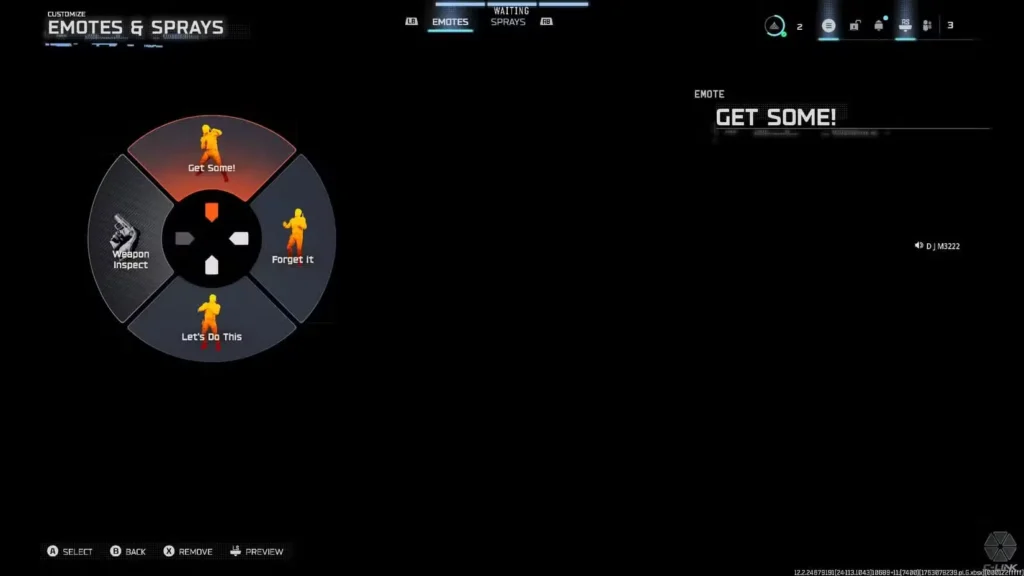
Step 3: Access Emotes & Sprays
- Select Emotes & Sprays from the customization categories
- This displays your collection and current loadout
Changing Equipped Emotes
Selection Process:
- Choose Emote Slot
- You typically have 4-8 equipped emote slots
- Select the slot you want to change
- Browse Collection
- Scroll through all emotes you own
- Filter by: Rarity, Recent, Favorites (usually)
- Preview animations before selecting
- Confirm Selection
- Highlight your desired emote
- Press confirm button (X/A on console, click on PC)
- The emote is now equipped to that slot
- Repeat for Other Slots
- Customize each emote slot to your preference
Organization Tips:
- Slot 1: Victory/celebration emote (for post-match)
- Slot 2: Taunt/disrespect emote (for opponents)
- Slot 3: Communication emote (tactical signals)
- Slot 4: Comedic/fun emote (for pre-game lobbies)
Changing Equipped Sprays
Selection Process:
- Choose Spray Slot
- You have 4 spray slots (one per D-Pad direction)
- Select which slot to change
- Browse Collection
- View all sprays you’ve unlocked
- Filter options usually available
- Sprays show thumbnail preview
- Confirm Selection
- Select your desired spray
- Confirm to equip it
- Now mapped to that D-Pad direction
- Repeat for Other Slots
- Customize all four spray slots
Loadout Strategy:
- Slot 1: Primary/favorite spray (most used)
- Slot 2: Troll/taunt spray (for special occasions)
- Slot 3: Team-oriented spray (communication)
- Slot 4: Situational/funny spray (variety)
Favoriting System
Most customization menus include a “favorite” system:
- Mark certain emotes/sprays as favorites
- Quick filter to see only favorites
- Helps manage large collections
Acquiring New Emotes and Sprays
You’re not stuck with default options. Here are acquisition methods:
In-Game Store
Primary Source: The Black Ops 7 in-game store sells cosmetic bundles that often include:
- Exclusive emotes
- Themed sprays
- Operator skins with matching emotes
- Seasonal limited-time offerings
How to Access:
- Main menu → Store
- Browse current offerings
- Purchase with COD Points (premium currency)
Considerations:
- Cost: Bundles range from 800-2,400 COD Points typically
- Exclusivity: Some items are time-limited
- Value: Bundles often include multiple cosmetics (better value than individual items)
Battle Pass (if available)
If Black Ops 7 includes a Battle Pass system:
- Free tiers often include basic emotes/sprays
- Premium tiers feature exclusive, high-quality options
- Seasonal themes (matching current season aesthetic)
- Progress through gameplay to unlock
Challenge Completion
Some emotes and sprays are unlocked through:
- Completing specific multiplayer challenges
- Reaching certain level milestones
- Achieving difficult accomplishments (weapon masteries, longshot kills, etc.)
Prestige System
As you prestige, certain cosmetics may unlock:
- Check prestige rewards for specific offerings
- Prestige-exclusive emotes and sprays showcase dedication
- Higher prestige levels = more exclusive cosmetics
Important Note from Source: “Any level rewards and prestige rewards in Black Ops 7 are reserved for other cosmetics and more gameplay-focused goodies.”
This suggests emotes/sprays may be primarily store-based or challenge-based rather than direct prestige rewards.
Limited-Time Events
Seasonal events often introduce:
- Holiday-themed emotes (Halloween dances, Christmas celebrations)
- Event-specific sprays (promotional tie-ins)
- Community challenges with cosmetic rewards
Pre-Order and Special Edition Bonuses
Players who pre-ordered or purchased special editions may have received:
- Exclusive launch emotes
- Special edition sprays
- Founder’s cosmetics
Creative Uses for Emotes and Sprays
Beyond basic usage, here are creative applications:
Communication Without Mics
Emote Signaling:
- Pointing emote → Directing teammates
- Thumbs up → Acknowledging strategy
- Waving → Getting attention
- Stop gesture → Halt push/hold position
Especially valuable in:
- Split-screen play with non-verbal partners
- Playing with randoms without mics
- Cross-platform play with communication barriers
Psychological Warfare
Taunting Strategy:
- Emote after eliminating skilled opponent (gets in their head)
- Dance on captured objectives (tilts enemy team)
- Post-victory emotes in final killcam (entertainment + flex)
Caution: Can backfire—tilted opponents sometimes play better out of revenge motivation.
Spray Art and Messages
Environmental Storytelling:
- Spray your tag on repeatedly successful camping spot (claim territory)
- Mark dangerous areas with warning sprays (help teammates)
- Create spray art in pre-game lobbies (collaborative creativity)
- Leave sprays at impressive kill locations (signature)
Examples:
- Spray smiley face in hardpoint → “We’re dominating here”
- Spray on sniper perch → “My spot”
- Spray over enemy spray → “Disrespect countered”
Content Creation
For Streamers/YouTubers:
- Emotes add personality to clips
- Custom sprays can include social media handles (if customizable)
- Victory emotes in final killcams create memorable moments
- Coordinated team emotes make for entertaining content
Roleplay and Immersion
Some players use emotes/sprays for:
- Creating narratives in matches
- Operator-specific character expression
- Themed loadout completion (matching emote to operator aesthetic)
Mode-Specific Usage
Multiplayer
Most Common Context:
- Pre-game lobbies: Everyone emoting while waiting
- Final killcam: Emoting during the final kill moment
- Post-match: Victory emotes with team
- Between rounds: (Search and Destroy, Control) downtime emoting
Spray Opportunities:
- Objectives (flags, hardpoints)
- Spawn areas
- High-traffic choke points
- Sniper nests
Zombies
Emote Usage:
- Pre-exfil celebration with teammates
- Victory emotes after boss defeats
- Communication with non-mic teammates
- Entertainment during long rounds
Spray Usage:
- Mark important locations (perk machines, Pack-a-Punch)
- Create waypoints for salvage farming routes
- Tag T.E.D.D. Task locations
- Leave messages at difficult spots
Campaign (if supported)
Campaign typically has limited emote/spray usage, but may be available in co-op sessions.
Warzone (if Black Ops 7 has BR mode)
Battle Royale contexts:
- Emotes: Victory celebrations after squad wipes
- Sprays: Marking loot locations, claiming areas
- Risk factor: Emoting in BR leaves you exposed (high stakes)
Etiquette and Best Practices
When Emotes Are Acceptable
Green Light Scenarios:
- ✅ Pre-game and post-match
- ✅ After round victories (Search and Destroy)
- ✅ When safely behind cover
- ✅ Celebrating with teammates
- ✅ After securing objective
Iffy Scenarios:
- ⚠️ Directly after killing someone (can be seen as toxic)
- ⚠️ During active objective contest
- ⚠️ In competitive/ranked modes (unless postgame)
Red Light Scenarios:
- ❌ While your team is losing badly (poor sportsmanship)
- ❌ During crucial competitive moments
- ❌ When it’s clearly griefing/trolling teammates
Spray Etiquette
Appropriate:
- ✅ Marking territory tastefully
- ✅ Decorating non-offensive areas
- ✅ Creative placement
- ✅ Personal signature style
Questionable:
- ⚠️ Spam-placing sprays everywhere (clutters)
- ⚠️ Covering teammate sprays (depends on context)
Inappropriate:
- ❌ Offensive imagery (if customizable sprays allowed)
- ❌ Deliberately blocking important visual information
Ranked/Competitive Considerations
In ranked modes:
- Minimize emote usage during active play
- Save for between rounds or post-match
- Focus on gameplay over cosmetics
- Don’t give opponents free kills while emoting
Troubleshooting Common Issues
“My Emote Won’t Activate”
Possible Causes:
- Animation Already Playing: Can’t emote while previous emote is active
- Combat Lock: Some games prevent emotes during recent combat
- Movement Restriction: May need to be stationary or not sprinting
- Menu Not Fully Open: Ensure you’re holding D-Pad long enough
Solutions:
- Wait for character to return to neutral stance
- Stop moving/sprinting completely
- Hold D-Pad button longer before selecting emote
“My Spray Won’t Place”
Common Issues:
- Invalid Surface: Not all objects accept sprays
- Too Far Away: Move closer to the surface
- Wrong Angle: Some surfaces require specific approach angles
- Surface Limit: Some maps have spray placement limits
Solutions:
- Try different surface (flat walls work best)
- Step closer (within 3-4 meters)
- Aim perpendicular to surface
- Place in different location
“I Can’t See My Emotes/Sprays in Customization”
Possible Reasons:
- Not Unlocked Yet: Verify you actually own the items
- Filter Settings: Check if filters are hiding items
- Wrong Category: Make sure you’re in Emotes & Sprays section
- UI Bug: Restart game
Solutions:
- Visit store to confirm ownership
- Clear all filters in customization menu
- Navigate carefully through menu structure
- Hard restart the game
“Controller Inputs Don’t Match Guide”
Reasons:
- Custom Button Mapping: You or someone else remapped controls
- Different Controller Scheme: Various presets exist
- Platform Confusion: Following wrong platform instructions
Solutions:
- Check Settings → Controller → Button Layout
- Reset to default if confused
- Verify you’re following correct platform instructions
Performance Considerations
Do Emotes/Sprays Affect Performance?
Generally:
- Minimal impact on modern hardware
- Emote animations use standard character rig (already loaded)
- Sprays are simple textures (low resource cost)
Potential Issues:
- Multiple players emoting simultaneously might cause slight frame dips on older hardware
- Excessive spray placement across map could theoretically impact memory (unlikely)
If experiencing performance problems, check our optimization guide and lag fixes.
Crossplay Implications
With crossplay enabled:
- All players see your emotes and sprays regardless of platform
- Cross-platform communication via emotes works seamlessly
- No platform-exclusive emotes (usually)
Integration with Loadouts and Identity
Building Your Identity
Your emote/spray selections contribute to your player identity:
- Combat Specialty choice reflects playstyle → match emotes to that identity
- Weapon preferences (aggressive SMG user vs. tactical marksman) → select thematically appropriate emotes
- Operator selection → match emotes to operator personality
Example Builds:
Aggressive Rusher:
- Emotes: Aggressive taunts, competitive gestures
- Sprays: Bold, in-your-face designs
- Matches Enforcer playstyle
Tactical Sniper:
- Emotes: Cool, calculated gestures
- Sprays: Precision-themed, minimalist
- Matches long-range playstyle
Team Player:
- Emotes: Cooperative, supportive gestures
- Sprays: Team-oriented designs
- Matches support roles
Future Updates and Seasonal Content
Expect regular additions:
- Seasonal emotes matching current events
- Collaboration tie-ins (if COD does crossover events)
- Community-requested emotes based on feedback
- Holiday specials (Halloween, Christmas, etc.)
Stay updated via official Call of Duty channels for new releases.
Final Thoughts: Express Yourself
Emotes and sprays might seem like minor features compared to gameplay mechanics like weapon loadouts or combat strategies, but they add a personal touch to Black Ops 7 that pure gameplay can’t provide.
Quick Reference:
Console Emotes: Left D-Pad (hold) → LB/L1 → Select → A/X
Console Sprays: Aim → Left D-Pad (hold) → RB/R1 → D-Pad direction
PC Emotes: I → E → Click
PC Sprays: Aim → I → Q → Click
Customization: Barracks → Customize → Emotes & Sprays
Whether you’re using emotes to celebrate victories, communicate with teammates, or just express your personality, these features add character to the Call of Duty experience. Master the controls, customize your selections, and don’t be afraid to let your personality show through your operator.
Just maybe save the victory dance until after you’ve secured the win. Nobody likes getting eliminated mid-emote.
For more Black Ops 7 customization and gameplay guides, explore our content on operator selections, progression systems, and complete settings optimization.