There’s something special about couch co-op gaming that online multiplayer just can’t replicate. Having your friend right next to you, celebrating victories together and laughing at failures in real-time—that’s the magic of split-screen gaming. Call of Duty: Black Ops 7 continues the franchise’s tradition of supporting split-screen multiplayer, allowing you and a friend to team up on the same console and screen.
But here’s the catch: split-screen in Black Ops 7 comes with specific requirements, platform limitations, and setup steps that you need to understand before diving in. This guide will walk you through everything—from initial setup to troubleshooting common issues—ensuring you and your couch co-op partner get into the action without frustration.
What Is Split-Screen Multiplayer?
Let’s start with the basics for those new to the concept.
Split-Screen Multiplayer allows two players to play Black Ops 7 simultaneously on the same console and display. The screen divides (typically horizontally or vertically) so each player has their own viewing area, creating a shared local co-op experience.
What You Can Do with Split-Screen:
- Play standard Multiplayer modes together
- Team up in Zombies mode for co-op survival
- Both players progress their individual accounts
- Use your own custom loadouts and settings
- Earn XP, complete challenges, and unlock items
What Split-Screen Is NOT:
- It’s not Campaign co-op (that requires separate consoles/online)
- It’s not available on all platforms (more on this below)
- It’s not as visually crisp as full-screen solo play
- It doesn’t support more than two players locally
Understanding these limitations upfront prevents disappointment when you attempt to set things up.
Platform Requirements and Limitations
This is critical: Not all platforms support split-screen in Black Ops 7. Before you grab that second controller, confirm your platform is compatible.
Supported Platforms
✅ PlayStation 5: Full split-screen support for both Multiplayer and Zombies modes. Two DualSense controllers required.
✅ Xbox Series X: Full split-screen support for both Multiplayer and Zombies modes. Two Xbox controllers required.
✅ Xbox Series S: Full split-screen support for both Multiplayer and Zombies modes. Two Xbox controllers required.
Unsupported Platforms
❌ PlayStation 4: Split-screen is NOT available on PS4. This is a current-gen exclusive feature.
❌ Xbox One: Split-screen is NOT available on Xbox One. Current-gen consoles only.
❌ PC: Split-screen is NOT available on PC. No workaround exists at the time of writing.
Why These Limitations?
Hardware Performance: Split-screen essentially requires the console to render the game twice simultaneously—once for each player’s perspective. This doubles the graphical workload, which is why only current-gen hardware (PS5, Xbox Series X|S) can handle it at acceptable frame rates and visual quality.
Previous-gen consoles (PS4, Xbox One) likely can’t maintain stable performance with split-screen, leading to the decision to restrict the feature to more powerful hardware.
PC Exclusion: The lack of PC split-screen support is likely a combination of:
- Technical implementation complexity (varied hardware configurations)
- Lower demand (PC gaming traditionally focuses on individual setups)
- Development resource prioritization for console split-screen
It’s frustrating for PC players who have powerful rigs, but this has been Activision’s stance across multiple Call of Duty titles.
Required Setup Before You Begin
Before diving into the actual split-screen setup process, ensure you have everything ready:
Hardware Requirements
Two Controllers:
- PlayStation 5: Two DualSense controllers (or DualShock 4 controllers if supported)
- Xbox Series X|S: Two Xbox Wireless Controllers
Both controllers must be charged/powered and synced to the console.
Display Considerations:
- Screen Size: Larger displays (50″+ recommended) make split-screen more comfortable
- Resolution: 4K displays provide better clarity in split-screen mode
- Aspect Ratio: 16:9 standard works best; ultrawide monitors may have issues
Console Storage: Ensure Black Ops 7 is fully installed with all required updates. Split-screen won’t work with outdated game versions.
Account Requirements
Two Activision Accounts: Each player needs their own Activision account with valid login credentials. You cannot use guest accounts or skip account login.
Account Creation: If the second player doesn’t have an Activision account:
- Visit Activision’s account portal before attempting split-screen
- Create a free account with email verification
- Have login credentials ready (email/password)
PlayStation Plus / Xbox Live Gold:
- For Online Multiplayer: Both accounts typically need active subscriptions
- For Local/Offline: Check current platform policies (sometimes only the primary account needs subscription)
Important: Verify both Activision accounts are in good standing with no suspensions or restrictions.
Step-by-Step: Setting Up Split-Screen
Now for the actual setup process. Follow these steps exactly to avoid common issues:
Step 1: Launch Black Ops 7
On Your Console:
- Power on your PlayStation 5 or Xbox Series X|S
- Ensure both controllers are synced and charged
- Launch Call of Duty: Black Ops 7
- Wait for the game to fully load to the main menu
Important: The primary account (Player 1) should be logged into their Activision account at this point through the game’s normal startup process.
Step 2: Navigate to Multiplayer or Zombies
Mode Selection: From the main menu, choose either:
- Multiplayer (for PvP split-screen matches)
- Zombies (for co-op survival split-screen)
Note: Campaign mode does NOT support split-screen, even though Black Ops 7 features co-op campaign missions. Campaign co-op requires separate consoles connected online.
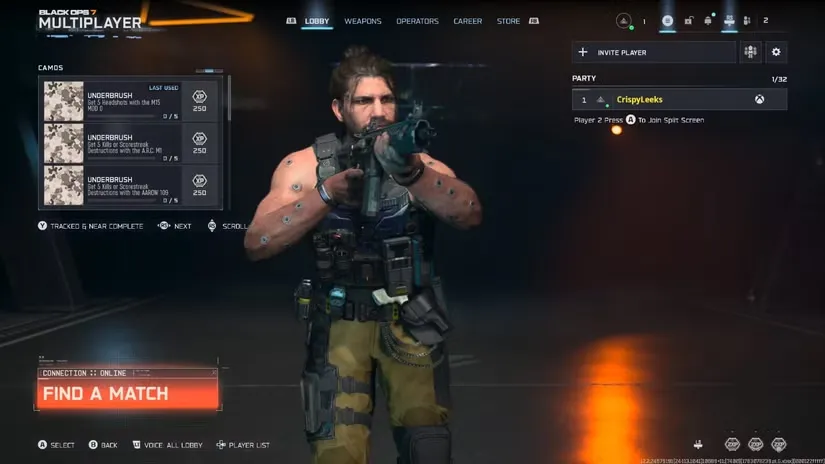
Once you select Multiplayer or Zombies, you should enter the lobby/pre-game menu where you’d normally customize loadouts and search for matches.
Step 3: Add Second Player
Activation Process:
On PlayStation 5:
- Have the second player pick up the second DualSense controller
- Press the X button on the second controller
- The game should prompt for second player login
On Xbox Series X|S:
- Have the second player pick up the second Xbox controller
- Press the A button on the second controller
- The game should prompt for second player login
What You’ll See: A login screen or prompt asking the second player to sign into their Activision account.
Step 4: Sign Into Second Activision Account
Login Process:
- Enter the second player’s Activision account email
- Enter the password
- Complete any two-factor authentication if enabled
- Wait for verification
Troubleshooting Login:
- Double-check email spelling (easy to mistype on console)
- Ensure Caps Lock isn’t accidentally engaged
- Verify the password is correct
- Check if the account has any active restrictions
Alternative: If you have the option, use the Activision account that’s already linked to the console’s Xbox/PlayStation account for faster login.
Step 5: Confirm Split-Screen Activation
Verification: Once the second player successfully logs in, you should see:
- Two player names displayed in the party/lobby interface
- Split-screen view activated (screen divides into two sections)
- Separate player indicators (Player 1 and Player 2 labels)
- Individual loadout access for each player
If Everything Worked: Congratulations! You’re now ready to play split-screen. Both players can:
- Customize their loadouts independently
- Access their own Combat Specialties
- Adjust individual settings (sensitivity, audio, etc.)
- Progress their own accounts
Step 6: Configure Settings and Start Playing
Before Your First Match:
Player 1 (Primary Account):
- Selects matchmaking preferences
- Chooses game mode/playlist
- Confirms party is ready
- Initiates matchmaking
Player 2 (Secondary Account):
- Cannot independently start matchmaking
- Can adjust personal settings
- Can customize loadouts
- Marks ready status
Starting a Match: Once both players are ready, Player 1 initiates matchmaking through the normal process. The system will find a match that accommodates your split-screen party.
Split-Screen in Multiplayer Mode
Let’s discuss the split-screen experience specifically in Multiplayer:
Available Game Modes
Fully Supported:
- Team Deathmatch
- Domination
- Hardpoint
- Kill Confirmed
- Control
- Search and Destroy
- Most standard playlists
Potentially Limited:
- Ranked/Competitive modes (check specific playlist restrictions)
- Some limited-time modes (varies by event)
- Special community events (some may restrict split-screen parties)
Gameplay Experience
Screen Division: The screen typically splits horizontally (top and bottom) or vertically (left and right) depending on display aspect ratio and game settings. You generally don’t control this—the game decides optimal split orientation.
Performance Considerations:
- Frame Rate: May be capped at 60 FPS even on 120Hz displays
- Resolution: Each player’s section runs at lower resolution than full-screen
- Field of View: May be reduced compared to single-player
- Visual Effects: Some effects may be reduced or disabled for performance
Competitive Balance: Both players share the same console hardware, so there’s no performance advantage between you. However, you’re competing against full-screen players who may have visual clarity advantages.
Party Dynamics
Matchmaking:
- You’ll be matched together on the same team (not enemies)
- Matchmaking may take slightly longer to accommodate split-screen
- You’re placed in lobbies that support split-screen parties
Communication:
- Built-in proximity chat (you can literally talk to each other)
- Individual game chat access if using headsets
- Separate audio output options per player (may vary by platform)
Loadout and Progression
Independent Progression: Each player earns:
- Their own XP and level progression
- Individual weapon unlocks and attachments
- Personal prestige advancement
- Separate challenge completion
Loadout Access: Both players can use:
- Their own weapon loadouts
- Personal operator selections
- Individual perk configurations
- Unique scorestreak selections
This independence ensures fair progression even though you’re sharing hardware.
Split-Screen in Zombies Mode
Zombies split-screen offers a different experience optimized for co-op survival:
Why Zombies Is Perfect for Split-Screen
Cooperative Focus: Unlike Multiplayer’s competitive nature, Zombies is inherently co-op. Split-screen Zombies allows you to:
- Strategize together in real-time
- Coordinate revives and positioning
- Share resources and cover each other
- Experience the mode as intended (with a partner)
Better Performance: Zombies typically demands less from hardware than Multiplayer since:
- Zombie AI is less complex than player opponents
- Fewer total entities on screen in many scenarios
- More predictable performance demands
Available Zombies Content
Fully Supported:
- Main round-based survival on Ashes of the Damned
- Easter egg quests
- T.E.D.D. Tasks
- Exfiltration attempts
- All standard Zombies features
Split-Screen Advantages:
- Coordinate Zursa Bear takedowns together
- Work together on salvage farming
- Share permanent perk strategies
- Coordinate armor plate usage
Split-Screen Zombies Tips
Communication is Key:
- Call out your armor status
- Coordinate Pack-a-Punch timing
- Share salvage and essence strategies
- Plan revive positioning
Resource Sharing:
- One player can focus on salvage while the other farms essence
- Divide perk purchases strategically
- Coordinate wonder weapon acquisition
- Balance equipment between players
Screen Real Estate: Since each player has limited screen space, maximize effectiveness by:
- Minimizing HUD elements in settings
- Using clear, uncluttered sights on weapons
- Maintaining awareness through communication rather than constant visual scanning
Campaign Co-Op: The Limitation
This is worth explicitly clarifying since it’s a common source of confusion:
Campaign Is NOT Split-Screen
Important: Black Ops 7 features a co-op campaign for the first time since Black Ops 3, but this co-op functionality is ONLINE ONLY, not split-screen.
How Campaign Co-Op Works:
- Requires two separate consoles
- Each player on their own system
- Connected via online multiplayer
- Cannot be played split-screen locally
Why This Limitation? Campaign missions are graphically intensive and narratively complex. Running them in split-screen would require:
- Massive performance compromises
- Synchronized cutscene viewing issues
- Complex camera angle problems during scripted sequences
- Potential spoiler issues if players progress at different paces
While disappointing for couch co-op enthusiasts, this is the current reality.
Troubleshooting Common Split-Screen Issues
Second Controller Not Registering
Problem: Pressing X/A on the second controller doesn’t prompt login.
Solutions:
- Ensure controller is fully synced to the console (not just powered on)
- Check battery level (low battery can cause connection issues)
- Try syncing the controller again through console settings
- Restart the game and try again
- Update controller firmware if available
Account Login Failing
Problem: Second player can’t log into Activision account.
Solutions:
- Verify account credentials are correct (try logging in on mobile/PC first)
- Check account status for any suspensions or restrictions
- Ensure stable internet connection (required for account verification)
- Clear console cache and retry
- Try a different Activision account to isolate the issue
Screen Not Splitting Properly
Problem: Screen doesn’t divide into two sections after login.
Solutions:
- Verify you’re in Multiplayer or Zombies mode (not Campaign)
- Restart the game completely
- Check for game updates (outdated versions may have bugs)
- Ensure both players are fully logged in (not guest accounts)
- Try different mode (if Multiplayer fails, try Zombies and vice versa)
Performance Issues (Lag, Stuttering)
Problem: Split-screen runs poorly with frame drops or stuttering.
Solutions:
- Close background applications on console
- Ensure console ventilation isn’t blocked (overheating causes throttling)
- Check display settings (some 4K modes may cause issues)
- Lower in-game graphics settings if options available
- Verify internet connection stability for online matches
For comprehensive performance optimization, check our settings guide and lag troubleshooting.
Can’t Find Matches
Problem: Matchmaking fails or takes extremely long with split-screen.
Solutions:
- Check crossplay settings (enable for larger player pool)
- Try different game modes (more popular modes matchmake faster)
- Play during peak hours (more players available)
- Verify NAT type is Open or Moderate (Strict NAT causes matchmaking issues)
- Check for platform service outages (PSN, Xbox Live)
Audio Issues
Problem: Can’t hear game audio properly or voice chat issues.
Solutions:
- Check individual audio settings per player
- Adjust console audio output settings
- Test with different audio configurations (TV speakers vs. headsets)
- Ensure headsets are plugged into correct controllers
- Verify in-game audio settings for each player profile
Optimizing the Split-Screen Experience
Display Recommendations
Screen Size:
- Minimum Viable: 40″ (split-screen is cramped but playable)
- Comfortable: 50-55″ (adequate space for each player)
- Optimal: 65″+ (both players have plenty of visual real estate)
Display Type:
- Response Time: Lower is better (1-5ms ideal for competitive play)
- Refresh Rate: 60Hz minimum, though split-screen may cap at 60 FPS anyway
- Resolution: 4K provides better clarity in split sections
Distance: Sit closer than you would for single-player gaming. Your effective viewing area is roughly half the screen, so halving your normal viewing distance compensates.
Controller Setup
Comfort Considerations:
- Ensure both controllers are fully charged before long sessions
- Have charging cables accessible for mid-session charging
- Consider controller grips for extended play comfort
Button Remapping: Each player can customize their controls independently in settings:
- Adjust button layouts per preference
- Configure sensitivity settings individually
- Set separate audio levels
Communication Strategy
Even though you’re sitting next to each other:
- Maintain clear, concise callouts
- Avoid unnecessary chatter during intense moments
- Develop shorthand for common situations
- Respect each other’s concentration during clutch plays
Progression Strategy
Coordinate Your Goals:
- If one player is experienced and the other is new: experienced player mentors
- If both are learning: progress together and share discoveries
- If both are experienced: coordinate loadout experimentation
Account for Skill Gaps: SBMM (skill-based matchmaking) considers both players. If there’s a significant skill gap, matches might feel unbalanced for the weaker player. Be patient and supportive.
Split-Screen and Online Play
Joining Online Matches
When you queue for matchmaking in split-screen:
- You’re matched together on the same team
- SBMM considers both players’ skill levels
- You occupy two slots in your team (no third random on a 3-player team for example)
- Opponents know you’re a party and may play accordingly
Playing with Additional Online Friends
Party Composition: You can have:
- Two split-screen players (on one console)
- Plus additional online friends (on separate consoles)
- Up to full party size for the game mode
Example: In a 6v6 mode, you could have two split-screen players plus four more friends online, creating a full 6-player party.
Communication with Online Players
Voice Chat:
- Split-screen players can use individual headsets for separate chat channels
- Or rely on proximity chat with each other while using game chat for online teammates
- Configure this in audio settings per player
Platform-Specific Tips
PlayStation 5 Specific
DualSense Features:
- Adaptive triggers and haptic feedback may be reduced in split-screen
- Both controllers support these features independently
- Battery drain may be faster due to split-screen processing
Account Management:
- Use the PS5’s quick account switching for easier second-player login
- Family accounts can share PlayStation Plus benefits in some configurations
Xbox Series X|S Specific
Quick Resume:
- May not work properly with split-screen sessions
- Recommend fully closing and restarting the game between sessions
Game Pass:
- Game Pass benefits apply to all accounts on the home console
- Secondary players don’t need separate game purchases
When Split-Screen Makes Sense (And When It Doesn’t)
Perfect Split-Screen Scenarios
Ideal Use Cases:
- Casual play with friends/family visiting your home
- Introducing new players to Call of Duty (mentor setup)
- Cooperative Zombies runs where communication is key
- Local tournaments or competitions among friends
- Content creation for streaming/videos showcasing co-op
When Online Is Better
Consider Separate Consoles When:
- Both players want full-screen visual fidelity
- Competitive ranked play where every advantage matters
- Campaign co-op (only option)
- Screen-sharing causes relationship tension (yes, this is real)
- You have the resources for separate setups
The Social Aspect of Split-Screen
Beyond the technical aspects, split-screen gaming offers unique social benefits:
Shared Experiences:
- Immediate reaction sharing (celebrations and frustrations)
- Real-time strategy discussions
- Bonding through cooperative challenges
- Creating lasting gaming memories
Accessibility:
- Introducing gaming to non-gamers in a supportive environment
- Lower barrier to entry (no separate console required)
- Perfect for occasional gamers who don’t want dedicated setups
Nostalgia Factor: For many players, split-screen recalls the golden era of couch co-op gaming. Black Ops 7’s support for this feature honors that tradition.
Future of Split-Screen in Call of Duty
Industry Trends
Split-screen has seen a resurgence in recent years after years of decline:
- More games supporting local co-op
- Recognition of split-screen’s unique value
- Hardware finally capable of handling the demands
Potential Updates
Possible Future Enhancements:
- Support for older-gen consoles (unlikely but possible)
- PC split-screen implementation (community demand exists)
- Campaign split-screen addition (would require significant development)
- Enhanced split-screen specific features
Stay updated with official Call of Duty announcements for any feature expansions.
Final Thoughts: Couch Co-Op Lives On
In an era dominated by online multiplayer, Black Ops 7’s split-screen support is a welcome feature that recognizes the value of local co-op gaming. While there are platform limitations and technical compromises, the ability to share a screen with a friend or family member creates unique experiences that online play can’t replicate.
Quick Recap:
✅ Current-gen consoles only (PS5, Xbox Series X|S)
✅ Two Activision accounts required (no guest play)
✅ Multiplayer and Zombies supported (not Campaign)
✅ Simple setup process once you understand the steps
✅ Independent progression for both players
Whether you’re introducing a friend to Call of Duty, coordinating Zombies strategies, or just enjoying competitive Multiplayer matches together, split-screen in Black Ops 7 delivers that classic couch co-op experience.
The performance might not match single-player, and the screen real estate is limited, but the ability to share victories, laugh at failures, and strategize in real-time with someone sitting right next to you? That’s gaming magic that transcends technical specifications.
So grab that second controller, log into those Activision accounts, and rediscover the joy of couch co-op gaming. Just maybe invest in a bigger TV first.
For more Black Ops 7 guides covering everything from weapon loadouts to complete progression systems, explore our comprehensive guide collection.