Let’s be real—Hytale is massive. There’s a ton to explore, craft, and fight through, and while going solo definitely works, bringing your friends along makes everything way more manageable (and honestly, way more fun). Whether you’re taming animals, crafting backpack upgrades, or gathering materials like leather and linen scraps, having a crew makes the grind feel less grindy.
Even though Hytale’s still in early access, the multiplayer setup is surprisingly straightforward. Here’s everything you need to know about creating private servers and playing with your squad.
Also check complete Guides of Hytale
Setting Up a Private Friends-Only Server in Hytale
The easiest way to play with friends is by turning your singleplayer world into a listen server. Basically, you host the game, and your friends can join whenever you’re online. Here’s the step-by-step:
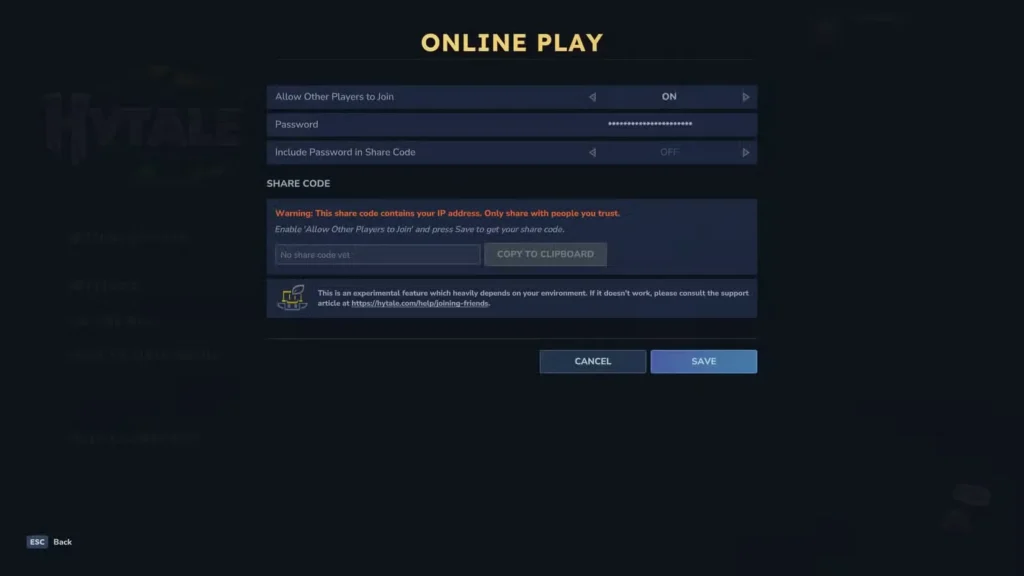
Start by creating or loading your world, then:
- Press Escape to open the menu
- Click on Online Play
- Toggle Allow Other Players to Join to On
- Set a password (this is optional, but recommended if you want to keep randoms out)
- Turn on Include Password in Share Code (also optional—useful if you don’t want to send the password separately)
- Hit Save
- The game will generate a Share Code—click Copy to Clipboard
- Send that code to whoever you want to play with
And that’s it! Your world is now accessible to anyone with that code. Keep in mind your friends can only join while you’re actively hosting—so if you log off, the server goes down with you.
Important security note: That Share Code contains your PC’s IP address. Only share it with people you trust. You don’t want to hand that info out to sketchy strangers who might try something malicious.
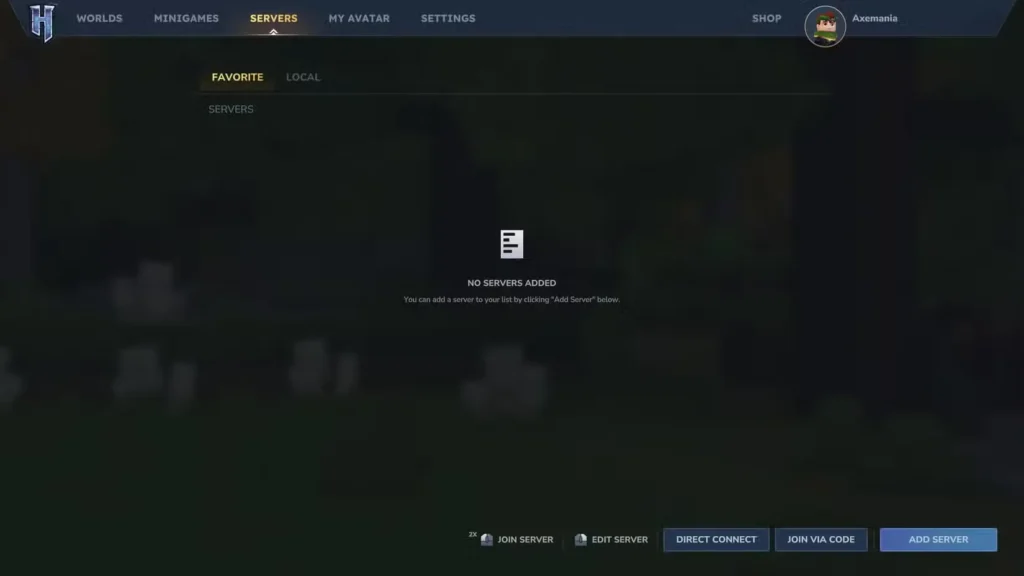
How Your Friends Can Join Your Server in Hytale
Once you’ve sent the Share Code, here’s what your friends need to do:
- Head to the main menu
- Click Servers
- Select Join Via Code
- Paste your Share Code into the box
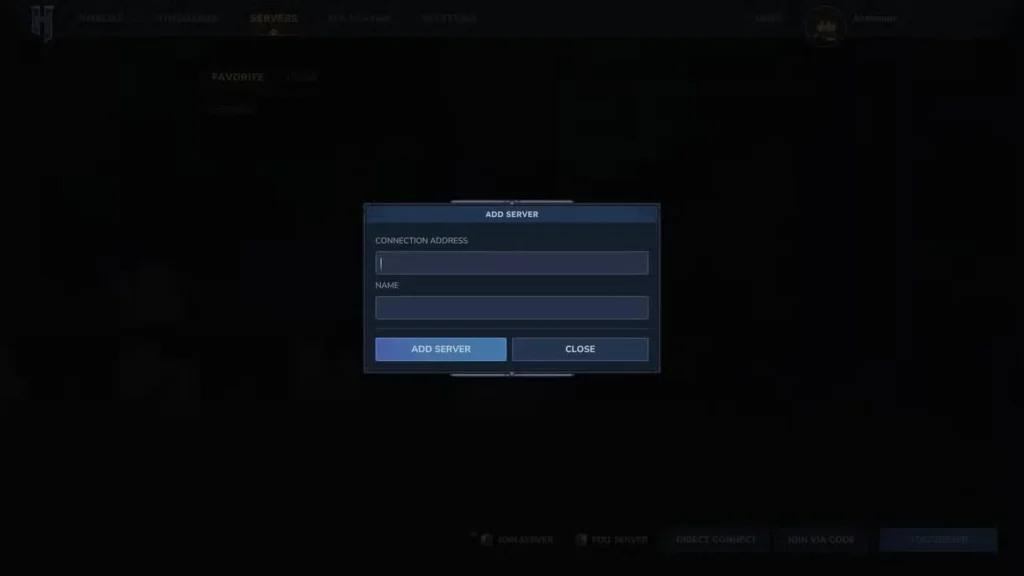
Boom—they should be in. As long as there aren’t any NAT (Network Address Translation) issues or weird internet connection problems, this method works like a charm.
If the “Join Via Code” option isn’t cooperating, tell your friends to try the Direct Connect button instead. Sometimes that workaround does the trick.
Troubleshooting Connection Issues
Running into NAT errors or connection problems? Yeah, that happens. Here are some fixes:
- Port forwarding: You or your friends might need to forward port 5520 on your router. The exact steps depend on your router model (check your router’s manual or manufacturer website)
- Use tunneling software: Apps like Hamachi or Radmin can create virtual networks that bypass NAT restrictions entirely—super handy if port forwarding sounds too technical
These workarounds usually solve most connection headaches, especially if you’re dealing with strict NAT types.
Want a 24/7 Dedicated Server?
If you’re tired of being the only one who can host—or you want a world that’s always online—you’ll need to rent a dedicated server from a third-party provider. Look for hosting companies that specifically support Hytale (there are quite a few out there).
Here’s how to set it up once you’ve rented one:
- Get your server’s IP address from the hosting provider
- Copy that address
- Open Hytale and go to the Servers menu
- Click Add Server
- Paste the IP address and give it a name (so you don’t get confused later)
- The server should now appear in your Servers list—click it to join
- Share the IP with your friends so they can connect too
Dedicated servers are perfect if you’ve got a regular group that plays together. Everyone can jump in whenever they want, repair their gear, gather Cindercloth scraps, or whatever—no waiting for the host to get online.
FAQs
Can I play Hytale with friends for free?
Yep! Setting up a listen server (the Share Code method) is completely free. You just host from your own PC. The only time you’d pay is if you want a dedicated 24/7 server, which requires renting from a hosting provider.
What happens to the world if the host leaves?
If you’re using a listen server, the world shuts down when the host logs off. Your friends won’t be able to play until you’re back online. That’s why dedicated servers are nice—they stay up even when you’re offline.
Is the Share Code safe to share?
Only share it with people you trust! The code contains your IP address, so handing it to strangers could be a security risk. Stick to sharing with actual friends.
Why can’t my friend connect to my server?
Usually it’s a NAT issue or firewall blocking the connection. Try port forwarding port 5520, or use tunneling software like Hamachi or Radmin. Also double-check that both of you have stable internet connections—sometimes it’s just that simple.