Hytale is absolutely massive, and if you want to explore everything it has to offer—or just build cool stuff without worrying about survival mechanics—Creative Mode is your best friend. Whether you’re testing game mechanics, building elaborate structures, creating machinima, or just messing around with friends, Creative Mode gives you basically godlike control over the game world.
The best part? You don’t even need to create a separate Creative Mode world to access most of these features. With a few simple console commands, you can enable cheats in any world and start experimenting immediately.
Let me walk you through everything you need to know about Creative Mode, cheats, and console commands in Hytale.
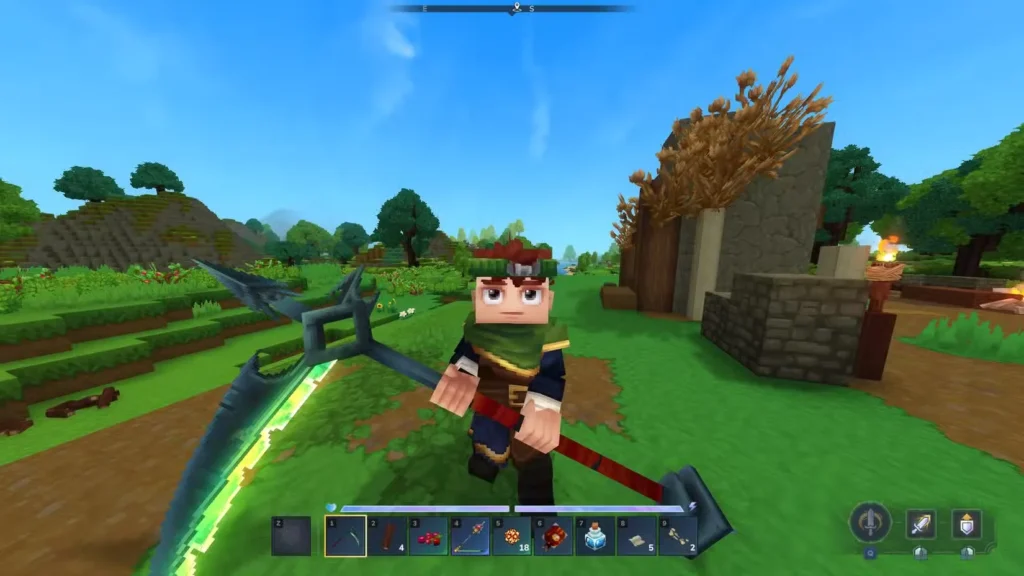
How to Enable Cheats in Hytale (Any World)
Here’s something a lot of players don’t realize: you don’t need to start a Creative Mode world to use cheats. Whether you’re playing solo or hosting a server for friends, you can enable cheats in any existing world.
Step 1: Give Yourself Admin Permissions
Open the in-game text chat and type:
/op selfThis grants you operator (admin) permissions, which essentially unlocks all cheats and console commands. Once you’ve done this, you’re free to use any command you want.
Step 2: Switch to Creative Mode (Optional)
If you want the full Creative Mode experience with infinite resources, flying, and invincibility, type:
/gamemode c [your username]Or just press O to toggle between Adventure and Creative modes quickly.
Essential Console Commands for Casual Players
Hytale has a ton of console commands—we’re talking over 100. Most of them are designed for advanced world editing, machinima creation, or server management. But if you’re just looking to have fun and experiment, here are the commands you’ll actually use:
Switch Game Modes
/gamemode [a/c] [playername]- a = Adventure Mode (survival)
- c = Creative Mode
Or just press O to toggle instantly.
Give Yourself Items
/give [playername] [item ID] --quantity=xThis spawns items directly into your inventory. The tricky part is knowing the item’s ID name. For example:
/give PlayerName Tool_Hatchet_Cobalt --quantity=5This gives you 5 Cobalt Hatchets. You’ll need to look up item IDs in the Creative Tools menu (more on that below), but once you know them, you can spawn anything—including unreleased items, rare materials like Thorium, or stacks of Iron Ingots.
Change the Time
/time set [0-24]Uses the 24-hour clock. Want eternal daylight for building? Set it to 12. Prefer spooky nighttime vibes? Set it to 0.
Teleport Players
/tp [player1] [player2]Teleports player1 to player2’s location. Super useful for multiplayer shenanigans or quickly moving around the map.
Heal Yourself
/heal [playername]Instantly restores health. Even in Creative Mode, this can be handy for testing damage mechanics.
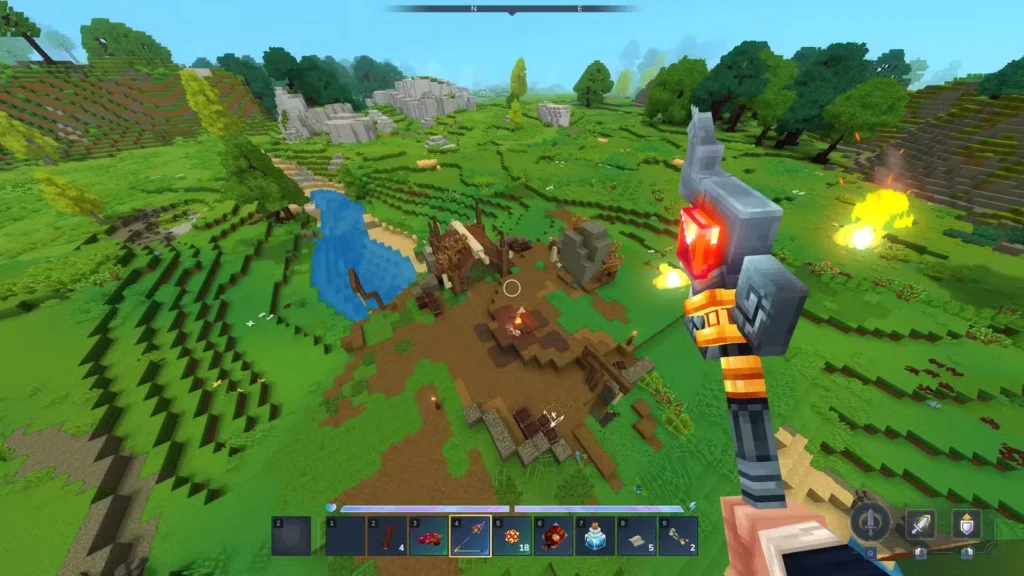
How to Fly in Hytale Creative Mode
Flying makes building and exploring so much easier. Here’s how to do it:
- Enter Creative Mode (press O or use
/gamemode c) - Double-tap the Space bar to start flying
- Hold Space to ascend
- Hold Ctrl to descend
- Double-tap Space again to stop flying and return to normal movement
Flying is absolutely essential for large-scale builds or exploring hard-to-reach areas. Combine it with teleporters for fast travel and you can zip around your world effortlessly.
How to Use God Mode in Hytale
In Creative Mode, you’re automatically invincible—no damage, no stamina loss, no hunger. But what if you want god mode in an Adventure Mode world without switching modes entirely?
Here’s how:
- Type
/op selfto enable admin permissions - Press O to toggle Creative Mode temporarily
- You’ll have god mode even if you switch back to Adventure Mode
This is perfect for testing combat mechanics, exploring dangerous areas, or just trolling friends on a multiplayer server without worrying about dying.
Where to Find All Console Commands in Hytale
Trying to memorize 100+ commands is ridiculous, so here’s the easy way to access them all:
Method 1: Use the Help Command
Type this in chat:
--helpThis displays a list of all available commands with brief descriptions.
Method 2: Creative Tools Menu
- Enter a Creative Mode world
- Open your character menu
- Go to the Creative Tools tab
- You’ll find an entire section dedicated to console commands, complete with detailed explanations and usage examples
This is honestly the best way to learn commands because it shows you exactly how to format them and what each parameter does.
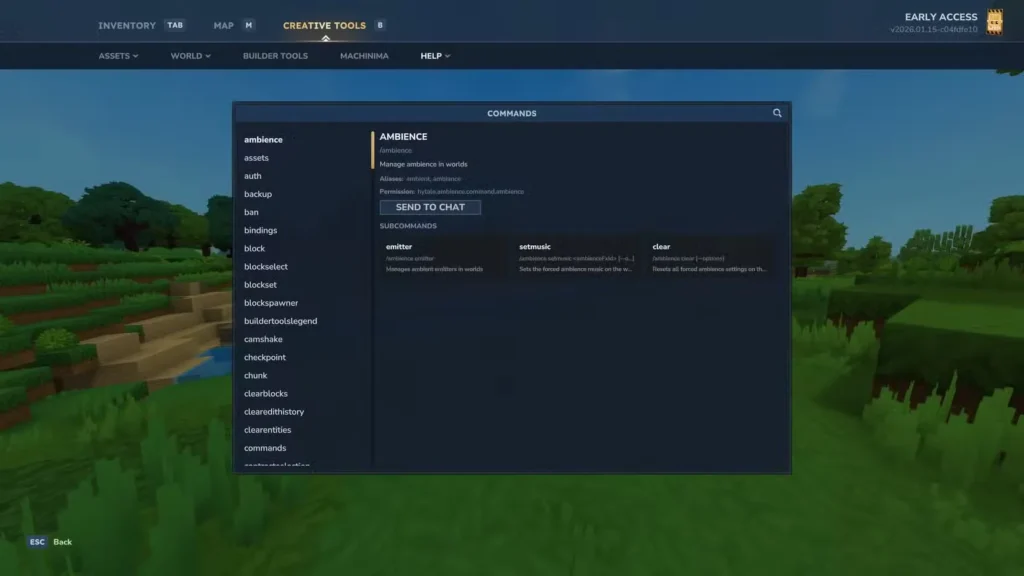
Complete List of All Console Commands in Hytale
For reference, here’s every console command currently available in Hytale. I’m not going to explain all of them (many are super technical), but having the full list is useful for Ctrl+F searching:
- /ambience
- /assets
- /auth
- /backup
- /ban
- /bindings
- /block
- /blockselect
- /blockset
- /blockspawner
- /buildertoolslegend
- /camshake
- /checkpoint
- /chunk
- /clearblocks
- /clearedithistory
- /clearentities
- /commands
- /contractselection
- /convertprefabs
- /copy
- /cursethis
- /cut
- /damage
- /debug
- /debugplayerposition
- /delete
- /deselect
- /desyncdamage
- /droplist
- /echo
- /editline
- /editprefab
- /emote
- /entity
- /environment
- /eventtitle
- /expand
- /extendface
- /fillblocks
- /fillsignature
- /flip
- /fluid
- /fragment
- /gamemode
- /give
- /gmask
- /heal
- /help
- /hide
- /hitbox
- /hitboxcollision
- /hitdetection
- /hollow
- /hotbar
- /hub
- /hudtest
- /importimage
- /importobj
- /instances
- /interaction
- /inventory
- /itemstate
- /kick
- /kill
- /landiscovery
- /land
- /leave
- /lighting
- /log
- /maxplayers
- /memories
- /messagetest
- /model
- /mount
- /move
- /neardeath
- /network
- /networkchunksending
- /noon
- /notify
- /npc
- /objective
- /op
- /packetstats
- /packs
- /particle
- /paste
- /path
- /perm
- /pidcheck
- /ping
- /play
- /player
- /plugin
- /pos1
- /pos2
- /prefab
- /prefabspawner
- /recipe
- /redo
- /refer
- /repairfillers
- /replace
- /repulsion
- /reputation
- /resetrotation
- /rotate
- /say
- /scriptedbrushes
- /selectchunk
- /selectchunksection
- /selectionhistory
- /server
- /setblocks
- /setticking
- /settimeandgohome
- /settoolhistorysize
- /shift
- /sleep
- /sound
- /spawn
- /spawnblock
- /spawning
- /spawnitem
- /stack
- /stash
- /stop
- /stresstest
- /submerge
- /sudo
- /tagpattern
- /time
- /tint
- /togglelockplacementoverride
- /toggletmptags
- /tp
- /unban
- /undo
- /unstuck
- /update
- /updateselection
- /validatecpb
- /version
- /viewport
- /voidevent
- /wait
- /wall
- /warp
- /weather
- /whereami
- /whitelist
- /who
- /whoami
- /world
- /worldgen
- /worldmap
- /worldpath
Creative Mode Tips & Tricks
Build Faster with Copy/Paste Commands
Commands like /copy, /paste, and /rotate let you duplicate and manipulate structures instantly. This is a lifesaver for building symmetrical designs or repeating patterns.
Test Items Before Farming Them
Wondering if Shadoweave Scraps are worth farming? Spawn them in Creative Mode and test the crafting recipes first.
Experiment with Workbench Upgrades
Curious what materials you need for upgrading workbenches? Use Creative Mode to spawn resources like Lightwood or Darkwood and test upgrades without grinding.
Learn Combat Mechanics Safely
Spawn enemies with /npc or /entity commands and practice combat without risk. Great for learning attack patterns before facing bosses in Adventure Mode.
Plan Your Builds
Use Creative Mode as a blueprint testing ground. Build a prototype of your dream base, figure out material requirements, then recreate it in survival for that satisfying sense of accomplishment.
FAQs About Hytale Creative Mode
Can I use cheats in multiplayer?
Yes, if you’re the server host or have operator permissions. Use /op [username] to grant admin rights to other players. Just be aware that giving someone op access gives them full control over the server.
Will using Creative Mode disable achievements?
As of now, Hytale doesn’t seem to lock achievements when using Creative Mode or cheats, but this could change in future updates. If achievements matter to you, create a separate Creative world for experimentation.
How do I find item ID names for the /give command?
Open the Creative Tools menu in Creative Mode—there’s a searchable database of all items with their exact ID names. You can also check community wikis or use /help give for formatting examples.
Can I switch between Creative and Adventure Mode without losing progress?
Absolutely. Toggling between modes with /gamemode or pressing O doesn’t reset your world or inventory. Just be careful not to accidentally spawn items in a survival world if you’re trying to play legitimately.
Related Guides: