Marvel Rivals has quickly become one of the most exciting hero shooters on the market, delivering intense 6v6 multiplayer action featuring iconic Marvel characters across stunning, comic-inspired maps.
The fast-paced gameplay and diverse roster have attracted tons of players eager to master their favorite heroes—whether you’re webslinging as Spider-Man, unleashing cosmic power as Captain Marvel, or tanking damage as Hulk.
But like any online multiplayer game, Marvel Rivals isn’t without its technical hiccups. Since launch, players across PC, PlayStation, and Xbox have reported various error codes that disrupt gameplay or prevent them from connecting to servers entirely. Error Code 4 is one of the most frustrating offenders, often blocking players from logging in altogether.
In this guide, I’ll break down Error Code 4 and several other common Marvel Rivals error codes, explain what causes them, and provide actionable fixes so you can get back to dominating matches ASAP. Let’s troubleshoot these issues and get you back in the fight.
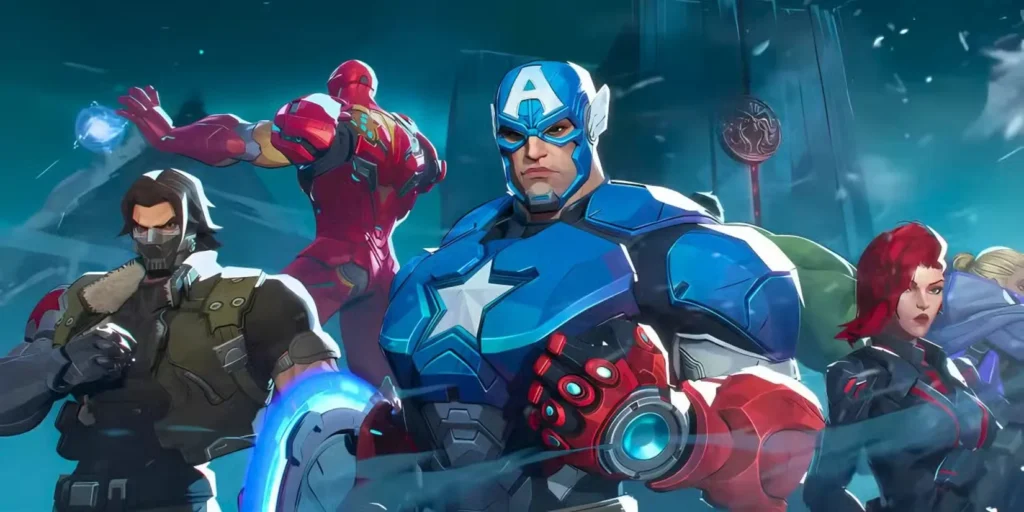
How to Fix Error Code 4 in Marvel Rivals
Error Code 4 typically indicates connectivity issues preventing your game client from establishing a connection with Marvel Rivals’ servers. It’s one of those generic “can’t connect” errors that could stem from server-side problems, network issues on your end, or software conflicts.
Here’s how to tackle it:
1. Check Marvel Rivals Server Status
Before diving into technical fixes, confirm whether the problem is on NetEase’s end. Server outages, maintenance windows, or unexpected downtime happen, especially during peak hours or after major updates.
Where to check:
- Official Marvel Rivals website
- Marvel Rivals social media channels (Twitter/X, Discord)
- Community forums and subreddits
If servers are down for everyone, you’ll just need to wait it out. If servers are operational and others are playing fine, the issue is likely on your side.
2. Check Your Internet Connection
Network instability is a major culprit behind Error Code 4. Even if your internet seems fine for browsing, gaming requires consistent, low-latency connections.
Steps to verify:
- Test your connection speed using Speedtest or similar tools
- Restart your router/modem
- Contact your ISP if you’re experiencing persistent connection drops
- Switch from WiFi to Ethernet if possible—wired connections are far more stable for online gaming
3. Restart the Game and Your Device
Sometimes the simplest solution is the most effective. Completely close Marvel Rivals (don’t just alt-tab), then relaunch. If that doesn’t work, restart your PC or console entirely. This clears temporary cache issues and refreshes network connections.
4. Flush DNS Cache (PC Players)
If you’re on Windows, flushing your DNS cache can resolve connectivity issues caused by outdated or corrupted DNS records.
How to flush DNS:
- Open Command Prompt as Administrator
- Type:
ipconfig /flushdns - Press Enter
- Restart Marvel Rivals
This refreshes your network connection and can often clear up server connection errors.
Other Common Marvel Rivals Error Codes & Fixes
Error Code 4 isn’t the only technical issue players are encountering. Here are other frequently reported errors and how to solve them:
99% Loading Screen Stuck
You’ve loaded into a match, the progress bar inches forward… and then gets permanently stuck at 99%. Frustrating doesn’t even begin to cover it.
Primary Cause:
This bug is almost always tied to unstable or slow internet connections.
Fixes:
1. Check Your Network Stability
- Restart your router/modem
- Switch to a wired Ethernet connection if you’re on WiFi
- Close bandwidth-heavy applications (streaming, downloads, etc.)
2. Use a VPN Counterintuitive, but sometimes routing through a VPN can stabilize connections to game servers, especially if your ISP is throttling gaming traffic or if there’s regional routing issues.
3. Close Background Programs Apps running in the background—especially those using network resources—can interfere with game loading. Close everything unnecessary before launching Marvel Rivals:
- Streaming software (OBS, Discord streams)
- Torrent clients
- Auto-updating applications
- Browser tabs with heavy media
Error Code LS-0014 (Epic Games Store)
This error predominantly affects players who downloaded Marvel Rivals through the Epic Games Store and typically indicates corrupted or missing game files.
Fixes:
Verify Game Files:
- Open the Epic Games Launcher
- Go to your Library
- Click the three dots next to Marvel Rivals
- Select Verify
- Wait for the process to complete—it’ll automatically redownload any corrupted files
Reinstall the Game: If verification doesn’t solve it, you may need a full reinstall. Uninstall Marvel Rivals completely, restart your PC, then reinstall fresh from the Epic Games Launcher.
Error Code 10
Similar to Error Code 4, Error Code 10 is another network connectivity error, though it often appears when trying to join matches specifically rather than at login.
Fixes:
1. Restart Everything
- Close Marvel Rivals completely
- Restart your gaming device
- Restart your router/modem
2. Update the Game Marvel Rivals receives frequent patches and hotfixes. Outdated clients can cause connection errors.
How to update:
- Steam: Updates should auto-download
- Epic Games: Check the launcher for pending updates
- Console: Check for game updates in your system’s download manager
Always keep Marvel Rivals updated to avoid compatibility issues with the servers.
Error Code 5 (PlayStation)
Error Code 5 is particularly common among PlayStation players and is caused by unstable network connections or high latency interfering with server communication.
Fixes:
1. Change DNS Settings Switching to faster, more reliable DNS servers can significantly improve connection stability.
Recommended DNS options:
- Google DNS: Primary
8.8.8.8, Secondary8.8.4.4 - Cloudflare DNS: Primary
1.1.1.1, Secondary1.0.0.1
How to change DNS on PlayStation:
- Go to Settings > Network > Settings > Set Up Internet Connection
- Select your connection (WiFi or LAN)
- Choose Custom setup
- Select Automatic for IP Address
- Select Do Not Specify for DHCP Host Name
- For DNS Settings, choose Manual
- Enter your chosen DNS addresses
- Complete setup and test connection
2. Use 5GHz WiFi Band or Wired Connection If you’re on WiFi, ensure you’re using the 5GHz band rather than 2.4GHz—it’s faster and less congested. Better yet, switch to an Ethernet cable for maximum stability.
Error Code 21 (Xbox)
Error Code 21 primarily affects Xbox players and is directly related to DNS configuration issues on the console.
Fixes:
1. Restart Console and Router Power cycle both your Xbox and your internet router. Unplug them for 30 seconds, then power back on.
2. Change Xbox DNS Settings Manually
Step-by-step:
- Press the Xbox button to open the guide
- Go to Profile & system > Settings > General > Network settings
- Select Advanced settings
- Choose DNS settings
- Select Manual
- Enter the following:
- Primary DNS:
8.8.8.8 - Secondary DNS:
8.8.4.4
- Primary DNS:
- Press B to save
- Restart your Xbox
This forces your Xbox to use Google’s DNS servers, which are generally more reliable than default ISP DNS.
Frequently Asked Questions (FAQ)
Why do I keep getting disconnected from Marvel Rivals matches?
Frequent disconnections are almost always network-related. Check for WiFi interference, switch to Ethernet if possible, close bandwidth-heavy background applications, and consider changing your DNS settings. If issues persist, contact your ISP to check for connection stability problems.
Will using a VPN get me banned in Marvel Rivals?
Generally, no. Using a VPN to improve connection stability is typically allowed. However, avoid using VPNs to access region-locked content or manipulate matchmaking, as that could violate terms of service. When in doubt, check Marvel Rivals’ official policies.
Do Marvel Rivals error codes differ between platforms?
Yes, some error codes are platform-specific (like Error Code 5 on PlayStation and Error Code 21 on Xbox), while others like Error Code 4 and Error Code 10 affect all platforms. The underlying causes are often similar—network issues, corrupted files, or server problems—but the solutions may vary slightly by platform.
How often does Marvel Rivals have server maintenance?
Server maintenance schedules vary, but NetEase typically announces planned maintenance in advance through official channels. Unexpected downtime can occur during high-traffic periods or after major updates. Always check official social media for real-time server status updates.
Get Back in the Action
Technical errors are frustrating, especially when you’re hyped to jump into Marvel Rivals and dominate with your favorite heroes. The good news? Most of these error codes—Error Code 4, 99% loading stuck, LS-0014, and others—have straightforward fixes that you can implement yourself without needing deep technical knowledge.
Start with the basics: check server status, verify your internet connection, restart everything. If that doesn’t work, move to platform-specific solutions like changing DNS settings or verifying game files. Nine times out of ten, one of these fixes will get you back online.
And remember, if you’re looking for more gaming guides, tips, and free rewards for other popular games, check out our articles like RogueRealms Codes for the latest freebies and updates!
Now stop reading and get back out there—your team needs you! 🦸♂️⚡