How to Use Photo Mode in Arknights Endfield
Learn how to access and use Photo Mode in Arknights Endfield to capture stunning screenshots. Complete guide to camera controls, filters, and saving photos.
Arknights Endfield offers more than intense combat and exploration, sometimes you just want to appreciate the gorgeous environments or capture a memorable moment with your squad. The good news? There’s a built-in Photo Mode that lets you do exactly that. The not-so-good news? The game doesn’t exactly advertise this feature, making it easy to miss entirely.
If you’re just getting started with the game, check out our comprehensive Arknights Endfield guides hub for everything you need to know. You can download the game from the official website, Google Play, or the Epic Games Store.
Accessing Photo Mode in Arknights Endfield
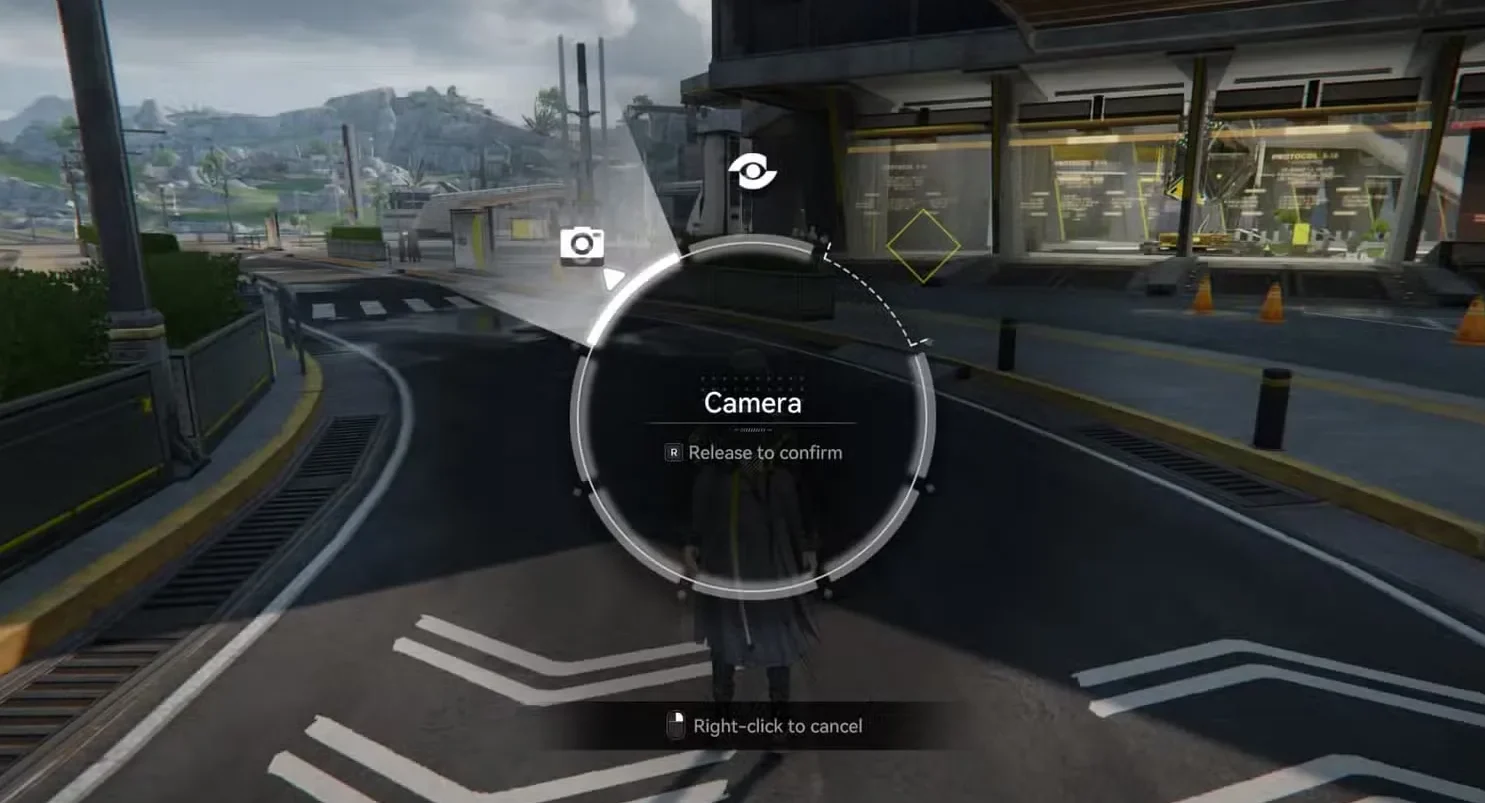
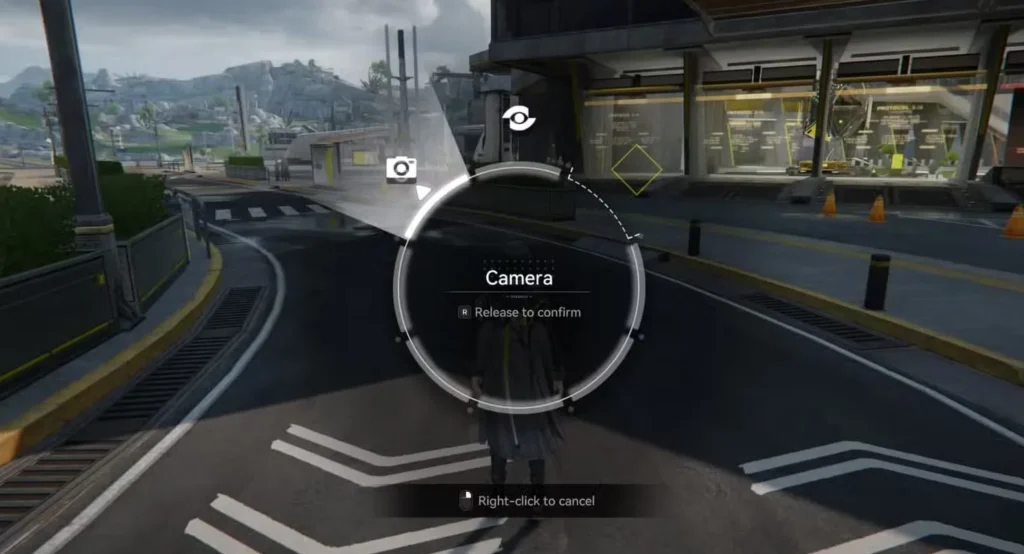
Finding Photo Mode is surprisingly simple once you know where to look. On the right side of your screen, just above your Operators’ skill buttons, you’ll spot a quick access wheel for various tools. Hold down that button to open the wheel, and you should see a Camera icon among the available options. Tap or click it, and you’re in Photo Mode.
Understanding Photo Mode Controls
While Endfield’s Photo Mode won’t win any awards for depth, it covers the basics you’d expect. You get control over camera positioning, zoom, and aperture adjustments. There’s also a first-person perspective option if you want to get up close and personal with the scenery.
The main limitation? You can’t force your Operators into specific poses or trigger particular animations. What you can do is manipulate their formation and visibility, giving you some creative control over your compositions.
Photo Mode Features Breakdown
Here’s what you’re working with:
Scene Controls give you visibility toggles for Operators, NPCs, factory buildings, and item drops. This is perfect when you want a clean landscape shot without all the clutter. You’ll also find the aperture slider here for adjusting depth of field.
Formation lets you reposition your team members before taking the shot. Handy for group photos or when you want specific Operators in frame.
Filters provide color grading options to change the mood and atmosphere of your screenshots. Experiment with these to find looks that match your vision.
Stickers allow you to slap decorative decals onto your images—think of them as quick photo editing overlays.
One important tip: you’ll be locked in place when you first enter Photo Mode. To actually move the camera around freely, you need to toggle the Operator and Camera Control mode. The specific button for this will be displayed on your screen, though it varies by platform.
The Critical Save Step (Don’t Skip This!)
In the current build of Arknights: Endfield, there’s a confusing distinction between taking the photo and actually saving it. This trips up a lot of players, so pay close attention.
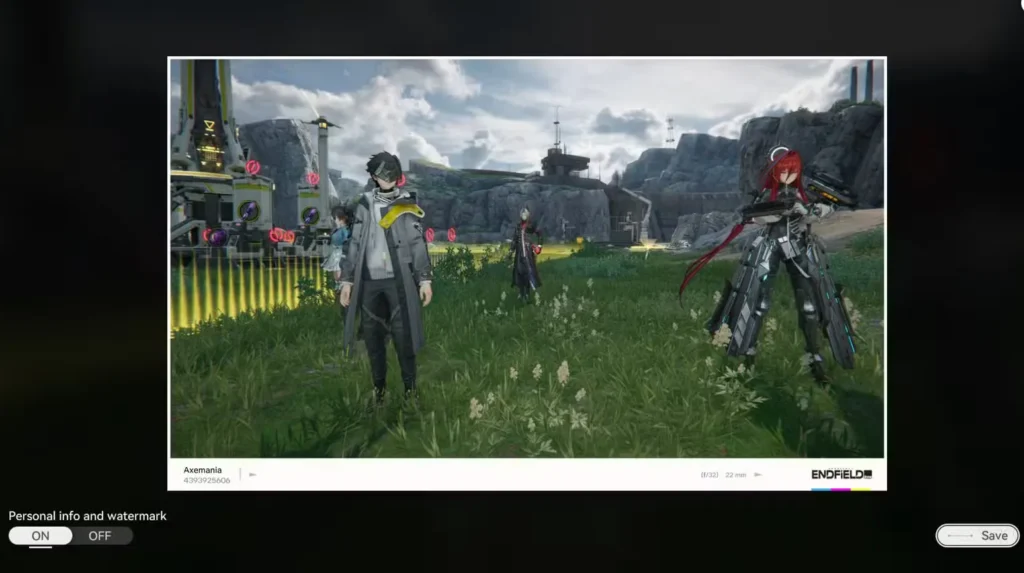
The Missing Step: When you hit the “Capture” button in Photo Mode, the game shows you a preview of your shot. Here’s the catch—it’s not saved yet.
The Trap: Many players exit the preview screen thinking their screenshot is safely tucked away in their gallery. Wrong. You actually have to hit a secondary “Download” or “Save to Device” icon (usually located in the bottom corner of the preview screen) to actually commit that file to your PC or phone storage.
If you skip this step and just back out of the preview, your photo is gone. Make it a habit: capture, preview, then explicitly save. It’s an extra step that feels unnecessary, but until the developers streamline this process, it’s the only way to ensure your screenshots actually stick around.
Where Your Screenshots Are Saved
Once you’ve properly saved your photos (remember that extra step!), here’s where they’ll end up.
PC players will find their captured images automatically saved to the Pictures folder on their system. Simple and straightforward.
For mobile and console players, your screenshots go directly to your device’s native gallery or photo library. Just open your usual photo app and they should be waiting for you.
If Photo Mode feels too restrictive, there’s always the old-fashioned workaround: hide the game’s UI elements and use your device’s built-in screenshot function. You lose the filters and special effects, but you gain complete camera freedom—and you won’t have to worry about that confusing two-step save process.
Making the Most of Photo Mode
While you’re exploring the world and snapping photos, you might want to check out some of our other guides to enhance your experience. Learn how to solve the Quarry Rescue door puzzle, expand your Core AIC area, or increase your power output.
Understanding your characters and how to level them up properly will help you build stronger teams worth photographing. Speaking of teams, if you’re running Laevatain, we’ve got guides for her best team compositions and optimal build.
For more technical aspects of the game, check out our guides on the gacha system, stats mechanics, elemental reactions, and rerolling strategies. You might also want to optimize your game settings, learn about multiplayer and crossplay, grab some Twitch Drops, switch your Endministrator, or redeem promo codes.
Frequently Asked Questions
Can I make my Operators do specific poses in Photo Mode?
Unfortunately, no. Endfield’s Photo Mode doesn’t include the ability to trigger specific animations or force Operators into particular poses. You’re limited to whatever idle animations they happen to be doing, though you can adjust their positioning using the Formation controls.
Where is the Photo Mode button located?
Look for the quick access wheel on the right side of your screen, positioned just above your Operators’ skill buttons. Hold this button to reveal the wheel, then select the Camera icon to enter Photo Mode.
Why aren’t my photos showing up in my gallery?
This is the most common issue players face. After hitting “Capture” in Photo Mode, you’re shown a preview—but the photo isn’t saved yet. You must tap the “Download” or “Save to Device” button (usually in the bottom corner of the preview screen) to actually save it to your device. If you exit the preview without doing this, your photo is lost.
Can I move the camera while in Photo Mode?
Yes, but not by default. When you first activate Photo Mode, the camera is locked. You need to toggle the Operator and Camera Control mode to enable free camera movement. The toggle button will be shown on your screen and varies depending on your platform.
Can I use Photo Mode during combat?
Yes! However, the game doesn’t “hard pause” in multiplayer or certain online instances. In solo play, it acts as a pause, allowing you to catch ability effects mid-air.