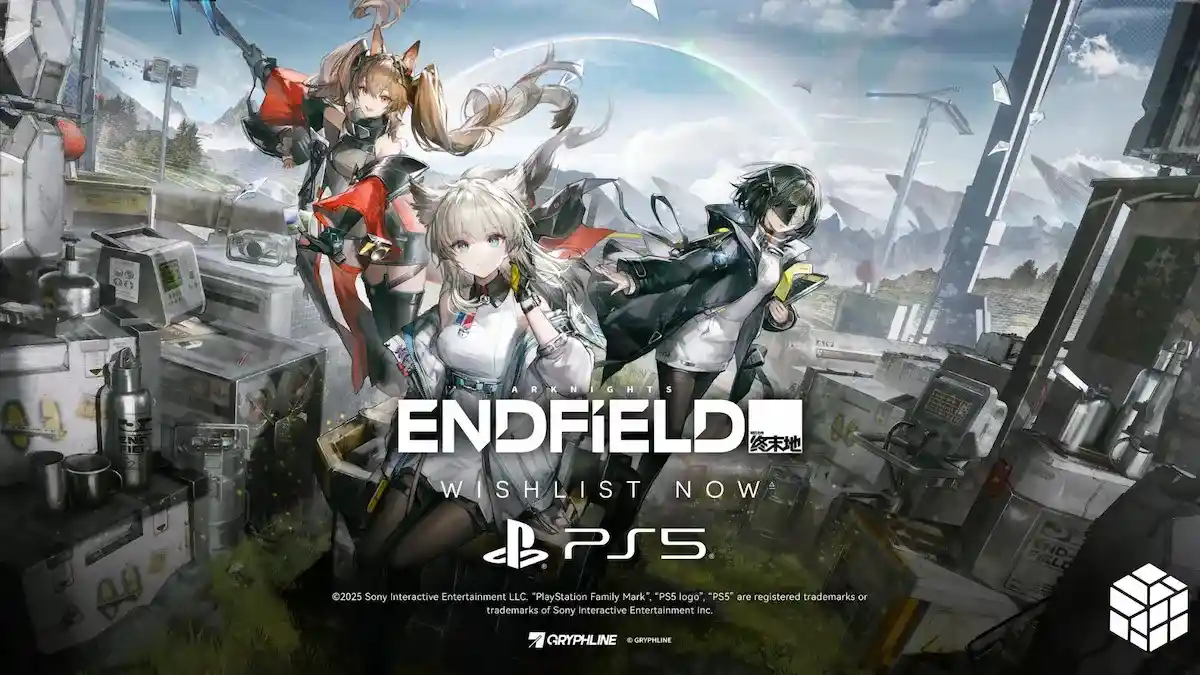
Ever notice how Arknights Endfield runs buttery smooth one moment, then suddenly chugs during intense combat? You’re not imagining it. While the game performs decently on default settings, a few strategic tweaks can transform your experience from “playable” to “actually smooth.”
Whether you’re on a beast PC, a budget laptop, or playing mobile on your commute, this guide covers the optimal settings to keep your frame rate stable and your gameplay crisp. Let’s get your game running the way it should.
Understanding What Actually Matters
Before we dive into specific settings, here’s the thing: stable performance beats pretty graphics every time. A constant 60 FPS on Medium settings feels infinitely better than fluctuating between 40-80 FPS on High. Your goal is finding that sweet spot where your hardware maintains consistent frame rates, especially during those chaotic multi-enemy battles.
Now let’s break down the optimal configurations.
Arknights Endfield Best Settings for PC
Your PC can push way harder than mobile, but that doesn’t mean you should max everything and hope for the best. Here’s what actually works based on your hardware tier.
Complete PC Settings Breakdown
| Setting | Budget/Older PC | Mid-Range PC | High-End PC |
|---|---|---|---|
| Graphics Quality | Low | Medium-High | High-Very High |
| Resolution | 1280×720 Fullscreen | 1920×1080 Fullscreen | 1920×1080 or higher |
| FPS Target | 30-60 | 60 | 90-144+ |
| Render Scale | 70-80% | 90-100% | 100% |
| Special Effects Quality | Low | Medium | High |
| Vertical Sync | ON | ON | ON |
| Shadow Quality | Low | Low-Medium | Medium |
| Texture Quality | Low | Low-Medium | High |
| Volumetric Fog | Low | Low-Medium | High |
| Anisotropic Sampling | x1-x2 | x4 | x8-x16 |
| Ambient Occlusion | Low | Low | Medium-High |
| Scene Details | Low | Medium | High |
| Ambient Details | Low | Low | High |
| Vegetation Density | Low | Low | High |
| Chromatic Aberration | OFF | OFF | OFF-ON |
| Screen Space Reflections | OFF-Low | Low-Medium | Medium-High |
| Image Enhancement | TAAU or FSR | TAAU | TAAU or Native |
| Contact Shadows | OFF | OFF-ON | ON |
What These Settings Actually Do
Render Scale is your best friend for performance. Dropping this to 80-90% can boost FPS significantly while barely affecting visual quality. Most players won’t even notice the difference during gameplay.
Shadow Quality is a notorious performance killer. Even on high-end systems, keeping shadows at Low or Medium saves tons of resources without making the game look terrible.
Chromatic Aberration is that blurry edge effect that some people find “cinematic” and others find annoying. Turn it off—it doesn’t help gameplay and just adds visual noise.
TAAU (Temporal Anti-Aliasing Upscaling) is basically magic. It renders at a lower resolution then intelligently upscales, giving you near-native quality with better performance. Use it.
Vertical Sync (VSync) prevents screen tearing. Keep it on unless you’re experiencing input lag, which is rare in Endfield.
Quick PC Optimization Tips
- Fullscreen mode performs better than Borderless Windowed – The performance difference can be 10-15 FPS
- Close background applications – Discord, browsers, and streaming software eat resources
- Update your GPU drivers – Seriously, this fixes more issues than you’d think
- Monitor your temps – Thermal throttling tanks performance faster than low settings
For more ways to enhance your Endfield experience, check out our complete guides collection.

Arknights Endfield Best Settings for Mobile (iPhone & Android)
Mobile optimization is all about that battery life and temperature management. Nobody wants a phone that doubles as a hand warmer after 20 minutes of gameplay.
Complete Mobile Settings Breakdown
| Setting | Budget/Older Phone | Mid-Range Phone | Flagship Phone |
|---|---|---|---|
| Frame Rate | 30 FPS | 60 FPS | 60 FPS |
| Graphics Preset | Low | Medium | Medium-High |
| Resolution/Render Scale | 70-80% | 90-100% | 100% |
| Shadow Quality | Low | Low-Medium | Medium |
| Special Effects | Low | Medium | Medium-High |
| Post-Processing | Off | Off-Low | Low |
| Chromatic Aberration | Off | Off | Off |
| Vibration Feedback | Optional | Optional | Optional |
| Vegetation Density | Low | Low-Medium | Medium |
Mobile-Specific Considerations
Battery Life vs. Performance: Running at 60 FPS Medium drains battery roughly 40% faster than 30 FPS Low. If you’re away from a charger, prioritize efficiency.
Thermal Management: Extended sessions on High settings can cause thermal throttling, where your phone reduces performance to cool down. Medium settings prevent this on most devices.
Screen Size Matters: On smaller phone screens (under 6 inches), the difference between Medium and High graphics is barely noticeable. Save your battery and go Medium.
iOS vs. Android: iPhones generally handle Endfield more efficiently thanks to better optimization. An iPhone 13 performs similarly to Android flagships with better battery life.
Mobile Optimization Tips
- Enable Battery Saver mode in-game – Caps frame rate at 30 but extends playtime significantly
- Remove your phone case during long sessions – Heat dissipation matters
- Close ALL background apps – Mobile RAM is precious
- Use headphones instead of speakers – Reduces battery drain slightly
- Lower screen brightness – Your biggest battery killer isn’t the game, it’s your display
Want to maximize your progress? Don’t forget to grab active redeem codes for free rewards.

Frame Rate Targets: What Should You Aim For?
Let’s talk FPS, because this is where people get confused.
30 FPS – The Bare Minimum
Playable? Yes. Enjoyable? Debatable. This works for turn-based strategy, but Endfield has real-time combat. You’ll manage, but inputs feel sluggish and combat lacks precision. Only use this if your hardware absolutely can’t handle 60.
60 FPS – The Sweet Spot
This is where Endfield feels good. Combat is responsive, exploration is smooth, and most importantly—it’s achievable on mid-range hardware without sacrificing too much visually. This is what you should target for the best balance of performance and experience.
90-120 FPS – High Refresh Rate Territory
If your monitor or phone supports it and your hardware can maintain it, this genuinely improves gameplay. Commands register faster, movement tracking is cleaner, and combat feels more immediate. The jump from 60 to 90+ is noticeable, especially during fast-paced battles.
You’ll need either a high-end PC or a flagship phone with a 120Hz+ display to make this worthwhile.
144 FPS and Beyond – Diminishing Returns
Honestly? Unless you’re some kind of Endfield esports prodigy (does that even exist yet?), the difference between 120 and 144+ is minimal. You need top-tier hardware AND a compatible display. Most players won’t benefit enough to justify the performance cost.
Real Talk: A locked, stable 60 FPS beats an unstable 90+ FPS every single time. Frame consistency matters more than peak frame rate.
Settings You Should ALWAYS Adjust
No matter your hardware, these tweaks universally improve the experience:
Turn OFF Chromatic Aberration – It’s visual clutter that serves no gameplay purpose. Off with it.
Keep Motion Blur OFF – Makes tracking enemies harder and causes eye strain for many players.
Disable Depth of Field – Blurs background elements, which looks “cinematic” but reduces battlefield awareness.
Set Text Size appropriately – Endfield has small UI elements. Don’t strain your eyes trying to read tiny text.
Troubleshooting Common Performance Issues in Arknights: Endfields
Game stutters during combat: Lower Special Effects Quality first, then Shadow Quality. These are the biggest culprits during particle-heavy fights.
Choppy performance despite good hardware: Check if VSync is forcing a frame cap lower than your target. Also verify your game is using your dedicated GPU, not integrated graphics.
Mobile overheating: Drop Graphics Preset by one level and reduce Render Scale to 80-90%. Also, close all background apps.
Input lag: Turn OFF VSync and see if it improves. Some players are sensitive to the minor delay VSync introduces.
Frequent frame drops: Lower Vegetation Density and Scene Details. Open-world areas tax your system more than indoor zones.
For team-building tips to complement your smooth performance, visit our complete character guide.
The “best” settings for Arknights Endfield are whatever keeps your game running smoothly at a consistent frame rate. A stable 60 FPS on Medium looks and plays better than a wildly fluctuating 80 FPS on High.
Start with the recommendations for your hardware tier, then adjust based on what you’re experiencing. Monitor your frame rate during combat—if it’s dropping below your target, lower settings until it stabilizes.
Remember: performance first, visuals second. Your K/D ratio doesn’t care if you can count every blade of grass.
Frequently Asked Questions
What’s the best FPS for Arknights Endfield?
60 FPS is the ideal target for most players. It provides smooth gameplay without excessive hardware demands. If you have a high refresh rate display (90Hz, 120Hz, 144Hz) and the hardware to support it, going higher definitely improves responsiveness, but 60 is perfectly fine.
Should I use TAAU or FSR for better performance?
TAAU (Temporal Anti-Aliasing Upscaling) generally produces better image quality than FSR in Endfield. If you need a performance boost, try TAAU first at 80-90% render scale. FSR is there if TAAU doesn’t work well on your specific hardware.
Why does my game run worse on mobile than PC even on Low settings?
Mobile devices have thermal limitations that PCs don’t. After 15-20 minutes of gameplay, phones often throttle performance to prevent overheating. Try removing your phone case, lowering graphics one more step, or taking short breaks to let your device cool down.
Does lowering resolution really help that much?
Absolutely. Dropping from 1920×1080 to 1280×720 can boost FPS by 30-50% on budget systems. On mobile, reducing Render Scale to 70-80% significantly improves battery life and thermal performance with minimal visual impact on smaller screens.


