Getting smooth performance in Arknights Endfield on a mid-range laptop requires more than just lowering graphics settings. You need to understand which settings actually impact frame rates and how to prevent thermal throttling from sabotaging your gameplay.
Whether you’re exploring Terra’s open world or managing your base systems, maintaining 60fps makes everything feel responsive. For more optimization strategies across different aspects of the game, check out our Arknights Endfield guides hub where we cover everything from character builds to gear templates.
You can grab the game from the official website, Google Play Store, or Epic Games Store depending on your platform.
What Hardware Do You Actually Need?
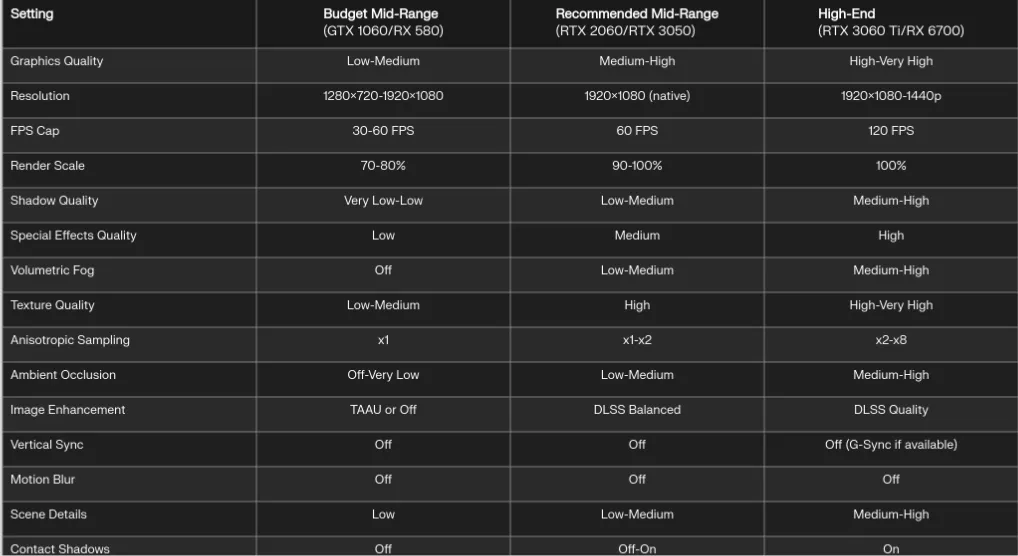
The sweet spot for 1080p gaming at 60fps sits around an NVIDIA RTX 2060 or RTX 3050. Pair either of these with an Intel Core i5 (10th generation or later) and 16GB of RAM installed on an SSD, and you’re golden.
The RTX 2060 hits that perfect balance point where you can run High settings without any hiccups. If your laptop rocks a newer RTX 3050, you’re actually sitting pretty since DLSS support means you can push settings even higher while maintaining frame rates.
Got an older setup with a GTX 1060 or RX 580? The game will run, but expect around 30-45fps on lower settings. On the flip side, if you lucked into an RTX 3060 Ti or RX 6700 XT, you’ll easily surpass 120fps.
The Two Settings That Matter Most
Here’s something most guides won’t tell you upfront: shadows and special effects eat up more performance than anything else in Endfield. Drop these first, ask questions later.
Shadow Quality needs to come down to Low or Medium on mid-range hardware. You’ll gain 2-3% frame rate improvement per step down, which adds up fast. The crazy part? You’ll barely notice the visual difference between High and Medium shadows during actual gameplay. The performance hit becomes most obvious when you’re wandering through heavily forested zones.
Special Effects Quality controls all those flashy particle effects during combat. When you’re triggering elemental reactions like Combustion or Frost, your GPU has to render tons of particles. Setting this to Medium keeps the visual spectacle intact without choking your hardware during intense multiplayer sessions.
Resolution and Upscaling: Your Best Friend
Stick with your laptop’s native 1920×1080 resolution in Fullscreen mode. Dropping resolution just makes everything blurry without giving you the performance boost you’d expect. Instead, mess with the Render Scale setting—knock it down to 80-90% if you need extra frames without the mushiness of a lower native resolution.
For NVIDIA users, DLSS in Balanced mode feels like cheating. It effectively doubles your GPU’s capability while keeping image quality sharp. Struggling with temperatures or CPU limits? Switch to Performance mode.
AMD laptop owners don’t have FSR support in Endfield yet, which stinks. You’re stuck with TAAU upscaling. It’s not as crisp as DLSS but it’ll do the job when you need those extra frames.
The DirectX 11 Temperature Trick
This one’s huge for laptops: switching from DirectX 12 to DirectX 11 can drop your temperatures by around 20°C with almost no performance penalty. If your laptop sounds like a jet engine or you’re getting random crashes, launch the game with the -dx11 command line argument.
This single change can stabilize your frame rate by preventing thermal throttling. While you’re at it, update your GPU drivers—NVIDIA dropped Arknights-specific Game Ready Drivers on January 26, 2026.
Secondary Settings to Adjust
After handling shadows and effects, tackle these settings in order of impact:
Turn Off or Lower:
- Volumetric Fog: Off or Low (this one’s a VRAM hog)
- Anisotropic Sampling: Keep it at x1, maybe x2 maximum
- Vertical Sync: Off unless screen tearing drives you nuts
- Motion Blur: Off (improves clarity and reduces load)
- Ambient Details & Vegetation Density: Low
- Scene Details: Medium, or Low if your GPU consistently runs above 85%
Keep High:
- Texture Quality: High unless you’re running a 4GB VRAM card like the GTX 1060. Lower textures hurt visuals way more than they help performance.
System-Level Optimizations
Your in-game settings only tell half the story. Get your laptop’s OS dialed in too:
Close background programs, especially browsers and Discord. These silently steal RAM and GPU resources you need for gaming. Enable Windows Game Mode to prioritize system resources for your game.
Head into NVIDIA Control Panel, find Manage 3D Settings, and set Power Management Mode to Maximum Performance. This ensures your GPU doesn’t throttle to save battery.
Clean your laptop’s vents and consider grabbing a cooling pad if temperatures stay elevated. Use a wired connection instead of Wi-Fi to eliminate network-related stuttering.
Understanding CPU Bottlenecks
Here’s a tricky one: you might see overall CPU usage sitting at 50% but still experience frame drops. That’s because individual cores can max out at 100% while others sit idle. This per-core bottlenecking caps your frame rate even though it looks like you have CPU headroom.
If you notice FPS stuck below 60 despite seemingly low CPU usage, lower your GPU settings further to balance the workload across cores.
Recommended Settings for Common Hardware
RTX 2060 / RTX 3050 (Standard Mid-Range):
- Resolution: 1920×1080 Fullscreen
- Shadow Quality: Low-Medium
- Special Effects: Medium
- Texture Quality: High
- DLSS: Balanced (Performance if needed)
- Render Scale: 100%
- FPS Cap: 60
- API: DirectX 11 if temps exceed 80°C
GTX 1660 Ti / RTX 3060 (Upper Mid-Range):
- Resolution: 1920×1080 Fullscreen
- Shadow Quality: Medium
- Special Effects: Medium-High
- Texture Quality: High
- DLSS: Quality
- Render Scale: 100%
- FPS Cap: 60-90
- Volumetric Fog: Low
These configurations deliver responsive gameplay while preserving Endfield’s distinctive visual style. Monitor your temperatures during your first session—if they stick above 85°C, switch to DirectX 11 mode and drop Shadow Quality one more notch.
For more optimization help, explore our guides on best game settings, character stats, and team compositions. If you’re new to the game, our reroll guide and gacha system breakdown will help you start strong.
Arknights: Endfield Technical Troubleshooting FAQ
Why is my game stuttering even though I have a powerful RTX GPU?
This is a known “Idle GPU” bug in the launch version. Some laptops are failing to recognize Endfield as a high-performance 3D application, causing the GPU to stay in “Power Save” mode.
The Fix: Go to Windows Settings > System > Display > Graphics. Find Arknights: Endfield in the list (or add the .exe manually), click Options, and select High Performance. Alternatively, switching to DirectX 11 mode as mentioned above forces the GPU to initialize correctly.
My controller (DualSense/Xbox) isn’t being detected on PC. How do I fix it?
Endfield has a strict “Primary Input” system. If you have a gaming keyboard with “Analog” keys (like a Wooting or Razer Huntsman V3), the game may mistake your keyboard for a controller and ignore your actual gamepad.
The Fix: Unplug your keyboard before launching the game, or disable “Steam Input” if you’ve added the game to your Steam Library. The game works best with wired connections for DualSense features like haptic feedback.
The launcher is stuck at “Releasing Resources 0.00%.” What should I do?
This usually happens when the game can’t get “Write” permissions for its temporary update folder.
The Fix: Close the launcher completely. Right-click the Endfield launcher icon and select “Run as Administrator.” If that fails, temporarily disable your Antivirus (specifically “Real-Time Protection”) during the patching process.
How do I fix the “Out of Video Memory” error on 4GB VRAM laptops?
Despite the name, this is often a Shader Compilation error.
The Fix: Navigate to the in-game Settings > System > Graphics and find the “Compile Shader” option. Run this once (it may take 5–10 minutes). It pre-builds the game’s assets so your GPU doesn’t have to do it on the fly, which is the leading cause of crashes during combat.
Does Arknights: Endfield support 120fps on PC?
Yes, as of the January 2026 launch, the 120fps toggle is available in the Graphics menu. However, if you are on a mid-range laptop, we recommend capping at 60fps to maintain “Frame Pacing” consistency. 120fps in the base-building “AIC Factory” zones can cause significant thermal throttling on mobile chips.
Other Frequently Asked Questions
What’s the most important setting for laptop performance in Arknights Endfield?
Shadow Quality has the biggest impact on laptop performance. Dropping it from High to Medium or Low can improve frame rates by 6-9% while having minimal visual impact during gameplay. Combine this with Medium Special Effects for the best balance between performance and visuals.
Should I use DirectX 11 or DirectX 12 on my laptop?
Use DirectX 11 if your laptop runs hot or experiences crashes. It reduces temperatures by around 20°C compared to DirectX 12 with almost no performance penalty. Launch the game with -dx11 in the command line arguments to enable it. This is especially important for preventing thermal throttling on laptops with limited cooling.
Does DLSS really make a difference on mid-range laptops?
Absolutely. DLSS in Balanced mode can give you 20-30% better performance on NVIDIA RTX cards while maintaining sharp image quality. It’s the single best feature for mid-range laptop gaming. If you have an RTX 2060 or newer, always enable DLSS before lowering other graphics settings.
Why is my FPS capped at 45 when my CPU usage shows only 50%?
You’re experiencing per-core CPU bottlenecking. Even though overall usage looks low, individual CPU cores may be maxed at 100%, limiting performance. To fix this, lower some GPU-intensive settings (shadows, effects) to reduce the load on those bottlenecked cores. Closing background applications also helps free up CPU resources.