Factory automation stands as one of Arknights Endfield’s core pillars alongside combat and exploration. A substantial portion of character progression and account development flows through your Automated Industrial Complex, whether you’re excited about that or not.
Building production lines from scratch can feel overwhelming, especially if automation games aren’t your specialty. Fortunately, the blueprint system lets you leverage designs created by experienced players, simplifying factory management considerably.
Want more guidance on all aspects of the game? Check out our Arknights Endfield guides hub for comprehensive tutorials covering combat, resource gathering, and base optimization.
Acquiring Your First Factory Blueprints
Pre-made blueprints become available through AIC Factory Simulations, which you’ll find listed alongside daily tasks in your Operational Manual. These activities focus purely on factory mechanics without any combat requirements, so character selection doesn’t matter.
Think of Factory Simulations as interactive tutorials walking you through production line fundamentals. Completing these exercises rewards you with Oroberyls (premium currency) plus functional blueprints that produce essential materials.
Early simulation rewards typically include blueprints for Origocrust production or Amethyst Component manufacturing—both crucial materials for crafting gear that strengthens your Operators. These starter blueprints provide immediate value while teaching you system basics.
The tutorial structure ensures even players completely new to automation games can establish functional factories. Each simulation builds on previous concepts, gradually introducing complexity without overwhelming you.
For related factory management topics, explore our guides on battery production, expanding Core AIC area, and Aerospace Materials collection.
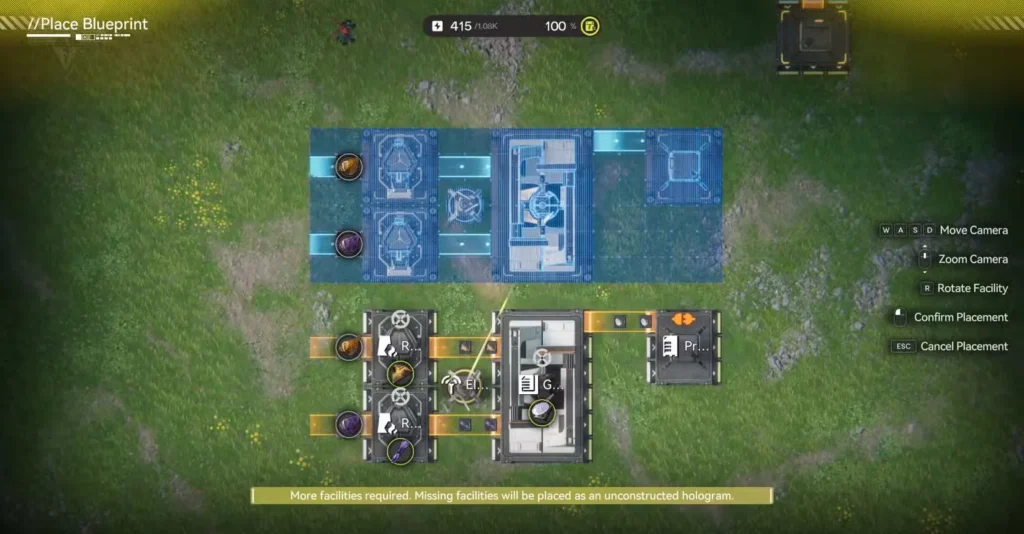
Deploying Blueprints in Your Factory
Once you’ve acquired blueprints through simulations or other sources, implementing them takes just a few steps:
Enter AIC Mode – Access your factory management interface from the main menu
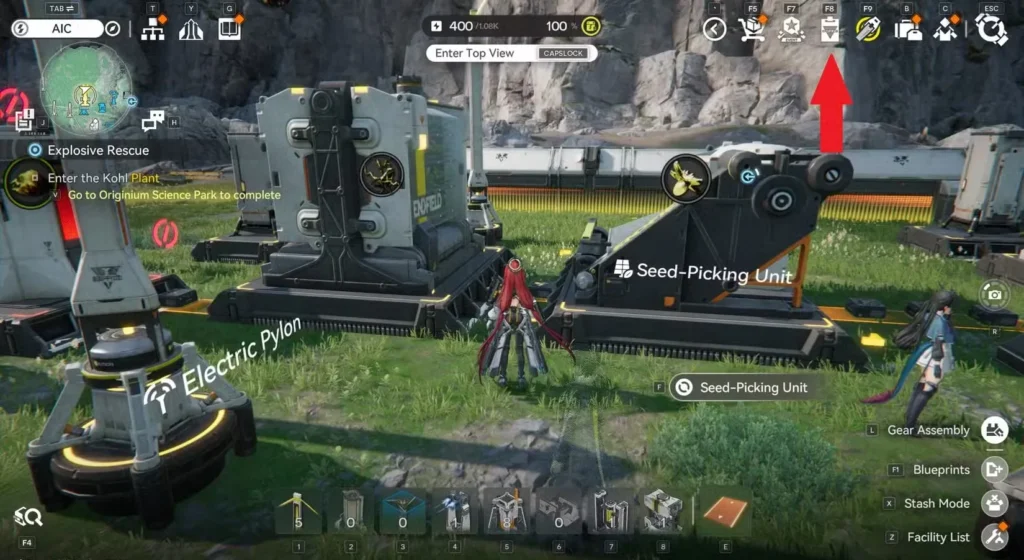
Open the Blueprints menu – Look for the Blueprints button positioned on the right side of your screen
Navigate to System Blueprints – This tab contains all officially provided blueprint designs
Select your desired blueprint – Browse available options and choose one matching your production needs
Position the hologram – Place the transparent preview in suitable vacant space within your factory
The system automatically constructs all necessary facilities for your chosen blueprint, pulling components from your Depot inventory. This automation saves tremendous time compared to manually placing each individual machine and connector.
However, you might encounter situations where your Depot lacks specific components required by the blueprint. In these cases, you’ll need to manually add the missing pieces before the production line becomes operational.
Blueprint organization happens across three tabs. System Blueprints contain official designs from simulations and tutorials. My Blueprints stores your personal creations. Shared Blueprints houses designs imported from other players.
For optimizing your factory layout and production, check out our guides on Quick Stash systems, increasing power output, and Gear Templates.
Importing Blueprints from Other Players
The community-driven blueprint sharing system represents one of Endfield’s most player-friendly features. Importing designs from experienced factory builders can dramatically accelerate your progression.
Here’s the import process:
Obtain a Share Code from another player—these alphanumeric strings identify specific blueprint designs. Community forums, Discord servers, and social media groups frequently share optimized production line codes.
Open your Blueprints menu and navigate to the Shared Blueprints tab. Press the Import Blueprint button located at the bottom of your screen.
Paste the Share Code into the text field that appears. The system immediately generates a preview showing exactly what facilities the blueprint contains and how they connect.
Review the preview carefully. Check whether you have sufficient materials and space to implement the design. If everything looks good, save the blueprint to your Shared Blueprints collection.
Critical limitation: Share Codes only function between players on the same server. Attempting to import a code from someone on a different server will fail. Always verify server compatibility before requesting codes from others.
For more resource management strategies, explore our guides on Ferrium Ore locations and Red Bolete farming.
Creating and Sharing Your Own Blueprints
Once you’ve developed efficient production lines worth sharing, creating blueprints is straightforward:
Enter AIC Mode – Access your factory interface
Switch to Top View Mode – This overhead perspective makes facility selection easier
Open Bulk Action tools – Find this button on the right side of your screen
Select target facilities – Highlight all machines, conveyors, and connections you want included in the blueprint. Be thorough—missing components create incomplete designs
Save the blueprint – Press the Save Blueprint button in the upper-right corner
Your creation now appears in the My Blueprints tab. However, sharing requires an additional step—submission for review.
Navigate to My Blueprints and locate your saved design. Press the Submit for Review button. Anthropic’s moderation team examines submissions to prevent inappropriate or broken blueprints from circulating.
After approval, the Share button becomes active. You can then distribute your blueprint through two methods:
Share directly with in-game friends through the social system, or generate a Share Code that can be posted anywhere—forums, Discord, Reddit, YouTube descriptions, wherever your community gathers.
The review process typically completes within a reasonable timeframe, though exact duration varies based on submission volume. Patience during review ensures the community receives quality blueprints worth implementing.
For character optimization guides that complement factory development, check out our resources on Endministrator teams, Laevatain builds, and character leveling.
Blueprint Strategy and Best Practices
Simply collecting blueprints doesn’t guarantee factory success. Consider these strategic approaches:
Start with official blueprints – System Blueprints from Factory Simulations provide tested, balanced designs perfect for beginners. Master these before experimenting with complex community creations.
Verify resource availability – Before importing elaborate blueprints, ensure you have sufficient materials and power capacity. Ambitious designs requiring 50+ machines won’t help if you lack construction resources.
Organize by purpose – Group blueprints based on what they produce. Keep all Origocrust production designs together, separate from Amethyst manufacturing layouts. Organization prevents confusion when you need specific materials.
Test before sharing – Run your custom blueprints for several production cycles before submitting them. Identifying and fixing bottlenecks beforehand saves other players frustration with flawed designs.
Document your blueprints – When sharing codes, include brief descriptions explaining what the blueprint produces, power requirements, and any special setup considerations. Context helps others decide whether your design fits their needs.
For additional optimization guidance, explore our guides on best game settings, stats mechanics, and elemental reactions.
Getting Started with Arknights Endfield
New to the game? Download Arknights Endfield from the official website, grab it on Google Play, or get it through the Epic Games Store.
For broader gameplay guidance, check out our tutorials on switching Endministrators, reroll strategies, and Photo Mode features.
Frequently Asked Questions
Can I edit imported blueprints from other players?
Yes, once you’ve imported and placed a blueprint, you can modify it freely. Treat imported designs as starting templates rather than immutable structures. Adjust machine placement, add quality-of-life improvements, or scale production up or down based on your specific needs and available resources. Changes you make don’t affect the original blueprint or other players’ implementations.
Why won’t my Share Code work when I try importing it?
The most common cause is server mismatch. Share Codes only function between players on identical servers—codes from European servers won’t work on North American servers, for example. Verify you’re obtaining codes from players on your server. Other potential issues include typos when copying the code or attempting to import blueprints that failed moderation review.
How long does blueprint review take before I can share my design?
Review duration fluctuates based on submission volume, but most blueprints clear moderation within 24-48 hours. The review process exists to filter out broken designs, inappropriate content, or exploitative configurations. If your blueprint hasn’t been approved after several days, it may have been rejected—consider revising and resubmitting with improvements.
Do blueprints automatically update if the creator modifies their design?
No, blueprints are snapshots captured at the moment of creation. If someone updates their production line after sharing the code, those changes won’t propagate to anyone who previously imported the original version. To access updated designs, you’d need to import a new Share Code generated from the revised blueprint. This prevents unwanted changes from breaking your existing factory setups.