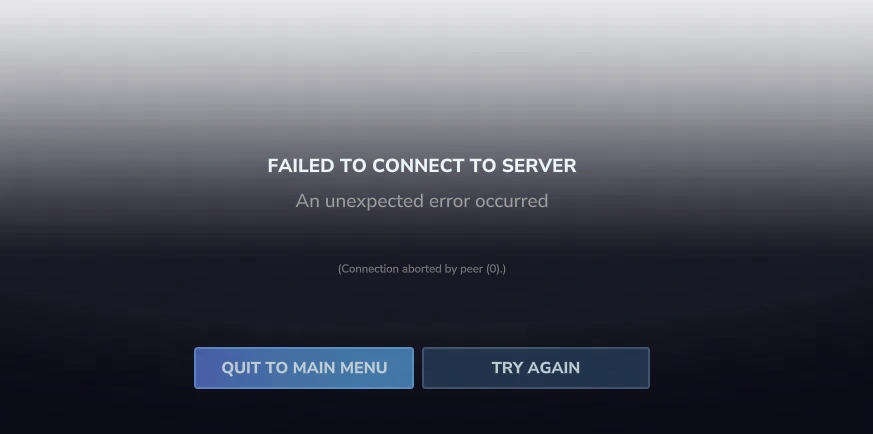
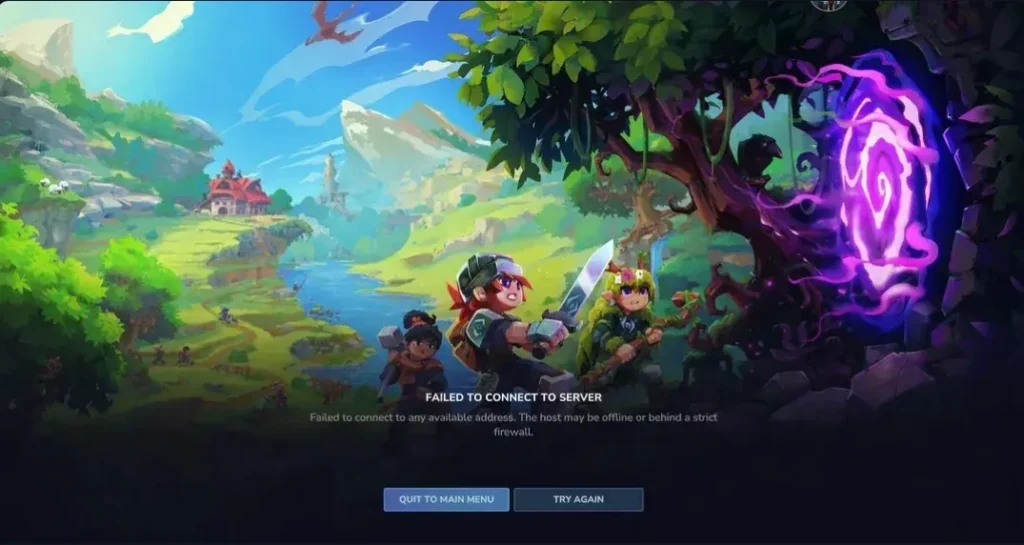
So you’re trying to jump into Hytale with your friends, but you keep getting hit with that frustrating “Failed to Connect to Server” error? I feel you. Connection issues are one of the most common headaches in multiplayer gaming, and Hytale is no exception.
The good news? Most connection problems stem from a handful of fixable issues on either your end or the server’s end. Whether you’re dealing with firewall blocks, mismatched system settings, or port forwarding confusion, this guide will walk you through every solution step-by-step.
Before we dive in, here’s a quick reality check: if other players can join the server but you can’t, the problem is almost certainly on your machine. If nobody can connect, the server itself is likely offline or misconfigured. Keep that in mind as we work through these fixes.
For more Hytale tips and strategies, check out our complete collection of Hytale guides.
Understanding Why Connection Errors Happen
Hytale runs on community-hosted servers rather than official infrastructure, which means connection stability depends on both your local setup and the host’s network configuration. Most connection failures boil down to a few common culprits:
- System time drift: Your computer’s clock is out of sync with the authentication servers
- Firewall interference: Windows Defender or your antivirus is blocking Hytale’s network traffic
- Language mismatches: Your system language settings are causing initialization errors
- Port forwarding issues: The server can’t properly route traffic to players
- Java version conflicts: You’re running an incompatible Java version
- Network adapter quirks: Advanced settings are interfering with the game’s protocol
Let’s tackle these one by one, starting with the most common fixes.
Client-Side Fixes (Start Here First)
1. Sync Your System Clock
This is the number one culprit behind authentication failures. Hytale’s servers need precise time synchronization to validate connection tokens—even a few minutes of drift can block your connection completely.
For Windows users:
- Right-click the clock in your taskbar and select “Adjust date/time”
- Toggle on “Set time automatically”
- Click “Sync now” to force an immediate update
- Restart Hytale and try connecting again
You can also navigate to Settings > Time & Language > Date & Time and hit “Sync now” under Additional Settings. If you’re still having sync issues, consider switching your NTP server to time.google.com for more reliable synchronization.
2. Configure Your Firewall
Windows Defender loves to be overprotective, and it frequently blocks Hytale’s network traffic thinking it’s a security threat. You need to explicitly tell it that Hytale is safe.
Here’s how to allowlist Hytale:
- Search for “Windows Defender Firewall” in the Start menu
- Click “Allow an app through Windows Defender Firewall”
- Click “Change Settings” (you might need admin rights)
- Find both “Hytale” and “java”/”javaw” in the list
- Check the boxes for BOTH Private and Public networks
- Click OK and test your connection
Quick diagnostic trick: Temporarily disable Windows Defender Firewall for both network types and try connecting. If it works with the firewall off, you’ve confirmed that’s your issue—just make sure to re-enable it afterward with the proper exceptions.
3. Set Your System Language to English (United States)
This might seem random, but system language mismatches trigger the dreaded “I18nModule.getMessages” error that prevents Hytale from initializing properly. This is especially common if you’re running a non-English Windows installation.
Windows fix:
- Open Settings > Time & Language > Language & Region
- Set your primary language to “English (United States)”
- Under “Regional format,” also select “English (United States)”
- Completely restart Hytale
macOS users:
- Open System Settings > General > Language & Region
- Set your primary language to English
- Set your region to United States
- Restart Hytale
4. Verify You’re Running Java 25
Hytale requires Java 25 to run properly. If you have older Java versions installed from other applications, they can confuse the launcher and prevent both online and offline play. You’ll know this is your problem if you see the error “Unsupported class file major version 69.”
The fix is straightforward:
- Open Control Panel > Uninstall a program
- Remove all installed Java versions (if any exist)
- Let Hytale install and manage its own bundled Java 25 on the next launch
- Restart the launcher and game
Pro tip: If you’re running your own server, make sure Java 25 is installed on the server machine as well and that you’re using it to launch the server.
5. Tweak Network Adapter Settings
Advanced network adapter features like VLAN prioritization and power management can interfere with Hytale’s UDP-based multiplayer protocol. This fix is a bit more technical, but it’s worth trying if the basic fixes haven’t worked.
Here’s the process:
- Search for “View network connections” in the Start menu
- Right-click your active adapter (Ethernet or WiFi)
- Select Properties > Configure
- Test these settings one at a time:
- Priority & VLAN: Set to “Disabled”
- Receive Segment Coalescing (RSC): Disable for both IPv4 and IPv6
- Disable all power-saving features:
- Advanced EEE (Energy Efficient Ethernet)
- ARP Offload
- Energy Efficient Ethernet
- Flow Control
- Green Ethernet
After each change, try connecting to Hytale. If a setting fixes the issue, leave it disabled. If not, re-enable it and move to the next one.
Connection quality tip: Use a wired Ethernet connection whenever possible. It provides way better stability and lower latency than WiFi. If you must use WiFi, stick with 5GHz—2.4GHz is generally too unstable for multiplayer gaming.
6. Power Cycle Your Network Hardware
Sometimes your router and modem just need a fresh start to clear out temporary routing conflicts and cached errors.
Complete reset procedure:
- Unplug both your modem and router at the same time
- Wait a full 30 seconds (this lets the capacitors discharge completely)
- Plug in your modem first and wait for all the lights to stabilize (1-2 minutes)
- Plug in your router and wait for its lights to stabilize
- Test Hytale connection
This simple reset fixes more connection issues than you’d think.
7. Switch to Public DNS Servers
If you’re still stuck, switching to Google’s public DNS servers can resolve routing issues that prevent connection to Hytale’s backend services.
DNS configuration steps:
- Open Control Panel > Network and Internet > Network Connections
- Right-click your active network adapter and select “Properties”
- Select “Internet Protocol Version 4 (TCP/IPv4)” and click “Properties”
- Set your DNS servers to:
- Primary DNS: 8.8.8.8 (Google)
- Secondary DNS: 8.8.4.4 (Google)
- Click OK and test Hytale
8. Registry Fix for Connection Timeout Errors
Warning: Only attempt this if you’re comfortable editing the Windows registry and you’re experiencing persistent “connection timed out from inactivity” errors.
- Press Windows + R, type
regedit, and press Enter - Navigate to:
HKEY_LOCAL_MACHINE\SYSTEM\CurrentControlSet\Services\MsQuic\Parameters - Create a new QWORD value named
IdleTimeoutMs - Set the value to
999999999 - Restart your computer
This extends the idle timeout threshold for the QUIC protocol, which can help with specific timeout scenarios.
9. Clean Reinstall Hytale
If you’ve tried everything else and you’re still stuck, corrupted game files might be the culprit. A clean reinstall resets everything.
Proper reinstall procedure:
- Uninstall Hytale from Control Panel > Programs and Features
- Delete all remaining Hytale folders (check both AppData and Program Files)
- Empty your Recycle Bin
- Download and reinstall Hytale from the official launcher
- Let the installer bundle and configure Java 25
- Restart your computer after installation
Server-Side Troubleshooting (For Server Hosts)
If you’re hosting a Hytale server and players are reporting connection failures, the issue is likely on your end. Here’s how to diagnose and fix server-side problems.
Port Forwarding and UPnP
Hytale uses UDP port 5520 for multiplayer communication. If this port isn’t properly opened, players won’t be able to connect.
Option 1: Enable UPnP (Easiest Method)
UPnP (Universal Plug and Play) allows Hytale to automatically request port opening from your router.
- Open your router’s admin panel (usually 192.168.1.1 or 192.168.0.1 in your browser)
- Log in with your router credentials
- Find UPnP under Advanced Settings, LAN, or NAT sections
- Enable UPnP
- Save settings and restart your router
- Launch Hytale and enable “Online Play” in your world settings
Note: If UPnP is already enabled but not working, your ISP might be using Carrier-Grade NAT (CGNAT), which blocks UPnP. In that case, you’ll need manual port forwarding.
Option 2: Manual Port Forwarding
When UPnP fails or isn’t available, manual port forwarding routes incoming Hytale traffic directly to your machine.
- Open Command Prompt and type
ipconfig - Note your IPv4 address (e.g., 192.168.1.100) and default gateway (e.g., 192.168.1.1)
- Paste your default gateway into your browser and log in to your router
- Navigate to Port Forwarding (might be under Advanced, NAT Forward, or Apps & Gaming)
- Create a new port forward entry:
- Protocol: UDP only (not TCP/UDP—this causes issues)
- External Port: 5520
- Internal Port: 5520
- Internal IP Address: Your IPv4 address from step 2
- Save and restart your router
- Get your public IP from whatismyipaddress.com—friends will use this to join
- Test with a player outside your local network
Server Authentication
Unauthenticated servers reject all player connections with “Server session token not available” errors. Here’s how to authenticate your server:
- In your server console, run:
/auth status - If unauthenticated, run:
/auth login device - The console will display a verification URL and device code
- Visit the URL in your browser, log in with your Hytale account, and enter the code
- Approve the authorization request
- The server will authenticate and display: “Successfully created game session”
To persist authentication across restarts:
Run: /auth persistence Encrypted
This saves your credentials so you don’t have to reauthenticate every time you restart the server.
Verify Server Is Actually Running
Before blaming player connections, make sure your server is actually operational:
- Check that server status shows “Running” in your hosting control panel
- Open the server console or log viewer
- Look for startup errors—if the server crashes immediately, fix those errors first
- If you’re using mods, temporarily remove recently added ones and restart
- Verify all mods are compatible with your current Hytale build
Check Java 25 Installation (Self-Hosted Servers)
Self-hosted servers need Java 25 installed on the machine running the server.
Verification steps:
- Open Command Prompt and type:
java -version - Confirm it shows Java 25.x
- If incorrect, download Java 25 from adoptium.net
- Install and set as default
- Start the server with:
java -jar HytaleServer.jar --assets PathToAssets.zip
Verify Server File Structure
Your server directory should look like this:
ServerDirectory/
├── HytaleServer.jar
├── Assets.zip
├── config.json
└── mods/
Misplaced or missing files (especially Assets.zip) will prevent the server from starting properly.
Firewall Exception for Server
Make sure your server machine’s firewall allows inbound UDP traffic on port 5520.
Windows Firewall exception (via PowerShell as Administrator):
netsh advfirewall firewall add rule name="Hytale Server" dir=in action=allow protocol=udp localport=5520 profile=anyCommon Error Messages Decoded
Here’s a quick reference for specific error messages and their solutions:
| Error Message | What It Means | Solution |
|---|---|---|
| “Connection Failed” | Network unreachable or server offline | Verify server is running; check if others can join |
| “Connection Timeout” | Network latency, mod download delay, or firewall block | Restart PC/router; check firewall settings |
| “Server Authentication Unavailable” | Server isn’t authenticated or backend services down | Run /auth login device on server |
| “Failed to Connect to Server” | Generic connectivity issue | Start with system time sync, firewall, and language settings |
| “NAT Type Restricted” | UPnP disabled or ports not forwarded | Enable UPnP or manually forward UDP 5520 |
| “I18nModule.getMessages” | System language mismatch | Set Windows language to English (United States) |
| “Unsupported class file major version 69” | Incompatible Java version | Uninstall all Java; let Hytale install Java 25 |
Your Troubleshooting Checklist
Work through these steps in order for the most efficient troubleshooting:
- Confirm basic connectivity: Can other players join the server? If yes, the problem is on your machine. If no, the server is offline.
- Sync system time (fixes ~40% of connection failures)
- Configure firewall to allowlist Hytale and Java
- Verify language settings are English (United States)
- Check Java version compatibility
- Reset network adapter settings
- Power cycle router and modem
- Verify server authentication (if hosting)
- Manually port forward UDP 5520 (if UPnP unavailable)
- Reinstall the game (if all else fails)
Related Resources
Need help with other aspects of Hytale? Check out these guides:
- How to Get Rubies and Sapphires
- Best Healing Items
- How to Upgrade Weapons
- How to Get Voidheart
- Creative Mode Console Commands
- How to Make Teleporters and Fast Travel
- How to Play with Friends
- How to Install Mods
Frequently Asked Questions
Why can’t I connect to Hytale servers even after trying all these fixes?
If you’ve exhausted all the fixes in this guide and you’re still unable to connect, there are a few final possibilities to consider. First, verify that your ISP isn’t blocking gaming traffic—some ISPs throttle or restrict certain types of connections. You can test this by trying to connect from a different network (like mobile hotspot). Second, if you’re using a VPN, try disabling it, as VPNs can interfere with Hytale’s authentication. Finally, check Hytale’s official status page or community forums to see if there’s a known server outage or maintenance period.
Does Hytale require specific ports to be open on my router?
Yes, Hytale uses UDP port 5520 for multiplayer connections. If you’re hosting a server, this port must be forwarded to your machine. For players joining servers, you typically don’t need to forward ports—only enable UPnP in your router settings. However, if you have strict NAT type issues, enabling UPnP or manually forwarding UDP 5520 can help improve connection stability even as a client.
What’s the difference between UPnP and manual port forwarding?
UPnP (Universal Plug and Play) is an automated system that lets applications like Hytale request port openings from your router without you having to configure anything manually. It’s convenient and works well in most home networks. Manual port forwarding, on the other hand, requires you to log into your router’s admin panel and explicitly tell it to route traffic from a specific port to your computer’s IP address. Manual forwarding is more reliable if UPnP isn’t working or if your ISP uses Carrier-Grade NAT (CGNAT), which blocks automatic port requests.
My system time keeps drifting out of sync. How can I fix this permanently?
Persistent time sync issues usually indicate either a failing CMOS battery (if you’re on a desktop) or an unreliable NTP (Network Time Protocol) server. First, try changing your NTP server to a more reliable one like time.google.com or time.windows.com. In Windows, go to Settings > Time & Language > Date & Time, scroll down, and click “Additional clocks” > “Internet Time” tab > “Change settings” to manually specify an NTP server. If you’re on a desktop and your time resets every time you power off, your CMOS battery likely needs replacement—this is the small coin battery on your motherboard that maintains system time when the PC is off.