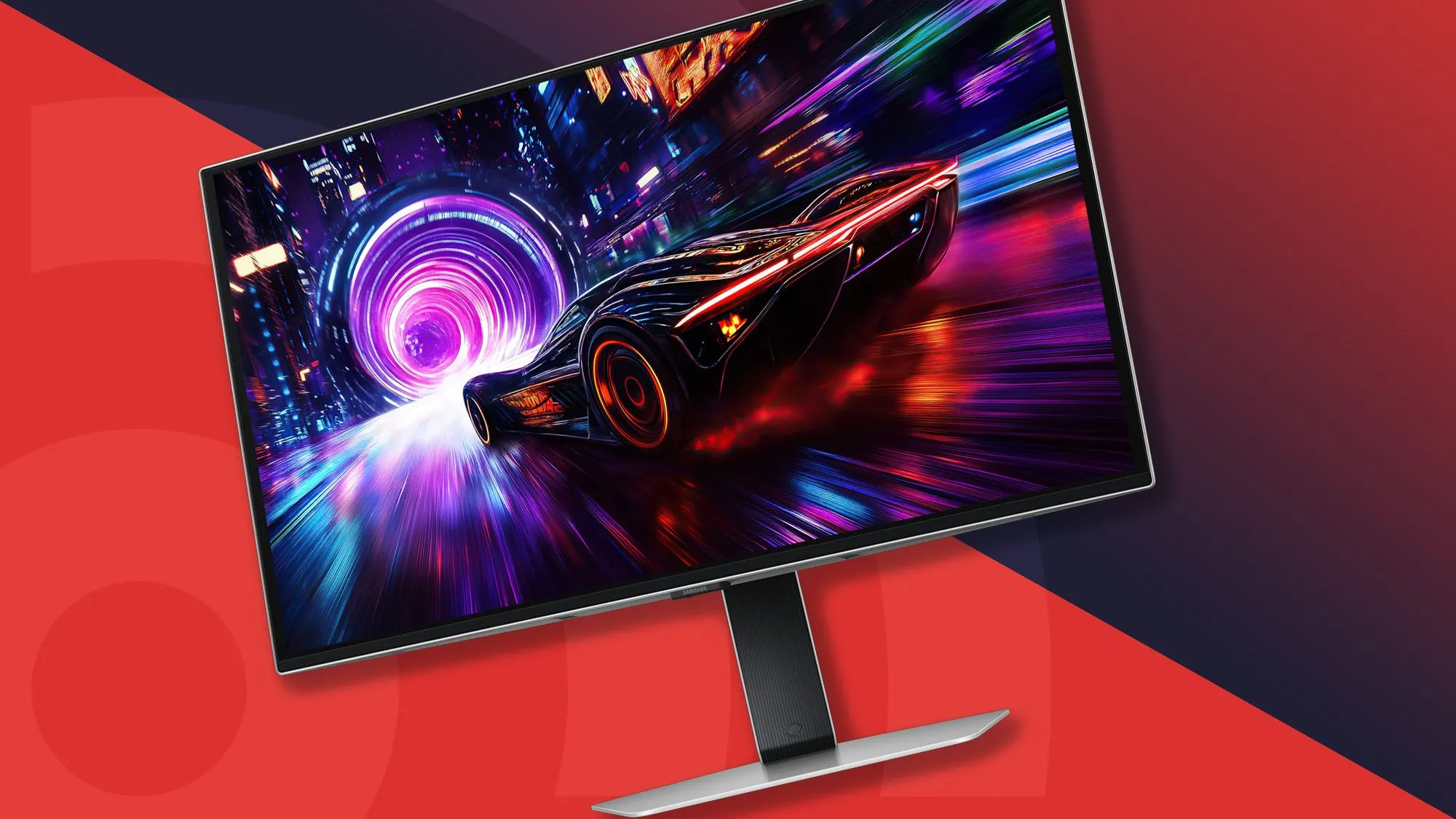
TL;DR: The monitor is the single most impactful upgrade you can make to your gaming experience in 2026, and the good news is the value has never been better. Best overall: Alienware AW2726DM (~$350) — 27-inch QD-OLED, 1440p, 240Hz, 0.03ms. Best budget: Gigabyte G24F 2 (~$130-150) — 1080p, 180Hz, IPS, USB-A ports included. Best 1440p mid-range: MSI MPG 271QRX — 1440p, 360Hz QD-OLED. Best ultrawide: Gigabyte MO34WQC2 — 34-inch 1440p curved OLED. Best console monitor: AOC Q27G4SRU — 1440p, HDMI 2.1. Match your monitor to your GPU — a 1440p 144Hz panel is wasted on a budget GPU that can’t push those frames.
Your monitor is the one piece of gear every single frame of every single game passes through. A great GPU paired with a mediocre monitor is like buying a sports car with a brick for a windshield. And yet the monitor is consistently the purchase people under-research, underspend on, and then immediately regret when they see what a proper panel looks like side by side.
The good news in 2026 is this: the value per dollar in gaming monitors has never been better. OLED panels — technology that cost $800+ just a few years ago — are now available under $350. 144Hz, which used to be a premium feature, is the standard even on budget panels. IPS colors at budget prices are no longer remarkable. This is a great time to buy a gaming monitor at almost every price point.
This guide covers the best picks across every budget tier, matched to what your GPU can actually use, with honest trade-offs for each one.
Before You Pick: Match the Monitor to Your GPU
The single most common monitor-buying mistake is a mismatch between display capability and GPU muscle. Spending $500 on a 4K 144Hz monitor when your GPU peaks at 1080p/60fps in demanding titles means you’ve paid for performance you’ll never see. The inverse is also a waste — a budget 60Hz monitor paired with a high-end GPU that can push 200fps is leaving most of your hardware’s value on the floor.
Use this as a quick matchup guide:
| GPU Tier | Target Resolution | Target Refresh Rate | Monitor Budget |
|---|---|---|---|
| Entry (RTX 4060 / RX 7600) | 1080p | 144–165Hz | $130–$200 |
| Mid-Range (RTX 4070 / RX 7700 XT) | 1440p | 144–165Hz | $200–$300 |
| Mid-High (RTX 5070 / RX 9070 XT) | 1440p | 240Hz | $300–$400 |
| High-End (RTX 5080 / RX 9080) | 1440p 240Hz or 4K 144Hz | 240Hz+ | $400–$700 |
| Flagship (RTX 5090) | 4K 240Hz or 1440p 360Hz+ | 240Hz+ | $600+ |
The GPU decides what frames per second you can realistically achieve. The monitor determines the ceiling of what’s displayed. Build for the GPU you actually have, not the one you might upgrade to in two years.
Panel Types — IPS vs VA vs OLED: What Matters for Gaming
Before the picks, a quick glossary of what these panel types actually mean for your gaming experience:
IPS (In-Plane Switching): The best balance of color accuracy, brightness, and viewing angles. Response times have improved dramatically — modern Fast IPS and Rapid IPS panels get very close to OLED in gaming performance. The go-to choice for well-lit rooms. Slight weakness: blacks look grey in dark rooms (limited contrast ratio).
VA (Vertical Alignment): The highest contrast ratio of LCD types — delivers deeper, more cinematic blacks than IPS. Better for dark room gaming or immersive single-player games. Weakness: “dark smearing” in fast motion can be visible, and viewing angles are narrower than IPS.
OLED (including QD-OLED and WOLED): Each pixel produces its own light and can turn off completely — delivering perfect, absolute blacks and contrast that LCD panels cannot match. Near-instant response times (0.03ms vs 1ms+ for LCD). The best visual experience for gaming in 2026. Weaknesses: lower peak brightness in SDR than high-end LCD, potential for burn-in (mitigated by modern pixel-refresh features and 3-year burn-in warranties on most models), and higher price per inch. QD-OLED adds Quantum Dot layer for better color volume and brightness. WOLED is an LG-developed alternative with slightly different characteristics.
For gaming in 2026: OLED is the best if budget allows. IPS is the right call for most buyers. VA is the pick if you game in a dark room and prioritize deep blacks over motion clarity.
🏆 Best Overall: Alienware AW2726DM — The Monitor That Changed the Market
Price: ~$350 | Panel: QD-OLED | Resolution: 1440p (2560×1440) | Refresh Rate: 240Hz Response Time: 0.03ms | Size: 27-inch | Connectivity: 2× HDMI 2.1, 1× DisplayPort 1.4
The Alienware AW2726DM launched in early 2026 and immediately became the most talked-about monitor in the gaming community — not because it introduced anything new, but because it brought QD-OLED technology to a price point nobody expected. Tom’s Hardware called it a “price breakthrough for desktop OLED.” Tom’s Guide said it was so good their reviewer was buying two for himself. Engadget called it a budget gamer’s new best friend. The consensus is unusually unified for a monitor release.
What you get for $350: a 27-inch QD-OLED panel with 1440p resolution, 240Hz refresh rate, 0.03ms response time, 99% DCI-P3 color coverage, perfect OLED blacks, and a fully adjustable stand (tilt, height, pivot, swivel). The input lag measured at just 13.6ms total — less than almost every monitor reviewed at any price. Motion resolution at 240fps is perfect. Color accuracy is above average with only slight oversaturation that makes games look vivid rather than clinical.
Before the AW2726DM, you’d need $500–$600 for a comparable QD-OLED. Alienware erased that barrier entirely. The three-year burn-in warranty removes the main anxiety around OLED ownership.
What it doesn’t have: No USB ports or internal speakers. No RGB lighting. SDR brightness peaks at around 200 nits, which is dimmer than competing OLED monitors in bright rooms — HDR peaks around 1,000 nits and looks excellent, but SDR in a sun-drenched office won’t look its best. No DisplayHDR certification. Single DisplayPort 1.4 limits you to 240Hz (you need DP 2.1 for 240Hz at 4K, but this is 1440p so DP 1.4 is adequate).
Buy it if: You want the best gaming image quality under $400 and primarily game at a desk without direct sunlight. This is the pick for anyone on an RTX 5070-class GPU or better.
Skip it if: Your GPU can’t push 1440p at meaningful frame rates, you need USB connectivity, or you work in a very bright environment where 200 nits SDR brightness won’t cut it.
💰 Best Budget: Gigabyte G24F 2 — Excellent Value at $130–$150
Price: ~$130–$150 | Panel: IPS | Resolution: 1080p (1920×1080) | Refresh Rate: 180Hz Response Time: 1ms | Size: 24-inch | Connectivity: HDMI, DisplayPort, 2× USB-A
The Gigabyte G24F 2 is the budget pick you’d feel comfortable recommending to anyone. At a price that regularly dips below $130 on sale, it delivers a 180Hz IPS panel with fast response times, a height-and-tilt-adjustable stand (genuinely rare at this price), and two USB-A ports for peripheral passthrough. Those USB ports sound like a small thing until you notice that most monitors at this price don’t include them.
IPS at 1080p with 180Hz means you get good color accuracy, solid viewing angles, and a refresh rate that a mid-range GPU can actually take advantage of. The response time is fast enough to eliminate motion blur at 180fps. For competitive gaming — Valorant, CS2, Apex Legends — this is a completely capable display that won’t be your performance bottleneck.
The limitation is simple: it’s 1080p and 24 inches. On a 24-inch screen at typical desk distances, 1080p looks sharp. Trying to push this panel to 27 inches would reveal the pixel density limitations, but at 24 inches it’s genuinely fine.
Buy it if: You’re on a genuine budget, you’re pairing with an entry-level GPU (RTX 4060 or equivalent), or you want a dedicated competitive gaming monitor where high refresh rate matters more than resolution. If you’re just starting out with PC gaming and want to understand what the full setup entails, our beginner’s PC setup guide walks through matching your monitor to the rest of your build.
Skip it if: Your GPU can handle 1440p — in that case, spend the extra $60–80 and step up to the mid-range tier.
🎯 Best Mid-Range 1440p: MSI MPG 271QRX — The Competitive Sweet Spot
Price: ~$400–$450 | Panel: QD-OLED | Resolution: 1440p (2560×1440) | Refresh Rate: 360Hz Response Time: 0.03ms | Size: 27-inch | Connectivity: HDMI 2.1, DisplayPort 2.1
PC Gamer’s top 1440p recommendation for 2026, the MSI MPG 271QRX brings the QD-OLED experience at an elevated refresh rate for serious competitive players. If you’re on an RTX 5070 or 5080-class GPU and want to push high frame rates in competitive titles, the step from 240Hz to 360Hz is perceptible in genuinely fast motion — tracking moving targets in CS2, Valorant, or Apex Legends at 300+ fps benefits from the higher ceiling.
The DisplayPort 2.1 connection future-proofs the connectivity. QD-OLED brings perfect blacks, near-instant response, and vivid color reproduction. At 1440p, driving 300+ fps in competitive titles is realistic with a high-end GPU in 2026 — 360Hz becomes genuinely useful rather than purely speculative.
The price premium over the AW2726DM is real (~$80–100 more for 120Hz additional refresh rate). For competitive-first players who run games at maximum frame rates, that premium is justified. For everyone else, the AW2726DM is the better value call.
Buy it if: You play competitive FPS games primarily, your GPU pushes 300+ fps in those titles, and you want the fastest possible display for a ranked advantage.
Skip it if: You play mostly single-player games, at which point 240Hz is more than sufficient and the extra cost doesn’t serve you.

🖥️ Best Console Gaming Monitor: AOC Q27G4SRU — The HDMI 2.1 Pick
Price: ~$250–$280 | Panel: IPS | Resolution: 1440p (2560×1440) | Refresh Rate: 165Hz Response Time: 1ms | Size: 27-inch | Connectivity: HDMI 2.1, DisplayPort 1.4, USB hub
If you’re running a PS5 or Xbox Series X as your primary gaming platform, HDMI 2.1 is non-negotiable for getting 4K120 or 1440p120 VRR from your console. Most monitors use older HDMI 2.0 which caps out at 4K60 or 1440p144 — the AOC Q27G4SRU brings proper HDMI 2.1 at a price that doesn’t require a premium monitor budget.
The 27-inch IPS panel at 1440p is a meaningful visual step up from the 1080p displays most console gamers are using. The built-in USB hub is a genuinely useful practical addition. At 165Hz, you’re well above what console gaming currently delivers (120fps max on PS5/Xbox), so the monitor isn’t a bottleneck for console output.
If you’re also connected to a PC occasionally, the DisplayPort 1.4 handles that. If you’re weighing console vs PC gaming more broadly, our complete platform comparison covers how each platform approaches monitor requirements, VRR support, and the full cost comparison.
Buy it if: PS5 or Xbox Series X is your primary platform, you want a meaningful visual upgrade from your current TV or 1080p display, and you want HDMI 2.1 without paying flagship monitor prices.
Skip it if: Your console is connected to a large TV in the living room and you’re happy there — a dedicated gaming monitor makes the most sense for desk setups.
🌊 Best Ultrawide: Gigabyte MO34WQC2 — Cinematic Gaming Without Breaking the Bank
Price: ~$350–$400 | Panel: OLED | Resolution: 3440×1440 | Refresh Rate: 175Hz+ Response Time: 0.03ms | Size: 34-inch curved (1800R) | Connectivity: HDMI 2.1, DisplayPort 2.1
Ultrawide monitors (21:9 aspect ratio) are polarizing but genuinely excellent for the right use cases. In story-driven games, open-world RPGs, and simulation games like flight sims or racing titles, the extra horizontal real estate creates an immersion level that standard 16:9 simply can’t replicate. The 1800R curve on a 34-inch screen wraps around your peripheral vision in a way that fills your field of view naturally.
The Gigabyte MO34WQC2 brings OLED to the ultrawide format at a price that significantly undercuts comparable panels from ASUS or LG. At 3440×1440 on a 34-inch screen, pixel density is good, OLED brings the perfect blacks and instant response the panel type is known for, and both HDMI 2.1 and DisplayPort 2.1 are included.
The important caveat: driving 3440×1440 at high frame rates requires a powerful GPU. More pixels to push than standard 1440p means you need an RTX 5070 or RX 9070 XT minimum to get the most out of it. Also worth knowing — some games don’t natively support ultrawide aspect ratios, and while third-party tools like Flawless Widescreen can force support, it’s not always clean.
Buy it if: Single-player immersive games are your main focus, you have a powerful GPU, and desk space allows for a wider display footprint.
Skip it if: You primarily play competitive multiplayer — ultrawide is less advantageous in fast-paced FPS games and some titles actively don’t support it in competitive modes.
🔵 Best 4K Value Pick: MSI MPG 321URX — For the High-End GPU Owner
Price: ~$700–$800 | Panel: QD-OLED | Resolution: 4K (3840×2160) | Refresh Rate: 240Hz Response Time: 0.03ms | Size: 32-inch | Connectivity: HDMI 2.1, DisplayPort 2.1
PC Gamer’s best overall gaming monitor pick for 2026, the MSI MPG 321URX is where you go when you have the GPU to back it up. 4K at 240Hz on a 32-inch QD-OLED is as good as consumer gaming monitors get right now. At this screen size, 4K pixel density (137 PPI) hits a genuinely beautiful sweet spot — everything is sharp and detailed without requiring scaling.
The reality check: you need a flagship GPU to feed this monitor meaningfully. An RTX 5080 or 5090 is the appropriate pairing for 4K at 240Hz in demanding titles. At that GPU level, the monitor becomes a worthy expression of the hardware investment. Without it, you’re paying for a display ceiling you won’t reach.
At $700–$800, this is a significant purchase. It earns its place on the list because for the right setup, there’s nothing better in this price bracket.
Buy it if: You have an RTX 5080 or 5090 and want the display to match, you play visually demanding single-player games alongside competitive titles, and your budget allows it.
Skip it if: Your GPU is mid-range — you’ll be GPU-limited before the monitor’s capabilities become relevant.
📊 Full Comparison Table — All Picks at a Glance
| Monitor | Price | Panel | Resolution | Refresh Rate | Best For | GPU Match |
|---|---|---|---|---|---|---|
| Alienware AW2726DM | ~$350 | QD-OLED | 1440p | 240Hz | Best overall value | RTX 5070 / RX 9070 |
| Gigabyte G24F 2 | ~$130–$150 | IPS | 1080p | 180Hz | Budget / entry gaming | RTX 4060 / RX 7600 |
| MSI MPG 271QRX | ~$400–$450 | QD-OLED | 1440p | 360Hz | Competitive FPS | RTX 5070 Ti+ |
| AOC Q27G4SRU | ~$250–$280 | IPS | 1440p | 165Hz | Console gaming | PS5 / Xbox Series X |
| Gigabyte MO34WQC2 | ~$350–$400 | OLED | 3440×1440 | 175Hz | Ultrawide immersion | RTX 5070 / RX 9070 |
| MSI MPG 321URX | ~$700–$800 | QD-OLED | 4K | 240Hz | High-end flagship | RTX 5080 / 5090 |
What Specs Actually Matter (and Which Are Marketing)
Not every number on a spec sheet translates to real gaming benefit. Here’s what to actually evaluate:
Refresh Rate — The One to Prioritize
The jump from 60Hz to 144Hz is the single most dramatic visual improvement in gaming, full stop. It’s the reason experienced PC gamers cringe when they go back to a 60Hz display — the difference is that stark and immediate. Every person who’s made that switch says the same thing: they wish they’d done it sooner.
Above 144Hz, the improvements become more incremental and more dependent on your GPU’s ability to push the necessary frame rates:
- 60Hz → 144Hz: Transformative. Do it.
- 144Hz → 240Hz: Noticeable and meaningful for competitive gaming.
- 240Hz → 360Hz+: Real but requires very high frame rates to perceive consistently.
Resolution — Match to Screen Size
Resolution is most meaningful relative to screen size. 1080p on 24 inches is fine. 1080p on 27 inches starts showing pixels. 1440p on 27 inches is the sweet spot — sharp, not pixel-hungry like 4K, and achievable by mid-range GPUs at high frame rates.
A 4K monitor pairs best with a 32-inch or larger display where the increased pixel count pays off in visible sharpness. On a 27-inch screen, 1440p and 4K look similar at normal desk distances.
Response Time — The Real Number vs the Marketing Number
Monitor manufacturers advertise “1ms” or “0.5ms” response times that frequently don’t reflect how the panel performs in real gaming use. OLED panels genuinely achieve sub-1ms performance. Budget IPS panels claiming 1ms are usually measuring “MPRT” (moving picture response time) rather than grey-to-grey pixel transition, which is a favorable measurement that overstates real-world performance.
For gaming: OLED panels have genuinely fast response times regardless of what’s advertised. For IPS, look for reviews that test real grey-to-grey response rather than spec sheet marketing numbers.
Adaptive Sync — FreeSync vs G-Sync
FreeSync (AMD) and G-Sync (NVIDIA) both sync the monitor’s refresh rate to your GPU’s frame output, eliminating screen tearing when FPS fluctuates. In 2026, almost all gaming monitors are FreeSync compatible, and NVIDIA GPUs work fine with FreeSync monitors — the G-Sync exclusive module isn’t worth the price premium for most buyers. Look for “G-Sync Compatible” certification on FreeSync monitors if you’re on an NVIDIA GPU.
HDR — The One That’s Often Overpromised
“HDR” on a monitor spec sheet can mean genuinely excellent HDR or a token feature that barely qualifies. The key distinction:
- DisplayHDR 400 — Most budget “HDR” monitors. Peak brightness of 400 nits. Not real HDR by enthusiast standards.
- DisplayHDR 600/1000 — Meaningful HDR. Peak brightness that separates highlights visibly from SDR.
- OLED HDR — Even without the highest brightness numbers, OLED’s perfect blacks create the contrast ratio that makes HDR impactful.
Budget “HDR” labels are largely marketing. Focus on OLED or Mini LED with genuine DisplayHDR 600+ certification for real HDR impact.
Burn-in on OLED — Should You Worry?
The burn-in concern with OLED monitors is real but significantly overstated for gaming use cases. Modern OLED monitors include pixel-refresh routines that run when the display is off. Most current manufacturers offer 3-year burn-in warranties (Alienware does on the AW2726DM). Static elements left on screen for many hours consistently would be the risk — gaming, where the scene changes constantly, is actually one of the safer use cases for OLED. Many thousands of players have run OLED monitors for 2–3 years without burn-in issues.
Monitor Setup Tips That Actually Make a Difference
Once you have your monitor, these steps maximize what you’re actually getting out of it:
Enable your display’s full refresh rate: Monitors often default to 60Hz even when connected at full bandwidth. Go to Windows Display Settings → Advanced Display → Refresh Rate and set it to your monitor’s maximum. Also verify in your GPU’s control panel (NVIDIA Control Panel or AMD Adrenalin).
Use DisplayPort over HDMI where possible for PC: DisplayPort 1.4 supports 1440p at 240Hz without compression, and DisplayPort 2.1 handles 4K at 240Hz. HDMI 2.1 is needed for console connections but HDMI 2.0 limitations can cap refresh rates on PC. Use the right cable for your setup.
Enable VRR/FreeSync/G-Sync: It’s not automatic on all setups. Check your monitor’s OSD menu and your GPU driver settings to confirm adaptive sync is active.
Calibrate your brightness for the room: OLED monitors can look dim in bright daylight rooms. Adjust brightness to suit ambient light — excessive brightness on OLED accelerates pixel aging marginally, so don’t run it at maximum in a dark room unnecessarily.
Enable HDR in Windows carefully: Windows Auto HDR can look excellent on OLED monitors but looks poor on budget LCD panels. Test it with your specific display and disable if colors look oversaturated in SDR content.
Does the Platform You Game On Change What Monitor You Need?
Yes, meaningfully so. A PC and a console have different connection requirements, different maximum frame rate outputs, and different content resolution targets.
On PC, DisplayPort is the preferred connection for maximum refresh rate. Frame rates can exceed 200–300fps in competitive games, making 240Hz and above genuinely useful. Our beginner’s PC setup guide covers how to connect your monitor correctly and enable maximum refresh rate in Windows after building.
On PS5 and Xbox Series X, HDMI 2.1 is required for 4K120 or 1440p120 VRR output. The console maxes out at 120fps, making anything above 120Hz academic for console-exclusive use. A 144Hz or 165Hz monitor with HDMI 2.1 is the practical ceiling for console gaming performance. If you’re using Xbox Game Pass with cloud gaming on your PC or other devices, the latency of the streaming layer means the monitor matters for local input feel but not streaming frame delivery — our Xbox Cloud Gaming explainer covers how streaming and local display interact.
The platform decision itself is worth considering before spending on a premium monitor. Our PC vs console gaming breakdown lays out the performance, cost, and library considerations for both sides.
Gaming Is More Than Just the Monitor
A great monitor makes every game look better — but it’s part of a full setup. Audio is the other dimension most players underinvest in. Hearing directional cues, footsteps, and environmental audio accurately is as important for competitive gaming as visual clarity. Our roundup of the best gaming headsets under $50 covers the top picks at budget-friendly prices — including the Razer BlackShark V2 X which is specifically tuned for FPS positional audio.
And if you want to know what to actually play on your new setup, our best free PC games in 2026 guide covers 15 excellent games you can download right now for nothing — from Valorant and CS2 to Marvel Rivals and Warframe. A new OLED monitor showing off Valorant at 240Hz is a genuinely different experience from what you’ve been playing on.
Final Word
The monitor market in 2026 is the best it’s ever been for value-conscious buyers. OLED used to mean $800+. The Alienware AW2726DM arrives at $350 with the same QD-OLED panel technology, 240Hz, and a three-year burn-in warranty. Budget panels ship with 144–180Hz IPS at under $150. 1440p is mainstream pricing. The only constraint is matching your choice to your actual GPU so none of the capability goes to waste.
Start with what your GPU can use. Stay with reputable brands (Alienware, MSI, Gigabyte, AOC, ASUS). Prioritize refresh rate over resolution if your GPU can’t do both. And avoid spending extra on “HDR400” or “7.1 surround sound” labels that don’t deliver meaningful real-world benefit.
The right monitor at the right price for your setup exists right now. The picks above cover every reasonable budget.
What are you currently gaming on and what GPU is in your rig? Drop it in the comments — always good to see what setups people are actually running.


