TL;DR – How to Auto-Drive in GTA 6
- Enable Auto Drive: Set a waypoint, enter Cinematic Mode, then hold Circle on PS5 or B on Xbox.
- Cinematic Mode: Hold Down on the D-pad and press Options on PS5 or Menu on Xbox.
- Change speed: Press L2/R2 on PS5 or LT/RT on Xbox to switch between three driving speeds.
- Disable Auto Drive: Hold Circle/B again, or exit the cinematic camera by holding Down on the D-pad.
- Drive off-road: Open Settings > Gameplay > Auto Drive and select Unrestricted.
- Cost: Auto Drive is free and available early in the game. You don’t need to unlock a special vehicle or purchase an upgrade.
To auto-drive in GTA 6, mark a destination on your map, start driving, and enter Cinematic Mode by holding Down on the D-pad and pressing Options on PS5 or Menu on Xbox. Once the cinematic camera is active, hold Circle on PS5 or B on Xbox to let the game drive your car automatically.
Jason or Lucia will follow the GPS route without you having to steer, accelerate, or brake manually.
This is one of the most useful hidden features in Grand Theft Auto VI. Leonida is massive, and sometimes you just want to enjoy the scenery, listen to the radio, or relax during a long drive.
The feature is available from the beginning of the game, but Rockstar doesn’t provide a particularly obvious tutorial for activating it.
Here’s how to turn on Auto Drive, adjust its speed, enable unrestricted driving, and fix it when the option isn’t appearing.
How to Auto-Drive in GTA 6 on PS5 and Xbox
GTA 6’s Auto Drive system works through the Cinematic Camera. You don’t need a special self-driving car, and it works with ordinary vehicles.
Follow these steps to activate it.
Step 1: Set a Destination on Your Map
- Pause the game using Options on PS5 or Menu on Xbox.
- Open the Map tab.
- Move your cursor to the location you want to visit.
- Press X on PS5 or A on Xbox to set a waypoint.
- Close the map and return to your vehicle.
You should now see a GPS route leading toward your selected location.
Setting a destination is the most reliable way to make Auto Drive follow a useful route. Without a waypoint, the option may not appear or may not have a destination to follow.
Step 2: Get Into a Vehicle and Start Driving
Enter your car using Triangle on PS5 or Y on Xbox.
Drive onto a normal public road and begin moving in the correct direction of traffic.
This matters because the default Auto Drive setting is restricted. It works most reliably when you’re already driving on a public road.
If you’re parked inside a garage, facing the wrong direction, or sitting in the middle of an off-road area, the option might be unavailable.
Step 3: Enter Cinematic Mode
While your car is moving, press and hold Down on the D-pad.
This opens the camera selection controls near the bottom-right corner of the screen.
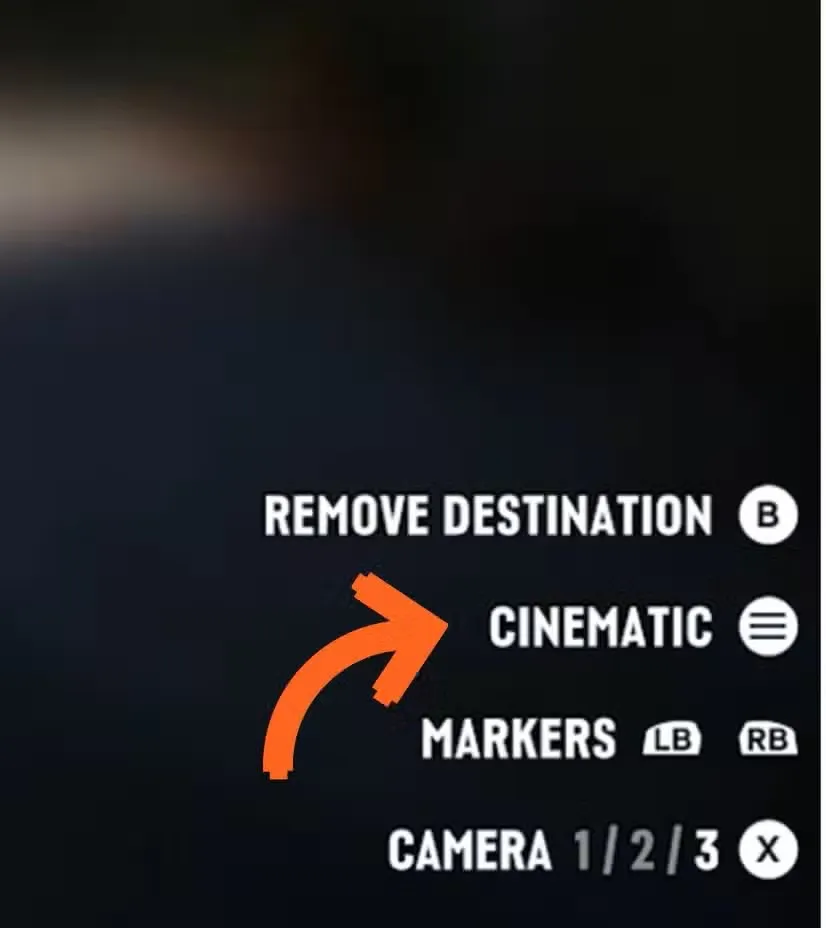
While holding Down, press:
- PS5: Options
- Xbox Series X|S: Menu
The camera will switch to Cinematic Mode.
You’ll notice different camera angles showing the road, your vehicle, and the surrounding environment.
Important: Entering Cinematic Mode doesn’t automatically enable Auto Drive. You’re still controlling the vehicle until you activate the separate autopilot option.
Step 4: Enable Auto Drive
Once you’re in Cinematic Mode, look at the bottom-right corner of your screen.
You should see the option labeled Enable Auto Drive.
Hold the following button:
- PS5: Circle (O)
- Xbox Series X|S: B
Your character will now take control of the steering, acceleration, and braking.
The vehicle follows your GPS route automatically, stopping at traffic lights and generally obeying traffic rules.
If the prompt doesn’t appear immediately, accelerate slightly and make sure you’re on the correct side of the road.
Step 5: Enjoy the Automatic Drive
Once Auto Drive starts, you can stop using the steering and acceleration controls.
The cinematic camera switches between different angles while Jason or Lucia travels toward the destination.
You’ll still hear the vehicle’s radio and any conversations happening during the drive.
Just remember that Auto Drive happens in real time. It doesn’t instantly teleport you to your destination.
GTA 6 Auto Drive Controls for PS5 and Xbox
Here are the default controls you need to remember.
| Action | PS5 | Xbox Series X|S |
|---|---|---|
| Open map | Options | Menu |
| Set destination | X | A |
| Open camera options | Hold D-pad Down | Hold D-pad Down |
| Enter Cinematic Mode | Options while holding D-pad Down | Menu while holding D-pad Down |
| Enable Auto Drive | Hold Circle | Hold B |
| Reduce driving speed | L2 | LT |
| Increase driving speed | R2 | RT |
| Disable Auto Drive | Hold Circle | Hold B |
| Exit Cinematic Mode | Hold D-pad Down | Hold D-pad Down |
These controls are for the default controller layout. If you’ve selected Classic or Left-Handed controls, follow the button prompts displayed in your game.

How to Change Auto Drive Speed in GTA 6
GTA 6 includes three Auto Drive speed settings.
You can change between them without turning off autopilot.
While Auto Drive is active, press:
- L2 or LT: Reduce the driving speed.
- R2 or RT: Increase the driving speed.
The available levels are:
| Speed | Behavior | Best For |
|---|---|---|
| Speed 1 | Slowest driving pace | Relaxed sightseeing |
| Speed 2 | Normal driving pace | Regular journeys |
| Speed 3 | Fastest automatic driving pace | Long-distance travel |
Speed 2 is the normal starting option.
However, Speed 3 doesn’t turn your character into a reckless driver.
Even at the highest setting, Auto Drive generally follows traffic rules and stops at red lights.
That means manually driving at full speed will usually get you to your destination faster.
How to Enable Unrestricted Auto Drive in GTA 6
Auto Drive has another useful setting called Unrestricted.
By default, the feature is designed for safer driving situations. This can make it difficult to activate when you’re off-road, in the wrong lane, or involved in certain dangerous situations.
Changing the setting to Unrestricted gives the driving AI more freedom.
Steps to Turn On Unrestricted Auto Drive
- Pause GTA 6.
- Open Settings.
- Select the Gameplay tab.
- Scroll down to the Auto Drive setting in the accessibility-related options.
- Change it from Restricted to Unrestricted.
- Return to gameplay.
- Set a waypoint and activate Auto Drive through Cinematic Mode as usual.
Unrestricted mode lets the AI attempt automated driving in a wider range of situations, including some off-road conditions.
However, it doesn’t mean your vehicle can safely travel through every obstacle.
The driving AI can still struggle with difficult terrain, blocked roads, and other vehicles.
Our recommendation: Use Restricted for ordinary road trips. Switch to Unrestricted when you specifically need the additional flexibility.
How to Turn Off Auto Drive in GTA 6
You can take back control of your car whenever you want.
There are two useful ways to stop automatic driving.
Method 1: Disable Auto Drive Directly
While the cinematic camera is active, look for Disable Auto Drive in the bottom-right corner.
Hold Circle on PS5 or B on Xbox.
The game hands manual driving control back to you.
Method 2: Exit Cinematic Mode
Hold Down on the D-pad to exit Cinematic Mode and return to your normal driving camera.
This is useful when you want to take over before a difficult turn, enter a narrow driveway, or handle traffic yourself.
Tip: Don’t confuse disabling Auto Drive with the normal vehicle exit command. Use the on-screen Disable Auto Drive prompt instead of pressing random buttons while the car is moving.
Does GTA 6 Auto Drive Work With Boats?
Yes. GTA 6’s automatic travel system also works with boats.
You can use the same cinematic camera method to travel across navigable waterways.
Here’s how:
- Get into a boat.
- Open your map and set a waypoint on a lake, river, or ocean area.
- Begin moving through the water.
- Hold Down on the D-pad and select Cinematic Mode.
- Hold Circle on PS5 or B on Xbox to enable automatic travel.
The boat will follow a route through the water toward your destination.
There is an important limitation: boats cannot automatically travel across land.
If your destination is inland, the boat may stop when it reaches the limit of navigable water.
This makes the feature useful when exploring the Leonida Keys or traveling through the large waterways around the Grassrivers.
How to Let Jason or Lucia Drive Instead of Using Auto Drive
There is another way to travel without driving manually.
When Jason and Lucia are together, you can let your partner take the wheel.
This is different from the cinematic Auto Drive system because your companion becomes the driver while you remain in the passenger seat.
How to Make Your Partner Drive
- Travel with Jason and Lucia together.
- Hold Right on the D-pad to open the partner interaction controls.
- Use the available option to switch driving responsibility or ask your partner to drive.
- On the default controls, the character-switch command uses R1 on PS5 or RB on Xbox while holding Right.
- Your partner takes control of the vehicle when the interaction is available.
Once you’re a passenger, you can also use partner commands to ask the driver to speed up, pull over, or stop.
This is especially useful during story sections involving both protagonists.
For solo exploration, however, Cinematic Auto Drive is more convenient because you don’t need your partner to be present.
GTA 6 Auto Drive vs. Taxi vs. Manual Driving
Auto Drive isn’t the only way to travel across Leonida. You can also use taxis or the RydeMe service.
Here’s how the three options compare.
| Method | Cost | Main Advantage |
|---|---|---|
| Auto Drive | Free | Automatic real-time travel in your vehicle |
| RydeMe / Taxi | Paid | Ride with an NPC driver, with a journey-skip option |
| Manual Driving | No service fee | Full control and potentially faster travel |
Auto Drive is ideal when you want to experience the journey without constantly controlling the vehicle.
Taxi and RydeMe services are more useful when you don’t have a vehicle or want to skip the trip.
Manual driving remains the better choice for police chases, challenging terrain, and situations where you need to arrive quickly.
Best Uses for Auto Drive in GTA 6
Auto Drive isn’t always the fastest option, but it has several practical uses.
1. Explore Leonida Without Constantly Steering
Leonida has large highways, coastal roads, and long routes between cities.
With Auto Drive, you can enjoy the surroundings instead of focusing on every turn.
It’s particularly useful when traveling between Vice City, Port Gellhorn, and more remote regions.
2. Reveal Unexplored Areas of the Map
Driving through unexplored regions still reveals map sections while Auto Drive is active.
You can mark a distant destination and let the game handle the road journey while map fog clears along the route.
However, this doesn’t reveal the entire map at once. You’ll only uncover areas you actually travel through.
For a faster way to uncover large sections of Leonida, follow our guide on how to unfog the map in GTA 6.
3. Reach Side Missions in Remote Locations
Some GTA 6 side missions take place far away from the main cities.
For example, Kirk’s Skunk Ape storyline sends you into the swamps of Mariana County and Pelican Valley.
You can use Auto Drive to reach the nearby roads, then switch to manual driving or a boat when you enter the wetlands.
If you’re planning to complete that questline, check our All Skunk Ape Missions in GTA 6 guide for the mission order, tree effigy locations, and available endings.
4. Enjoy Cinematic Road Trips
Auto Drive uses GTA 6’s cinematic camera angles to show off your vehicle and the environment.
You can listen to music, watch the traffic, and enjoy the changing scenery.
It’s also a convenient way to observe the world during lengthy drives with story dialogue.
GTA 6 Auto Drive Not Working? Try These Fixes
If the Enable Auto Drive prompt isn’t appearing, check these common problems.
1. You Haven’t Set a Waypoint
The first thing to check is your destination.
Open the map and set a waypoint somewhere your vehicle can reasonably reach.
A clear GPS route gives Auto Drive a destination to follow.
2. You’re Not in Cinematic Mode
This is one of the easiest mistakes to make.
Auto Drive requires the cinematic camera. Normal third-person and first-person driving views don’t show the same activation prompt.
Hold Down on the D-pad, then press Options on PS5 or Menu on Xbox to select Cinematic Mode.
3. Your Car Is Stationary or Parked Off-Road
With the default Restricted setting, Auto Drive works best when you’re moving on a public road.
If you’re sitting in a parking lot or facing the wrong direction, start driving manually.
Once you’re in the correct lane and moving forward, try enabling it again.
4. Auto Drive Is Set to Restricted
If you’re trying to activate the feature away from normal roads, open:
Settings > Gameplay > Auto Drive > Unrestricted
This allows the system to operate in more situations, though the AI can still make mistakes.
5. You’re Pressing Circle or B Instead of Holding It
Auto Drive uses a hold input.
When the Enable Auto Drive prompt appears, hold Circle or B until the mode activates.
A quick tap may perform a different action or fail to activate the feature.
6. You’re in a Police Chase
Auto Drive isn’t a reliable escape strategy.
Even in Unrestricted mode, the AI may follow a slow route, become blocked, or struggle with obstacles.
Take manual control if you need to lose pursuing police vehicles or make a fast escape.
7. Your Vehicle Is Badly Damaged
Automatic driving won’t magically restore a damaged engine.
If your car struggles to move, repair it before trying to use Auto Drive again.
During Chapter 1, Jason can get his personal Ganado repaired without paying once Joey’s service is unlocked.
Our GTA 6 free car repair guide explains the steps and restrictions.
Can You Use Auto Drive to Escape the Police in GTA 6?
Unrestricted mode expands where and when automatic driving can be used, including certain dangerous situations.
However, that doesn’t make it a smart choice during a wanted-level chase.
GTA 6’s driving AI generally favors ordinary traffic behavior. It isn’t designed to take aggressive shortcuts, weave through heavy traffic at maximum speed, or reliably evade pursuing officers.
If you’re trying to escape, driving manually gives you much more control.
Once you’ve lost the police and returned to a safe road, you can enable Auto Drive again.
Does Auto Drive Cost Money in GTA 6?
No. Auto Drive is completely free to activate.
You don’t need to pay a subscription, purchase a premium vehicle, or visit a special workshop.
It works with regular compatible vehicles from early in the game.
However, Auto Drive doesn’t remove normal vehicle-related costs. Your car still uses fuel, and any damage it suffers may require repairs.
It’s also different from paid taxi and RydeMe services, which can offer journey-skipping options.
GTA 6 Auto Drive FAQs
Does GTA 6 Have Autopilot?
Yes. GTA 6 includes Auto Drive, which lets Jason or Lucia automatically drive toward a marked destination using Cinematic Mode.
How Do You Enable Auto Drive on PS5?
Set a waypoint, start driving, hold Down on the D-pad and press Options to enter Cinematic Mode. Then hold Circle to activate Auto Drive.
How Do You Enable Auto Drive on Xbox?
Set a destination on the map, start driving, hold Down on the D-pad and press Menu to enter Cinematic Mode. Hold B when the Enable Auto Drive prompt appears.
Do You Need to Unlock Auto Drive in GTA 6?
No. The feature is available early in the game. You don’t need to complete a specific story mission or buy a special car.
How Many Auto Drive Speeds Are There?
There are three speed levels. Use L2/R2 on PS5 or LT/RT on Xbox to adjust them while automatic driving is active.
Can Auto Drive Go Off-Road?
Yes, in certain situations. Change Settings > Gameplay > Auto Drive to Unrestricted. The AI still performs best on regular roads and may struggle with difficult terrain.
Can Auto Drive Work on Boats?
Yes. You can set a waypoint on navigable water, enter Cinematic Mode, and activate automatic travel with the same button controls.
Does Auto Drive Work With Stolen Cars?
Yes. You don’t need to own a vehicle to use the feature. An ordinary stolen car can use Auto Drive if the normal activation conditions are met.
Does Auto Drive Use Fuel?
Yes. Auto Drive is still normal real-time vehicle travel. Your car continues consuming fuel during the journey.
Will Auto Drive Stop at Traffic Lights?
Yes. The driving AI generally obeys traffic rules, including stopping at red lights. This applies even when you’re using the fastest Auto Drive speed.
Is Auto Drive Faster Than Driving Manually?
Usually not. Auto Drive prioritizes controlled travel and normal traffic behavior. Manual driving is generally faster if you’re willing to drive aggressively and take shortcuts.
Can You Cancel Auto Drive Before Reaching the Destination?
Yes. Hold Circle on PS5 or B on Xbox when Disable Auto Drive appears. You can also exit Cinematic Mode by holding Down on the D-pad.
Final Tips
The easiest way to remember the controls is simple: set a waypoint, enter Cinematic Mode, then hold Circle or B to activate Auto Drive.
Use it for long road trips, relaxed exploration, and scenic journeys across Leonida. Switch to manual driving when you need speed or precision.
If the option isn’t available, check your waypoint, make sure you’re on a road, and try changing Auto Drive to Unrestricted.
For more hidden controls, missions, vehicles, and gameplay tutorials, visit our GTA 6 guides hub.