
TL;DR
- Pragmata runs on Capcom’s RE Engine and is very well optimized out of the box.
- Ray Tracing needs at least an RTX 3060 12GB or RX 6700 XT 12GB to work.
- Path Tracing is only worth it on RTX 4090 or RTX 5090 class GPUs.
- Shadow Quality at Medium + Shadow Cache On is the best value setting.
- Use DLSS (Nvidia) or FSR 3.1 (AMD) for extra FPS without big visual loss.
- Keep VRAM usage out of the red zone using the in-game meters.
Pragmata is finally here. Capcom’s brand-new sci-fi action adventure runs on the tried-and-tested RE Engine, and the good news is it runs very well on PC. But there is still real headroom to squeeze out more performance, especially if you are on older or mid-range hardware.
This guide breaks down every important setting, what it does, and what you should actually pick for the best balance of looks and frame rate. Whether you are running a budget rig or a high-end setup, there is something here for you.
You can grab the game on Steam, PlayStation, Xbox, or Nintendo Switch 2.
Before you dive in, make sure you have checked out our full Pragmata review to know what you are getting into.
Pragmata PC System Requirements
Before touching any settings, you need to know where your hardware stands.
The minimum hardware targets 1080p at around 45 FPS on the Performance preset. The game requires DirectX 12 and an SSD is strongly recommended. For Ray Tracing specifically, you need at minimum an AMD Radeon RX 6700 XT 12GB or an NVIDIA GeForce RTX 3060 12GB.
At the minimum spec level, you are looking at an Intel Core i5-12400 or AMD Ryzen 5 5600, 16GB of RAM, and an NVIDIA RTX 2060 or AMD RX 5700. For the recommended 1440p experience, Capcom targets an RTX 3080 with 32GB of RAM and around 80GB of SSD storage.
The game supports NVIDIA DLSS 4.5 and AMD FSR 3.1. There is no support for Intel XeSS 2.0.
One thing to keep in mind: Pragmata has two live meters inside the graphics settings screen. One tracks VRAM (Graphics Memory) and the other tracks CPU load (Processing Load). Ideally, your Graphics Memory should not be in the orange or red zone, and your Processing Load should stay around the 50% mark. Hitting the orange zone on VRAM is tolerable and does not always cause stutters, but the red zone is where real performance problems begin.
Best Pragmata PC Settings for Every GPU Tier
Display Settings
These are the foundational settings you should sort out first.
Display Mode: Borderless Window is the recommended pick for most players. It gives you fast alt-tab and plays well with Windows 11 overlays. Only switch to Fullscreen Exclusive if you want maximum raw GPU output.
V-Sync: Off. If your monitor supports G-Sync or FreeSync, those handle screen tearing without the added input lag of V-Sync.
Frame Rate: Variable. Leave it unlocked so the game can use all available performance headroom.
Resolution: Match your monitor’s native resolution. If your GPU is struggling, use upscaling instead of lowering resolution — it produces better results than a lower native res.
Ray Tracing and Path Tracing
This is the biggest decision you will make in the settings menu.
Ray Tracing is the single biggest performance cost in Pragmata. Keep it off unless you are running an RTX 4070 or higher. On cards below that threshold, the FPS drop simply is not worth the visual improvement.
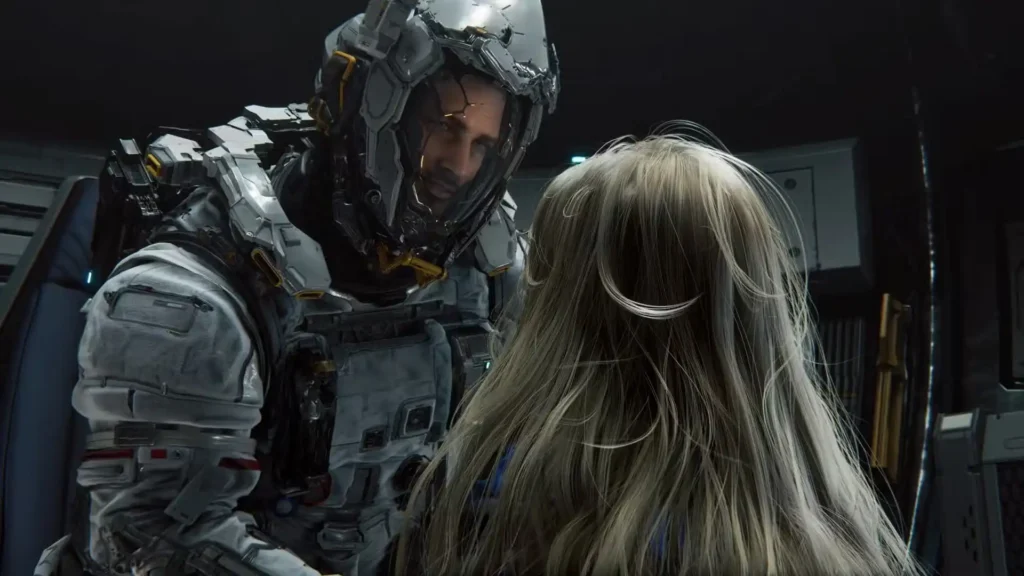
Path Tracing goes even further. It is only practical on RTX 4090 or 5090 hardware, where DLSS can offset the heavy cost. Path Tracing transforms shadows, lighting, and reflections — particularly on the clean metallic and reflective surfaces inside the lunar base. It genuinely changes how the game looks. But it is brutal on frame rate if your GPU is not up to the task.
One important note: you need Ray Tracing enabled to use Path Tracing. Disabling Ray Tracing turns off both. If you see both options in the menu, Path Tracing requires Ray Tracing to be active first.
For Nvidia users at 1440p, Ray Tracing paired with DLSS 2x performs very well, often delivering over 90 FPS on cards like the RTX 4070. AMD users should note the game runs slightly better on Nvidia at this resolution, so having more VRAM on AMD helps bridge the gap.
DLSS, FSR, and Frame Generation
Upscaling is your best friend in Pragmata, especially if you want Ray Tracing without tanking your frame rate.
For Nvidia users, DLSS Quality mode is the sweet spot at 1440p. It maintains near-native sharpness while giving a significant FPS boost. If you have the raw GPU power, native resolution produces crisper results on character detail like Diana’s face, but DLSS Quality is an excellent middle ground.
For AMD users, FSR 3.1 set to Quality mode paired with AMD FSR Frame Generation is the go-to approach. Turn on V-Sync only if your monitor does not support FreeSync or G-Sync.
On Frame Generation: it adds frames but also adds input lag. If you play action games and feel every millisecond of delay, skip it. If you are on a mid-range GPU and want smoother motion, especially during cutscenes and open sections, it is a reasonable trade. Just make sure your base frame rate is at least 40–50 FPS before enabling it. Enabling Frame Generation on a base of 25 FPS creates obvious ghosting and makes the game feel floaty.
Shadow Quality and Shadow Cache
Shadow Quality at Medium with Shadow Cache enabled is the best value setting in the game. Shadow Cache stops the GPU from recalculating shadows every frame, so enabling it is essentially free performance with no visual downside.
Do not drop Shadow Quality to Low unless you are really desperate for frames. The visual gap between High and Low is significant — small objects stop casting shadows entirely and the scene looks overly bright and flat. The frame gain is only around 10–12 FPS, which usually is not worth what you lose visually.
Ambient Occlusion
Ambient Occlusion adds soft shadows in corners, at wall joints, and around small objects. In a game like Pragmata set inside tight corridors and metallic rooms, this setting matters a lot for how the world feels three-dimensional.
Turning it off on capable hardware gives you almost no FPS gain — around 1 frame — while making the scene look noticeably worse. Objects start to look like they are floating. Keep it on SSAO if your GPU can manage it.
On weaker hardware, dropping Ambient Occlusion to Off is one of the better trades available. The visual loss is subtle in motion, and it frees up some headroom for other settings.
Volumetric Lighting
Set Volumetric Lighting to Low. It is one of the most expensive effects in the RE Engine, and the visual difference between Low and High is genuinely hard to notice during active gameplay. This is one of the easiest settings to trade down without feeling it.
Texture Quality and Texture Filtering
Texture Quality is directly tied to your VRAM. Higher textures look sharper but fill up your VRAM budget quickly. If you exceed your VRAM capacity, the game will stutter or crash. Use the in-game VRAM meter to find your safe ceiling and lower Texture Quality or disable Shadow Cache if you are pushing into the red.
Texture Filtering at Anisotropic x8 is the right call for most setups. Going to x16 offers marginal improvements that are barely visible in motion during gameplay.
Hair and Mesh Quality
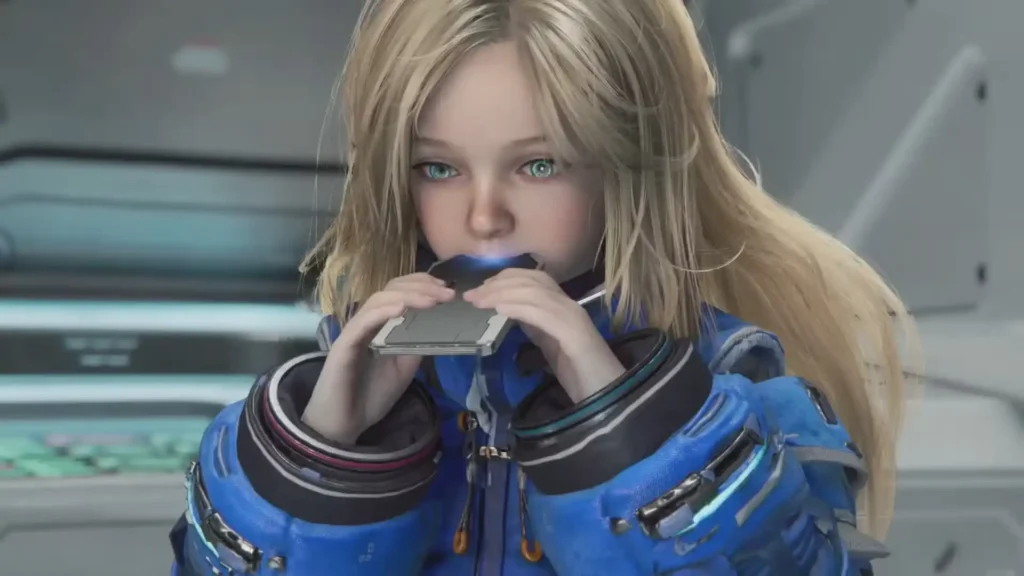
Hair Quality affects how Diana and other characters look up close. It has a moderate GPU cost. Keep it at High if you can — the difference is noticeable in cutscenes and conversations. Mesh Quality controls object geometry detail. Max is fine if your GPU has headroom. High is perfectly acceptable for most mid-range builds.
Anti-Aliasing
If you are not using DLSS or FSR, TAA is the most balanced anti-aliasing choice. Combining it with FXAA adds unnecessary blur without meaningfully improving edge quality. The performance gap between modes is very small, so pick based on looks rather than FPS.
If you are using DLSS or FSR, the upscaler handles anti-aliasing internally. You can leave the separate AA option on a low setting or off entirely.
Effects Quality
Keep Effects Quality at High for the best visual experience during combat. The explosions, lighting bursts, and particle effects in Pragmata are part of what makes the game look so impressive. Dropping this to Medium only saves modest performance while making fights look noticeably less impactful.
Cosmetic Settings (No FPS Impact)
These settings have virtually no effect on performance. Set them however you prefer:
- Motion Blur: Most players turn this off for cleaner visuals during fast action.
- Lens Flare: Personal preference, zero FPS cost.
- Depth of Field: Off is cleaner for gameplay. On adds cinematic feel in cutscenes.
- Bloom: Adds atmosphere, especially in the neon-lit sections of the Cradle.
- Lens Distortion: Off for most players.
None of these will move your frame counter in any meaningful direction. Set them based on how you want the game to feel.
Recommended Settings by Hardware Tier
Low-End PC (GTX 1660 / RX 5700, 8GB VRAM)
- Display Mode: Borderless Window
- Ray Tracing: Off
- Path Tracing: Off
- Upscaling: FSR — Performance
- Frame Generation: Off
- Shadow Quality: Medium
- Shadow Cache: On
- Ambient Occlusion: Off
- Volumetric Lighting: Low
- Texture Quality: Medium
- Hair Quality: Medium
- Mesh Quality: High
- Anti-Aliasing: TAA
Target: 1080p / 45–60 FPS
Mid-Range PC (RTX 3070–4070 / RX 6800–7800 XT, 8–12GB VRAM)
- Display Mode: Borderless Window
- Ray Tracing: On
- Path Tracing: Off
- DLSS: Quality (Nvidia) / FSR 3 Balanced (AMD)
- Frame Generation: Optional
- Shadow Quality: High
- Shadow Cache: On
- Contact Shadows: On
- Ambient Occlusion: SSAO
- Volumetric Lighting: High
- Texture Quality: High
- Hair Quality: High
- Mesh Quality: Max
- Anti-Aliasing: FXAA + TAA
Target: 1440p / 60–90 FPS
A minimum of 8GB VRAM is needed to play Pragmata at 1440p with these settings. If you are on AMD, having 12GB rather than 8GB makes a real difference at this resolution.
High-End PC (RTX 4090 / 5080–5090, 16GB+ VRAM)
- Display Mode: Borderless Window or Fullscreen
- Ray Tracing: On
- Path Tracing: On (RTX 4090/5090 only)
- DLSS: DLAA or Quality with 2x Frame Generation
- Nvidia Reflex Low Latency: On
- DLSS Ray Reconstruction: On
- Shadow Quality: Max
- Shadow Cache: On
- Contact Shadows: On
- Ambient Occlusion: SSAO
- Volumetric Lighting: High
- Texture Quality: Max
- Hair Quality: Max
- Mesh Quality: Max
Target: 4K / 120–150+ FPS
For RTX 4090 and 5090 owners, pairing max graphics with DLAA, Ray Tracing, and 2x Frame Generation delivers over 150 FPS at 4K. Add Path Tracing and Ray Reconstruction for peak visual quality if your card can handle it.
Quick Tips to Boost Performance Further
Update your GPU drivers. Always use the latest Game Ready (Nvidia) or Adrenalin (AMD) driver before launching Pragmata. Driver updates specifically for new game launches can make a meaningful difference.
Use an NVMe SSD. The game streams assets constantly across its lunar environments. A mechanical hard drive causes hitching and texture pop-in. An SSD dramatically reduces both.
Watch the in-game meters. Use the VRAM and Processing Load meters inside the settings screen to dial in your config without guessing. They are accurate and update in real time.
Do not use Frame Generation with low base FPS. If you are below 40 FPS natively, Frame Generation creates noticeable ghosting and input lag. Fix your base performance first, then enable it for a bonus boost.
Subsurface Scattering is worth keeping on. It specifically improves skin rendering on characters like Diana. The cost is low and the visual result in close-up scenes is significant.
Explore More Pragmata Guides
Once your settings are dialed in, the real adventure begins. Here are some guides to help you get the most out of the game:
- How Long to Beat Pragmata – All Sectors
- Pragmata Training Data Locations – All Sectors
- Pragmata Trophy and Achievement Guide
- How to Break Blue and Red Glowing Crystal Rocks in Pragmata
- Pragmata Mass Production Array – All Collectible Locations
- Pragmata Mini Cabins – Mass Production Array Locations
- Pragmata Solar Power Plant – All Collectible Locations
- Pragmata Mini Cabins – Solar Power Plant Locations
Final Word
Pragmata is one of the best-optimized PC releases Capcom has put out in years. The RE Engine does its job well, and even mid-range hardware can deliver a great experience with the right settings.
Start by deciding whether your GPU can handle Ray Tracing. Set Volumetric Lighting to Low, keep Shadow Cache on, use DLSS or FSR to cover the rest, and leave cosmetic settings to personal taste. From there, the game basically runs itself.


