
TL;DR
- Hiding your helmet is now possible thanks to the Headgear Visibility setting added in Patch 1.02.00 on April 4, 2026.
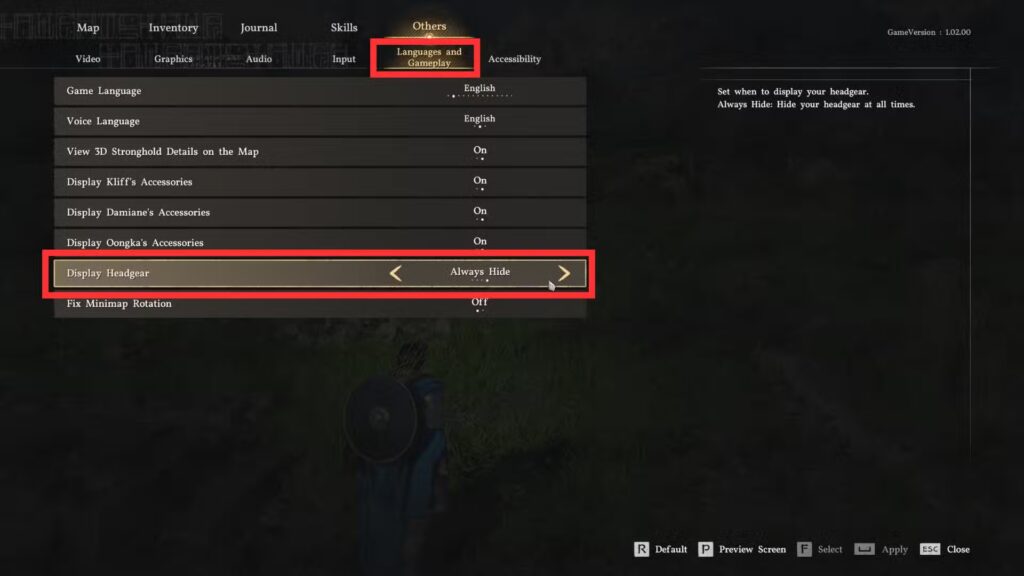
- Go to Settings → Languages and Gameplay → Display Headgear and pick your preferred option.
- Four options: Always Show, Show in Combat, Hide in Cutscenes, Always Hide.
- The setting applies to all playable characters — Kliff, Damiane, and Oongka.
- Your helmet stats remain active even when hidden — you lose nothing by hiding it.
- You can also hide face accessories like earrings separately, in the same menu just above Display Headgear.
- Helmets with visors can be toggled open or closed via the armor wheel — closed visor muffles your character’s voice.
- A weapon visibility toggle for back-mounted weapons is planned for a future patch.
One of the most requested features since Crimson Desert launched was the ability to hide your helmet while keeping its stats. Having to choose between looking good and playing optimally — especially during cutscenes where a metal bucket over Kliff’s face breaks every dramatic moment — was a constant frustration for players.
Pearl Abyss delivered the fix in Patch 1.02.00, released on April 4, 2026. It added a proper Headgear Visibility setting with four distinct options, giving you full control over when your helmet appears. This guide covers exactly where to find it, what each option does, and a few related appearance tricks most players do not know about.
For all other customization and appearance options, see our guide on how to change appearance in Crimson Desert and the full Crimson Desert hub.
How to Hide Your Helmet – Step by Step
On PC
- Press Esc to open the pause menu
- Click Others → Options → Settings
- Click the Languages and Gameplay tab
- Find Display Headgear in the list
- Click the left or right arrows (or press A/D) to cycle through the four options
- Your selection saves automatically — no confirmation needed

On PlayStation
- Hold the Options button to open the pause menu
- Press R1/L1 to navigate to the Others tab
- Press L2/R2 to select Options
- Select Settings using the D-Pad
- Press L2/R2 to navigate to the Languages and Gameplay tab
- Scroll down to Display Headgear using D-Pad Up/Down
- Use D-Pad Left/Right to cycle through options
On Xbox
- Hold the Menu button to open the pause menu
- Press RB/LB to navigate to the Others tab
- Use LT/RT to select Options then go to Settings
- Navigate to the Languages and Gameplay tab using LT/RT
- Scroll down to Display Headgear using D-Pad Up/Down
- Use D-Pad Left/Right to choose your preferred setting
The Four Headgear Visibility Options Explained
Always Show
The default setting and the only option available at launch. Your helmet is visible during combat, exploration, cutscenes, and every other moment in the game. Choose this if you want your character to always look exactly as equipped.
Show in Combat
Your helmet only appears when you are actively in combat. The moment you step out of a fight and return to exploration or dialogue, the helmet disappears visually while still providing all its defensive stats and bonuses in the background. A clean option if you want to look natural while exploring but still see your gear in the thick of battle.
Hide in Cutscenes
The helmet disappears during all dialogue sequences and story cutscenes, then reappears during gameplay. This is the option most focused on immersion — emotional story moments and character conversations show Kliff’s (or Damiane’s or Oongka’s) face clearly, while your helmet stays visible during actual play. Your character even visually performs the action of putting on or removing the helmet when transitioning, which is a nice touch.
Always Hide
The helmet is never visible — not during combat, exploration, or cutscenes. It is invisible at all times while still providing 100% of its stat bonuses, Abyss Gear socket benefits, and defense levels. This is the option most players choose. You look exactly how you want to look, you keep full stats, and you never have to think about it again.
One important note: Helmets with stat abilities that rely on visual detection — such as the Pirate King Hat’s treasure-detecting function — will not work if that helmet is set to always hidden. Active triggered abilities like the Marni Laser Helmet’s laser attack still function correctly even when hidden. If you rely on a helmet’s visual mechanic, make sure to show it when needed.

Does Hiding the Helmet Remove Its Stats?
No. This is the key thing to understand. The Display Headgear setting is purely cosmetic. Whether your helmet is set to Always Show or Always Hide, every stat it provides remains fully active:
- Defense level stays the same
- All Abyss Gear socketed into the helmet still work
- Any passive bonuses the helmet grants remain applied
- The helmet’s equipped status does not change
You are not unequipping the helmet. You are telling the game’s display system whether to render it visually or not. The item is still in your helmet slot doing its job.
How to Hide Face Accessories
Separately from the helmet visibility setting, you can also hide face accessories like earrings for each playable character. This feature has been in the game since launch and is in the same menu as the helmet setting.
In Languages and Gameplay, scroll up to find the accessory visibility toggles. There are individual options for Kliff, Damiane, and Oongka. Toggle them on or off independently depending on which character you are playing and what you want visible.
This applies only to face accessories — rings and necklaces on the body are not affected.
How to Toggle Your Helmet Visor
If your helmet has a visor — like the Bolton Plate Helm or similar armored helmets — you can open and close it at any time without going into the settings menu. This is a separate feature from the hide helmet setting and works independently.
How to toggle the visor:
- Hold Left on the D-Pad (controller) or press T (PC) to open the Quick Menu
- Navigate to the Armor tab
- Hover over your equipped helmet
- Click Right Stick (console) or scroll the mouse wheel (PC) to toggle the visor
When the visor is closed, your character’s voice takes on a muffled effect — the audio actually changes to reflect the helmet being sealed. When the visor is open, the voice returns to normal. The visor toggle is animated, so your character physically performs the action of raising or lowering it.
The same principle applies to the hood on your cloak. Open the armor wheel, hover over the cloak slot, and toggle it the same way.
The Old Method – Quick Equip and Unequip
Before Patch 1.02.00 added the Display Headgear setting, the only workaround was to physically unequip the helmet. This removed its stats entirely, so it was a real tradeoff — looking good at the cost of your defensive bonuses.
The method involved:
- Holding Left on the D-Pad (controller) or pressing T (PC) to open the Quick Menu
- Pressing R1/RB to access the Armor Wheel
- Navigating to the Helmet slot (top right)
- Using L2/LT and R2/RT to cycle to an empty slot or remove the helmet entirely
This still works if you want to actually unequip the helmet rather than just hide it. But with the Display Headgear setting now available, there is almost never a reason to physically remove your helmet unless you intentionally want to drop the stats temporarily. For general use, the setting is far more convenient.
What About Hiding Weapons and Armor?
As of Patch 1.02.00, the Headgear Visibility setting covers helmets and headgear only. You cannot currently hide weapons, body armor, gloves, boots, or cloaks through the settings menu.
Pearl Abyss has confirmed that a weapon visibility toggle — specifically for weapons shown on your character’s back when not in active use — is in development and planned for a future patch. The feature did not make it into 1.02.00 but is coming. There is no announced timeline.
There is also no transmog system in Crimson Desert at this time — you cannot change the visual appearance of gear to look like a different item while keeping your current stats. The Display Headgear setting is the closest thing to a cosmetic override currently in the game.
What Patch 1.02.00 Also Added
For context on the full update that introduced helmet hiding:
Patch 1.02.00 launched on April 4, 2026 for PC (Steam and Epic Games Store) and PlayStation, with Xbox following shortly after. Beyond the headgear visibility setting, the patch also expanded private base camp storage up to 1,000 slots depending on camp expansion level, added a new Movement Controls option that brings back the classic sprint mechanic for players who preferred it before the previous patch’s changes, improved FSR upscaling quality across PC and consoles, added a new armor set and helmet for cats, and fixed several quest progression blockers in Chapters 6 and 11.
Common Questions
Does the setting apply to all characters? Yes. The Display Headgear setting applies to all three playable characters — Kliff, Damiane, and Oongka — with the same chosen visibility mode.
Can I set different helmet visibility for different characters? No. It is a single global setting that applies to all characters at once.
My helmet ability is not working with Always Hide selected. Why? Some helmet abilities that rely on visual mechanics, like the Pirate King Hat’s treasure detection, require the helmet to be displayed to function. Switch the setting to Always Show or Show in Combat when using these helmets.
I don’t see the Display Headgear setting. Why? Make sure your game is updated to Patch 1.02.00 or later. The setting does not exist in earlier versions. Check for updates through Steam, Epic Games Store, PlayStation, or Xbox and install the latest patch.
Can I hide my helmet during specific quests or fights only? You can change the setting at any time — it does not lock during gameplay. If you want the helmet hidden for exploration but visible for a specific boss fight, switch between Show in Combat and Always Hide as needed. The change takes effect immediately and saves automatically.
Will hiding the helmet affect my appearance during photo mode or screenshots? Yes. Photo mode captures the character as displayed, so if Always Hide is selected, Kliff will appear without a helmet in screenshots too. If you want helmet-on photos, temporarily switch to Always Show before taking the screenshot.
More Crimson Desert Guides
- How to Change Appearance in Crimson Desert
- How to Dye Armor, Weapons, and Horse Gear
- How to Get the Pirate King Hat
- How to Get the Marni Laser Helmet Upgrade
- How to Get the Reindeer Cloak / Deer Disguise
- How to Get the Skirt of Damiane
- HUD Explained
- Best PC Settings for Crimson Desert
- Keyboard and Mouse vs Controller
- How to Save in Crimson Desert
- How to Put Away Weapons and Become Unarmed
- How to Change Time of Day
- How to Get Better Equipment
- How to Reinforce Equipment
- How to Upgrade Weapons and Armor
- Accessories Guide
- White Lion Necklace Legendary Location
- Necklace of Lightning Location
- How to Get the Tarivian Necklace
- Grey Wolf Armor Set Guide
- Frostcursed Armor Set All Locations
- Icewing Armor Set All Locations
- Skyblazer Armor Set All Locations
- Light of the Battlefield Set All Locations
- Pierce’s Request Quest Guide
- How to Increase Inventory Space
- How to Get Skill Points
- How to Respec in Crimson Desert
- All Characters and Companions Guide
- How to Get a Pet
- How to Get a Dragon
- How to Get Silver Fang Legendary Mount
Crimson Desert is available on PC via Steam, Epic Games Store, PlayStation 5, and Xbox Series X|S. Visit the official Crimson Desert website for the latest updates and patch notes.


